Recover deleted photos on Android by checking the right trash folder for how the photo was deleted and how long ago: Google Photos keeps deleted images for 60 days, Samsung Gallery’s Recycle Bin holds them for 30, and Google Drive’s own trash is a separate 30-day window. The right recovery path depends entirely on which of these applies to you — so start by figuring out where the photo actually lived.
Table of Contents
Step 1: Check Google Photos Trash (Most Common Case)
If you use Google Photos for backup — which most Android phones do by default — this is almost always the fastest and most successful recovery path.
- Open the Google Photos app.
- Tap Library at the bottom, then Trash in the top right.
- All photos and videos deleted within the last 60 days appear here.
- Touch and hold the first photo to begin a selection, then tap any others you want to recover.
- Tap Restore at the bottom of the screen.
Restored photos return to your main library and to whatever album they originally belonged to.
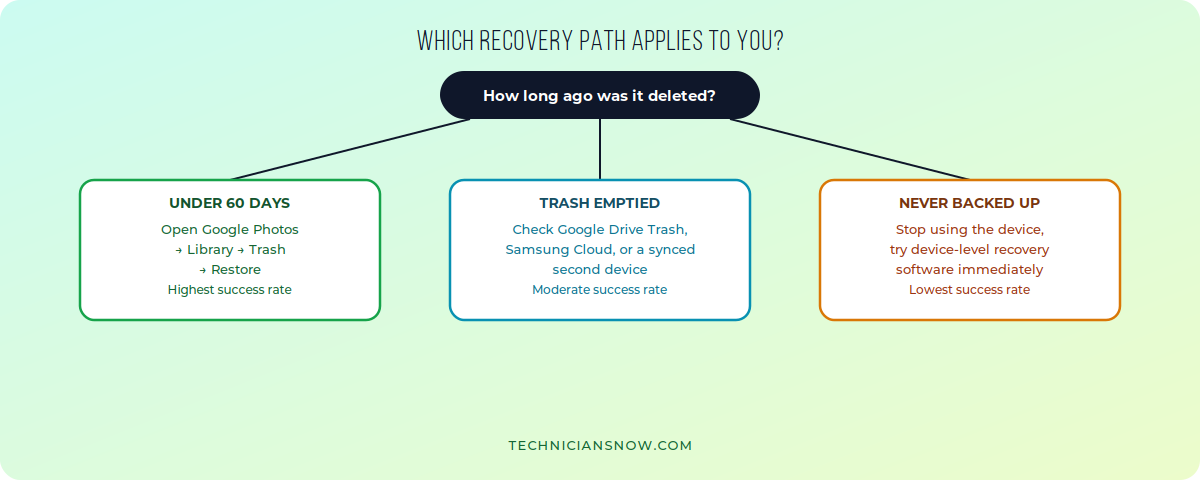
The right fix depends entirely on timing — check this before trying anything else.
Step 2: Check Samsung Gallery’s Recycle Bin
If you’re on a Samsung device and don’t use Google Photos as your primary gallery app, deleted photos go through Samsung’s own separate trash system instead:
- Open the Gallery app.
- Tap the three-dot menu, then select Trash (sometimes labeled Recycle Bin).
- Photos deleted within the last 30 days appear here.
- Tap the photos you want back, then tap Recover.
If you don’t see a Trash option at all: go to Gallery → Settings and confirm Recycle Bin is enabled — on some Samsung software versions it needs to be turned on manually before it starts holding deleted photos.
Step 3: Check Google Drive’s Trash Separately
If you back up photos through Google Drive rather than (or in addition to) Google Photos, its trash is a completely separate system with a shorter window:
- Open the Google Drive app.
- Open the side menu and select Trash.
- Files deleted within the last 30 days appear here — half the window Google Photos gives you, so don’t assume the two share a timer.
- Touch and hold a file to select it, then restore it from there.
What If the Trash Has Already Been Emptied?
If more than the retention window has passed, or someone manually emptied the trash, you still have a couple of options before giving up:
- Check other synced devices or shared albums. If the photo was ever shared to another device or album, a copy may still exist there independent of the original’s deletion.
- Request help through Google Support. Google can sometimes trace and restore files for up to 21 days after permanent deletion, evaluated case by case through the Google Drive Help page’s chat or email support — this isn’t guaranteed, but it’s worth trying before assuming the photo is gone for good.
- Try device-level recovery software if the photo was never backed up to any cloud service at all. These tools scan your device’s storage directly for recoverable file fragments, though success isn’t guaranteed and depends heavily on whether the storage space has already been overwritten by new data.
Why Backups Matter More Than Recovery Tools
The uncomfortable truth about photo recovery is that prevention beats every recovery method on this list. Once a photo’s trash window has passed and no backup exists anywhere, third-party recovery tools become a matter of chance rather than a reliable fix — they depend on whether the storage sector holding that photo has already been overwritten by something else. If you’ve been relying on trash-folder recovery more than once, it’s worth turning on automatic backup in Google Photos or Samsung Cloud now, rather than after the next accidental deletion.
How to Make Sure This Doesn’t Happen Again
- Open Google Photos → your profile picture → Photos settings → Backup and confirm backup is turned on.
- If you’re on Samsung, also check Settings → Accounts and backup → Samsung Cloud for Gallery backup specifically, since it’s a separate system from Google’s.
- Consider extending how long you keep items before manually emptying any trash folder — the 30–60 day windows only help if you don’t clear them early out of habit.
If your device’s storage is chronically full and that’s driving you to delete things faster than you mean to, our guide on how to free up storage on your iPhone covers the same underlying problem from the other major platform — the general principles (checking what’s actually using space, clearing caches before deleting memories) carry over directly.
Recovering Photos From a Specific App or Messaging Service
Photos deleted from within a specific app (WhatsApp, a messaging app, a social media app) don’t always go through your phone’s general photo trash at all:
- WhatsApp stores media in its own device folder separate from your general gallery — check WhatsApp → Settings → Storage and Data → Manage Storage for any locally cached media before assuming it’s gone.
- Social media apps rarely store originals locally at all once posted — if a photo only ever existed as a post, recovering the original file usually isn’t possible unless you specifically saved a local copy at the time.
- Cloud-synced messaging apps sometimes retain media on their own servers even after local deletion — check the app’s own settings for a “restore” or “redownload” media option before assuming a device-level recovery is your only path.
What Third-Party Recovery Apps Can and Can’t Do
For photos that were never backed up anywhere, device-level recovery apps work by scanning your phone’s storage for data fragments that haven’t yet been overwritten by new files:
- Success depends heavily on timing. The longer you keep using the device after a deletion, the more likely new data has overwritten the deleted photo’s storage space, permanently reducing your odds.
- Root access requirements vary. Some recovery tools need root access for a deeper scan, which carries its own risks and isn’t something every reader should attempt casually.
- Results aren’t guaranteed. Unlike restoring from a trash folder, this is genuinely probabilistic — treat any recovery app’s results as a possibility, not a certainty, and stop using the device as soon as possible after realizing a needed photo was never backed up.
Frequently Asked Questions
How long do deleted photos stay recoverable on Android?
It depends on where they were deleted from — Google Photos gives you 60 days, while Samsung Gallery’s Recycle Bin and Google Drive’s trash each give you 30.
Can I recover photos after the trash has been emptied?
Sometimes — Google can occasionally trace files for up to 21 days after permanent deletion through a support request, though it’s evaluated case by case and isn’t guaranteed.
Do Google Photos and Samsung Gallery share the same trash?
No — they’re separate systems with different retention windows, so a photo deleted from one won’t necessarily appear in the other’s trash.
Can I recover photos that were never backed up?
It’s possible through device-level recovery software, but success isn’t guaranteed and depends on whether the storage space has already been overwritten by new data — the sooner you stop using the device after the deletion, the better your odds.
Does restoring a photo from Trash use extra storage?
No — restoring simply moves the file back to your main library from the trash; it doesn’t create an additional copy.