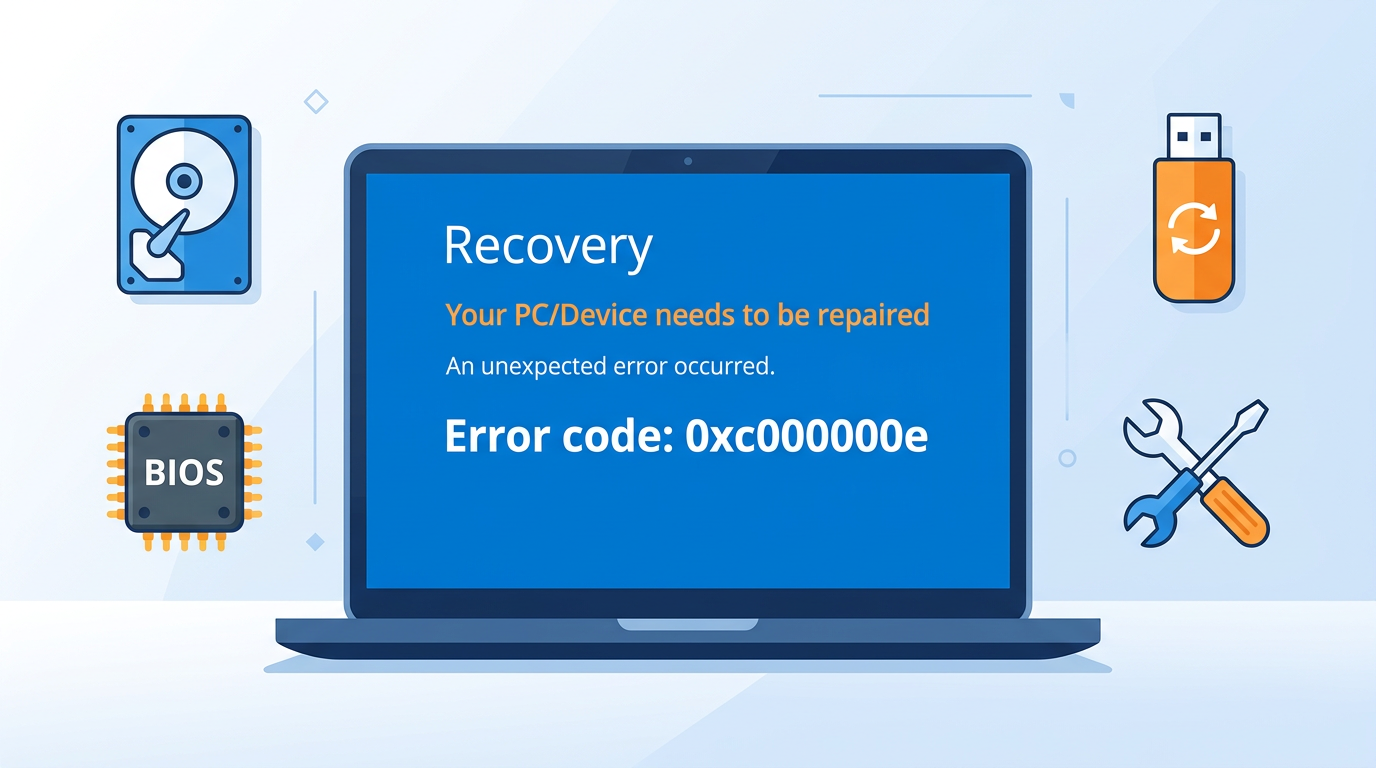
If you need to fix error code 0xc00000e in Windows, you’re likely staring at a blue recovery screen telling you your PC needs to be repaired — and restarting changes nothing.
Take a breath. This is a boot configuration problem, not a dead computer. In most cases you can fix error code 0xc00000e in Windows in about 20 minutes, with every file left intact.
Table of Contents
What Is Error Code 0xc00000e?
Error 0xc00000e means Windows cannot locate or read the boot device it expects. The Boot Configuration Data (BCD) store — the map telling your PC where Windows lives — has become corrupted, outdated, or is pointing at the wrong drive.
You’ll usually see it paired with “A required device isn’t connected or can’t be accessed.”
Common causes include:
- Corrupted or missing BCD file — the leading trigger
- Incorrect boot order in BIOS/UEFI after hardware changes
- Loose or failing SATA/NVMe connection
- Damaged system files from an interrupted update
- Cloned or migrated drives carrying stale boot references
- Failing hard drive or SSD nearing end of life
- Disabled Windows Boot Manager in firmware
Pinpointing the cause makes it much faster to fix error code 0xc00000e in Windows without a reinstall.
How to Fix Error Code 0xc00000e in Windows: 9 Methods
Work through these in order — each is progressively more involved.
Method 1: Check Physical Drive Connections
- Power down completely and unplug the machine.
- Open the case or bottom panel.
- Reseat the SATA data cable, power cable, or NVMe stick.
- Disconnect all external USB drives — they often hijack boot priority.
- Power back on.
Loose cables cause this error surprisingly often after a move or upgrade.
Method 2: Correct the Boot Order in BIOS/UEFI
- Restart and press F2, F10, Del, or Esc during startup.
- Open the Boot tab.
- Set your Windows drive as first boot device.
- Confirm Windows Boot Manager is enabled.
- Save with F10 and exit.
Method 3: Rebuild the BCD File
This is the single most effective way to fix error code 0xc00000e in Windows. You’ll need a bootable USB — grab the official Windows 11 installation media if you don’t have one.
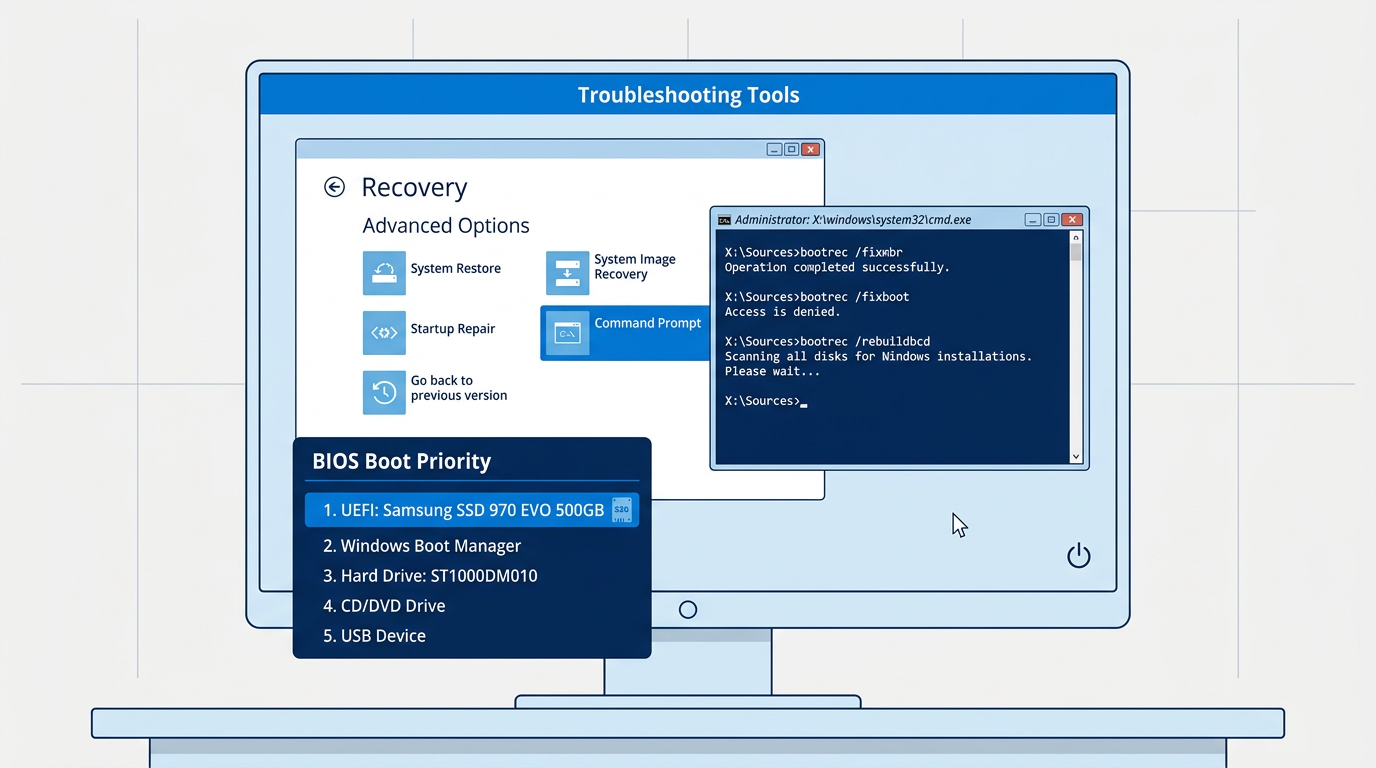
Boot from the USB, choose Repair your computer → Troubleshoot → Command Prompt, then run:
bootrec /fixmbr
bootrec /fixboot
bootrec /scanos
bootrec /rebuildbcd
Type Y if prompted to add an installation to the boot list, then restart. Full syntax lives in the bootrec command documentation.
Tip: If
bootrec /fixbootreturns “Access is denied,” runbootsect /nt60 sysfirst, then retry.
Method 4: Run Windows Startup Repair
- Boot from installation media.
- Select Repair your computer → Troubleshoot → Advanced options → Startup Repair.
- Choose your Windows installation and let it run.
Microsoft’s Windows recovery options guide details every menu item.
Method 5: Repair the EFI Bootloader (UEFI Systems)
diskpart
list disk
select disk 0
list volume
select volume X
assign letter=Z:
exit
cd /d Z:\EFI\Microsoft\Boot\
bootrec /fixboot
ren BCD BCD.old
bcdboot C:\Windows /l en-us /s Z: /f ALL
Replace X with the FAT32 volume, typically 100–500 MB.
Method 6: Run CHKDSK to Repair Disk Errors
chkdsk C: /f /r /x
Let it finish fully — on large drives this can exceed an hour. It repairs bad sectors blocking your boot files.
Method 7: Run SFC and DISM Offline
sfc /scannow /offbootdir=C:\ /offwindir=C:\Windows
DISM /Image:C:\ /Cleanup-Image /RestoreHealth
These restore corrupted system files without touching personal data. Every switch is documented in the DISM command reference on Microsoft Learn.
Method 8: Disable Secure Boot Temporarily
Secure Boot occasionally blocks a legitimate bootloader after firmware updates.
- Enter BIOS/UEFI.
- Open Security or Boot settings.
- Set Secure Boot to Disabled.
- Save, exit, and attempt to boot.
Re-enable it once Windows starts. Background on how it works sits in the Secure Boot documentation.
Method 9: Reset BIOS to Default Settings
If firmware settings were altered — or the CMOS battery died — restoring defaults clears conflicts. Look for Load Optimized Defaults, then save and exit.
How to Prevent Error 0xc00000e
- Shut down properly — avoid holding the power button
- Create a recovery drive while your PC is healthy
- Keep BIOS/UEFI firmware updated from your manufacturer
- Monitor drive health with SMART tools
- Back up regularly to cloud or external storage
- Never interrupt updates, especially firmware ones
Reliable transfers matter during backups too — our guide on FTP and its advantages explains how to move data safely between systems.
When to Call a Professional
Escalate if:
- The error returns immediately after every repair
- CHKDSK reports large numbers of bad sectors
- Your drive clicks or grinds
- BIOS no longer detects the drive
- You need data recovered before any repair
A drive that vanishes from BIOS usually signals hardware failure, where DIY attempts risk permanent data loss. Our Technicians Now specialists can diagnose it safely.
Error codes rarely arrive alone. If you’re also facing update failures, see our walkthrough on fixing Windows Update error 0x80070643, or our fix for QuickBooks Error 404.
Frequently Asked Questions
Will I lose my files fixing error 0xc00000e?
No. Every method above preserves your data. Only a full reinstall risks files, and that’s a last resort.
Can I fix it without a USB installation drive?
Sometimes. Three consecutive failed boots usually trigger the Recovery Environment automatically. A USB is far more reliable.
Does 0xc00000e mean my hard drive is dying?
Not necessarily. It’s typically BCD corruption. Repeated recurrence after repairs, though, points to failing hardware.
How long does the fix take?
Methods 1–4 take 10–20 minutes. CHKDSK and DISM can push that past an hour.
Is 0xc00000e the same as 0xc000000f?
They’re close cousins with nearly identical fixes — 0xc000000f usually means a missing BCD entry rather than an inaccessible device.
Final Thoughts
To fix error code 0xc00000e in Windows, start simple and escalate: check connections, verify boot order, then rebuild the BCD. That sequence resolves the overwhelming majority of cases without losing a single file.
A PC that won’t boot looks catastrophic, but it’s usually just a confused map — and maps are easy to redraw. For more step-by-step repairs, browse all our troubleshooting guides.