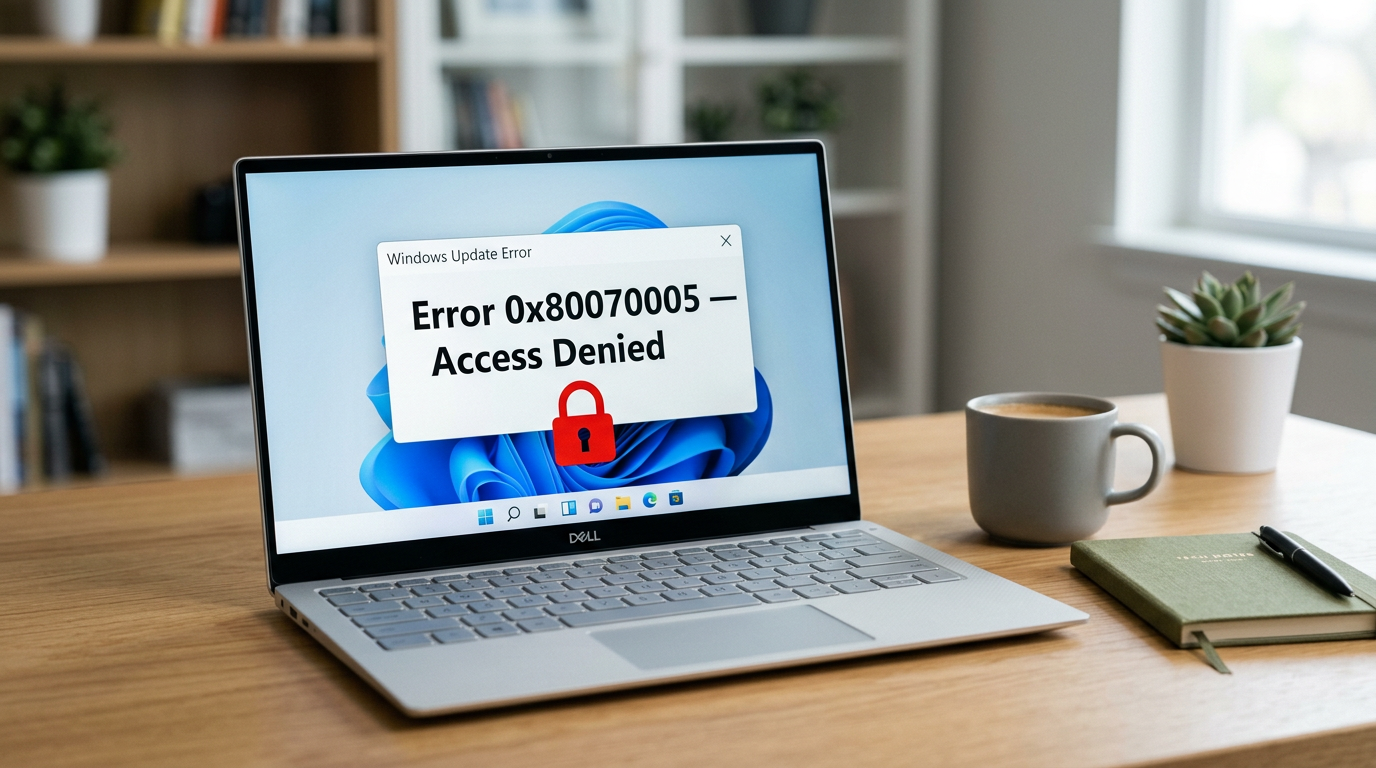
Few Windows errors feel as contradictory as being told you lack permission on your own computer. If you’re trying to fix error 0x80070005 access denied, you’ve hit a permissions wall — Windows is blocking an action it doesn’t believe you’re authorised to perform.
Here’s the reassuring part: this is a rights and ownership issue, not damaged hardware. You can usually fix error 0x80070005 access denied in 15 to 25 minutes, and nothing on your drive is at risk.
Table of Contents
What Is Error 0x80070005?
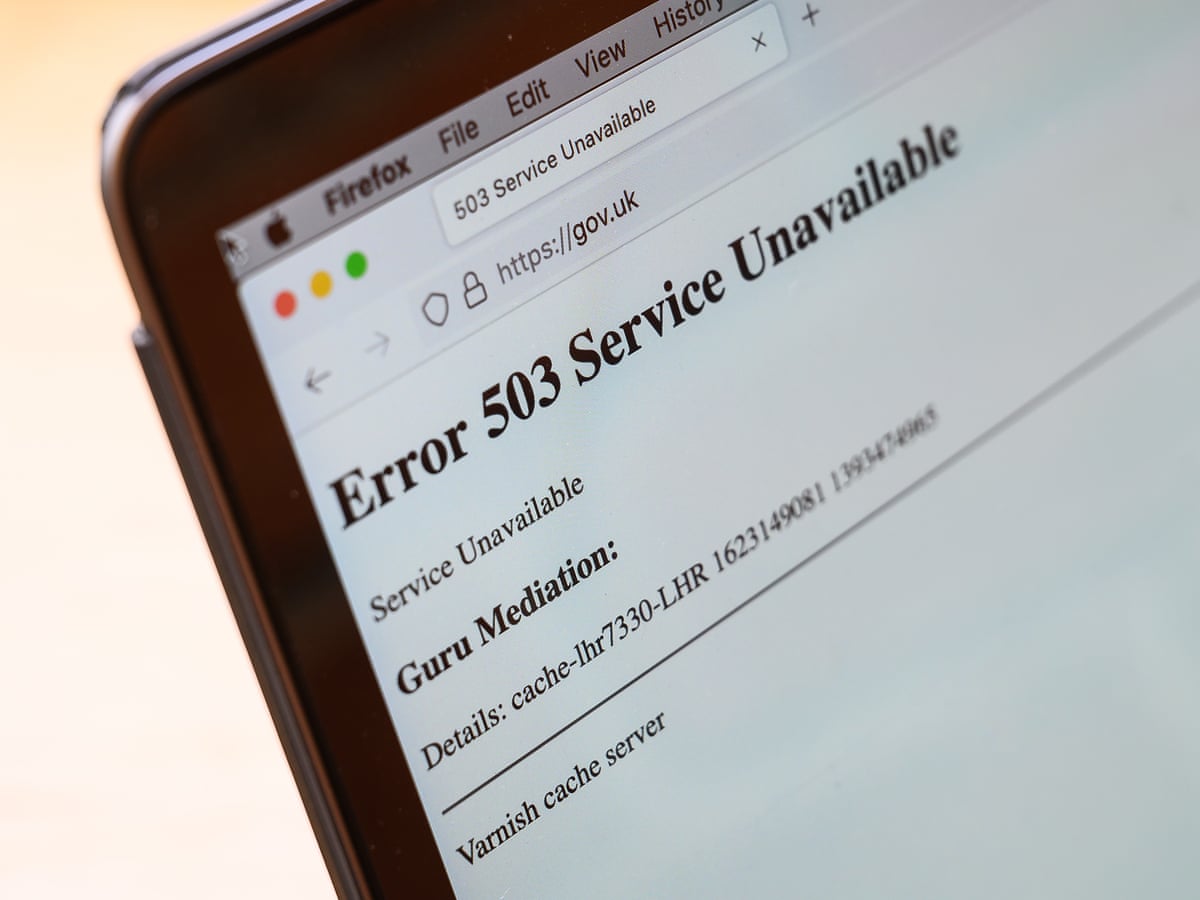
Error 0x80070005 translates literally to E_ACCESSDENIED. Windows attempted to read, write, or modify a file, folder, registry key, or service — and the operating system refused the request.
It surfaces in several places:
- During Windows Update installation
- When activating Windows or Office
- Launching or installing apps from the Microsoft Store
- Running System Restore or creating restore points
- Executing scripts or scheduled tasks
- Installing software that needs elevated rights
Common causes include:
- Insufficient user account permissions on the target file or folder
- Antivirus or firewall interference blocking installer access
- Corrupted or misconfigured registry permissions
- Missing ownership of system folders after a Windows upgrade
- Damaged Windows Update components
- User Account Control (UAC) restrictions
- Malware that has altered security descriptors
Identifying which context throws the error makes it far quicker to fix error 0x80070005 access denied without guesswork.
How to Fix Error 0x80070005 Access Denied: 9 Methods
Work through these in order — each escalates slightly in complexity.
Method 1: Run the Program as Administrator
Start with the simplest possibility.
- Right-click the application or installer.
- Select Run as administrator.
- Click Yes at the UAC prompt.
To make it permanent: right-click → Properties → Compatibility → tick Run this program as an administrator.
Method 2: Log In With a Full Administrator Account
Standard accounts trigger this error constantly.
- Press Windows + I → Accounts → Other users.
- Confirm your account type shows Administrator.
- If it says Standard, change it via Change account type.
- Sign out and back in.
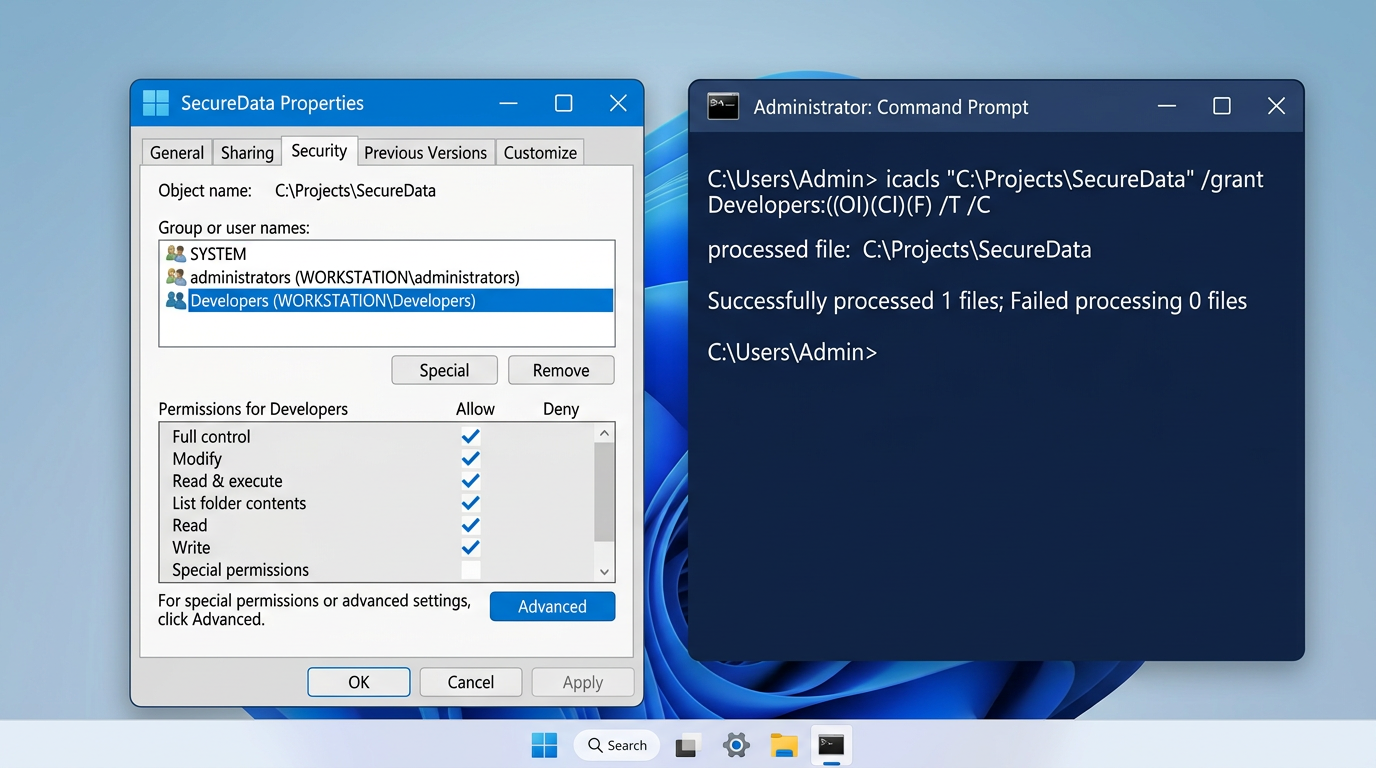
Method 3: Take Ownership of the Affected Folder
This is the most reliable way to fix error 0x80070005 access denied when a specific folder is involved.
- Right-click the folder → Properties → Security → Advanced.
- Beside Owner, click Change.
- Type your username, click Check Names, then OK.
- Tick Replace owner on subcontainers and objects.
- Tick Replace all child object permission entries.
- Apply and confirm.
Command-line alternative (run Command Prompt as Administrator):
takeown /f "C:\Path\To\Folder" /r /d y
icacls "C:\Path\To\Folder" /grant %username%:F /t
Microsoft’s icacls command documentation explains every parameter in detail.
Method 4: Temporarily Disable Antivirus and Firewall
Third-party security suites are a frequent culprit.
- Open your antivirus dashboard.
- Disable real-time protection for 15 minutes.
- Retry the failed action.
- Re-enable protection immediately afterwards.
If this resolves it, add an exception rather than leaving protection off permanently.
Method 5: Reset Windows Update Components
When the error appears during updates, rebuild the update stack. Open Command Prompt as Administrator:
net stop wuauserv
net stop cryptSvc
net stop bits
net stop msiserver
ren C:\Windows\SoftwareDistribution SoftwareDistribution.old
ren C:\Windows\System32\catroot2 catroot2.old
net start wuauserv
net start cryptSvc
net start bits
net start msiserver
Restart, then check for updates. Microsoft’s Windows Update troubleshooting guide covers additional scenarios.
Method 6: Repair Registry Permissions With SubInACL
For persistent activation and update failures, reset system-wide permissions.
- Download the SubInACL utility from Microsoft.
- Install to
C:\Windows\System32. - Create a
.batfile containing:
subinacl /subkeyreg HKEY_LOCAL_MACHINE /grant=administrators=f
subinacl /subkeyreg HKEY_CURRENT_USER /grant=administrators=f
subinacl /subkeyreg HKEY_CLASSES_ROOT /grant=administrators=f
subinacl /subdirectories %SystemDrive% /grant=administrators=f
- Run it as Administrator and restart.
⚠️ Create a System Restore point first. Registry-wide changes are difficult to reverse manually.
Method 7: Run SFC and DISM Scans
Corrupted system files quietly break permission handling.
sfc /scannow
DISM /Online /Cleanup-Image /RestoreHealth
Allow each to complete — typically 15 to 20 minutes apiece. Full switch details sit in the DISM command reference on Microsoft Learn.
Method 8: Adjust User Account Control Settings
- Search Change User Account Control settings.
- Lower the slider one notch.
- Click OK and restart.
- Retry the action, then restore your original setting.
Method 9: Scan for Malware
Malware routinely rewrites file permissions to protect itself.
- Open Windows Security → Virus & threat protection.
- Select Scan options → Full scan.
- Alternatively run Microsoft Defender Offline scan for deeper detection.
- Quarantine anything found, then restart.
How to Prevent Error 0x80070005
- Use an administrator account for installations and system changes
- Keep Windows updated so permission bugs get patched
- Avoid third-party registry cleaners — they frequently corrupt security descriptors
- Create restore points before major software installs
- Maintain one antivirus program, never two running simultaneously
- Back up regularly so permission repairs carry no risk
Secure file handling matters here too — our guide on FTP and its advantages explains how permissions govern data transfer between systems.
When to Call a Professional
Bring in expert help if:
- The error persists after all nine methods
- Multiple unrelated applications fail simultaneously
- Registry edits produce new errors
- You suspect an active malware infection
- The machine is on a managed corporate domain
Domain-joined computers often inherit Group Policy restrictions that no local fix can override. Our Technicians Now specialists can identify policy-level blocks quickly.
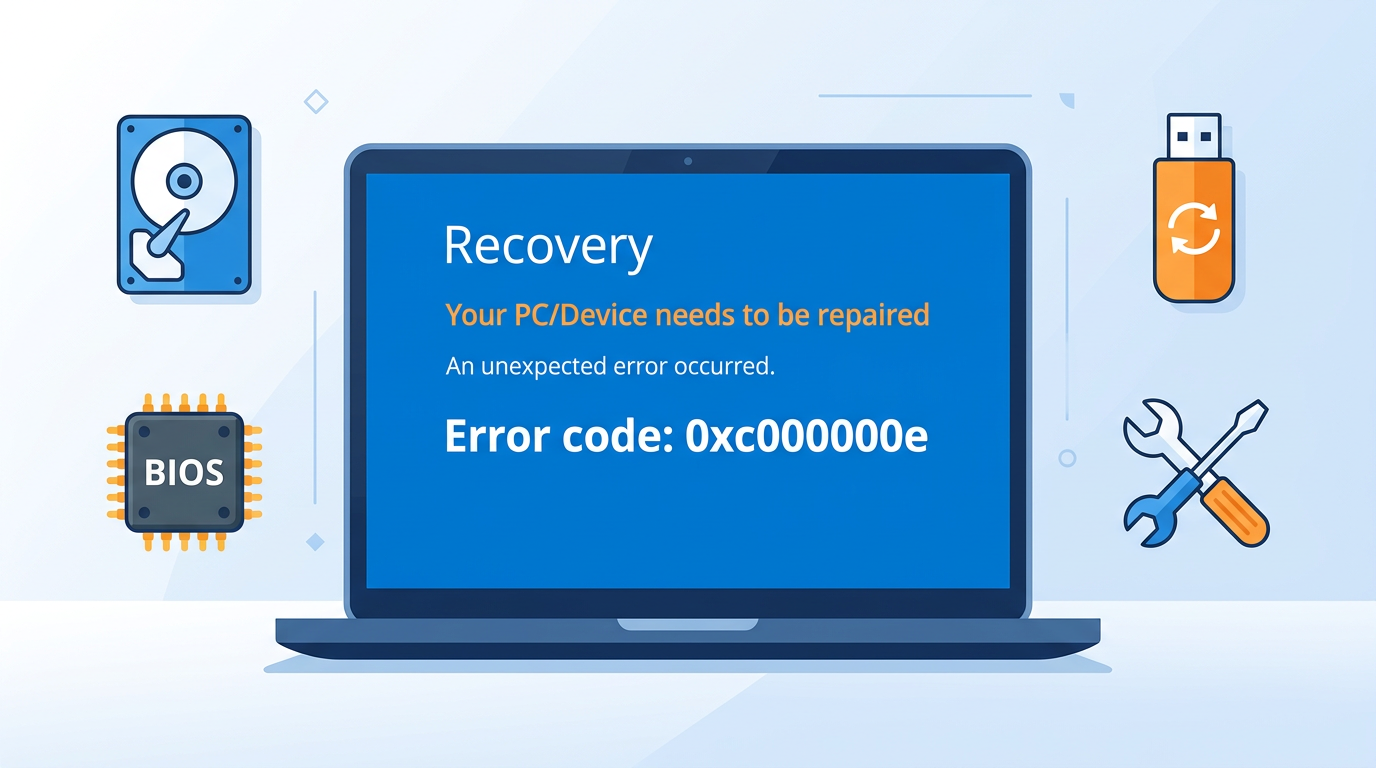
Error codes rarely arrive alone. If you’re also troubleshooting update failures, see our walkthrough on fixing Windows Update error 0x80070643. Facing boot problems instead? Our guide to fixing error code 0xc00000e covers that, and our QuickBooks Error 404 fix tackles a related access-based failure.
Frequently Asked Questions
Is error 0x80070005 a virus?
Usually not — it’s a permissions error. That said, malware can cause it by altering security settings, so Method 9 is worth running.
Why do I get access denied as an administrator?
Administrator accounts still run with reduced privileges under UAC. Explicitly choosing Run as administrator elevates them properly.
Will taking ownership break Windows?
Not for user folders. Avoid altering ownership of core system directories like C:\Windows\System32 unless a guide specifically instructs it.
Does 0x80070005 affect my files?
No. It blocks an action from completing — it never deletes or corrupts data.
Can I fix it without command line tools?
Yes. Methods 1 through 4 are entirely graphical and resolve most cases.
Final Thoughts
To fix error 0x80070005 access denied, work from simplest to deepest: elevate the program, verify your account type, take ownership, then rule out antivirus interference. That order clears the vast majority of cases before you ever open a command prompt.
Windows isn’t locking you out of your own machine — it’s just misplaced the key. And keys are easy enough to cut again.