Do you remember Adobe Flash Player? You could embed films and games into your website. It serves as a utility. Flash can also power entire websites. Several sites still use Flash, despite its declining usage and Adobe’s plan to phase it out by 2020. If you visit one of these sites, you’ll likely want to explore the content. In this tutorial, we’ll guide you through the steps to enable Flash Player in Chrome.
Table of Contents
Can You Enable Adobe Flash Player in 2026?
No, Adobe Flash Player cannot be enabled in modern browsers anymore.
Adobe officially discontinued Flash Player on December 31, 2020, and blocked all Flash content from running after January 12, 2021.
Today, browsers like Chrome, Edge, Firefox, and Safari no longer support Flash at all.
👉 This means you cannot enable Flash Player using normal browser settings anymore.
Why Adobe Flash Player Is No Longer Supported
Adobe Flash Player was discontinued due to:
- Security vulnerabilities
- Performance issues
- Availability of modern technologies like HTML5
- Lack of support from major browsers
👉 Adobe recommends uninstalling Flash Player to keep your system secure.
How to Use Flash Content in 2026 (Working Methods)
Even though Flash is discontinued, you can still access Flash content using these methods:
Method 1: Use Flash Emulator (Recommended)
- Install a Flash emulator like Ruffle or browser extensions
- Open the Flash website or SWF file
- The emulator will run Flash content automatically
👉 Emulators allow Flash content to run without installing the original plugin.
Method 2: Use Flash Player Projector (Offline Files)
- Download Flash Player Projector (standalone player)
- Open local SWF files directly
👉 This works only for offline Flash files, not websites.
Method 3: Use Legacy Browser (Not Recommended)
- Install older browsers that still support Flash
- Disable updates
- Run Flash content
⚠️ Warning: This method is unsafe and not recommended due to security risks.
How Can Enable Adobe Flash Player for Google Chrome?
Since Google Chrome disables the Flash player by default, you’ll need to enable it for it to work.
Access Content Settings
Chrome has its own integrated Flash version, so nothing needs to be installed.
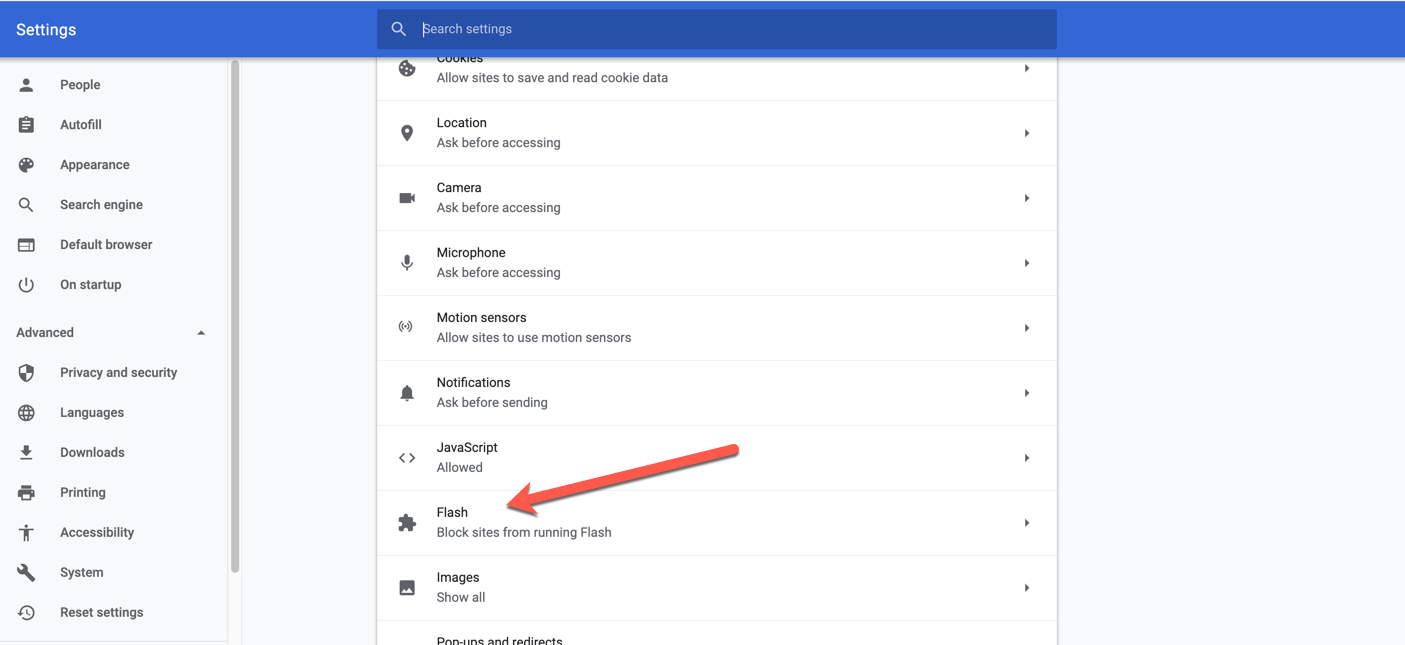
Access Chrome’s settings by navigating to chrome:/settings/content. Once there, scroll down to locate the Flash player option.
Allow Flash to Run
Toggle on the “Block sites from running Flash (recommended)” switch under “Flash.” “Ask first,” it will now say.
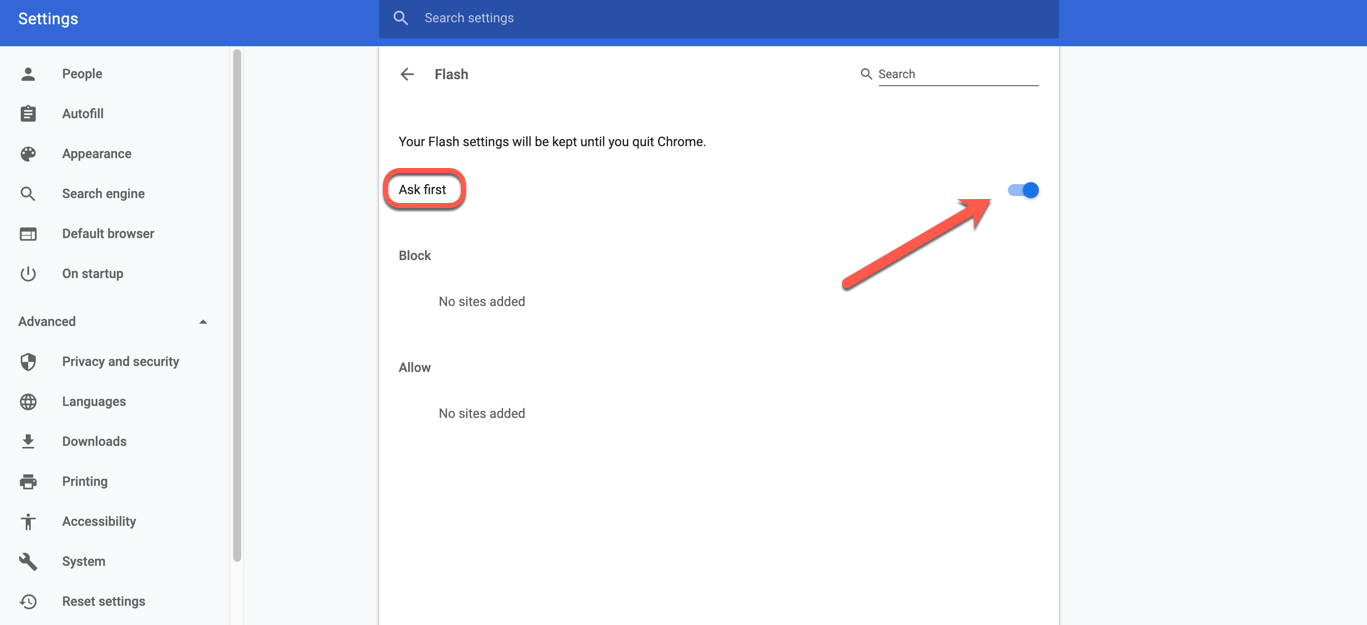
When you visit a site that utilizes Flash, it will now ask you if you wish to enable Flash to run. Double-checking is usually a smart idea.
Congratulations, I’m halfway you did it.
Interesting Blog:- err_connection_refused Error – Best Tips to Fix in the Chrome
How to Allow Certain sites to run Flash
You need to tell Chrome which sites to allow now that you’ve permitted it to ask for your permission to run sites containing Flash (whew).
Visit A Flash-Based Website
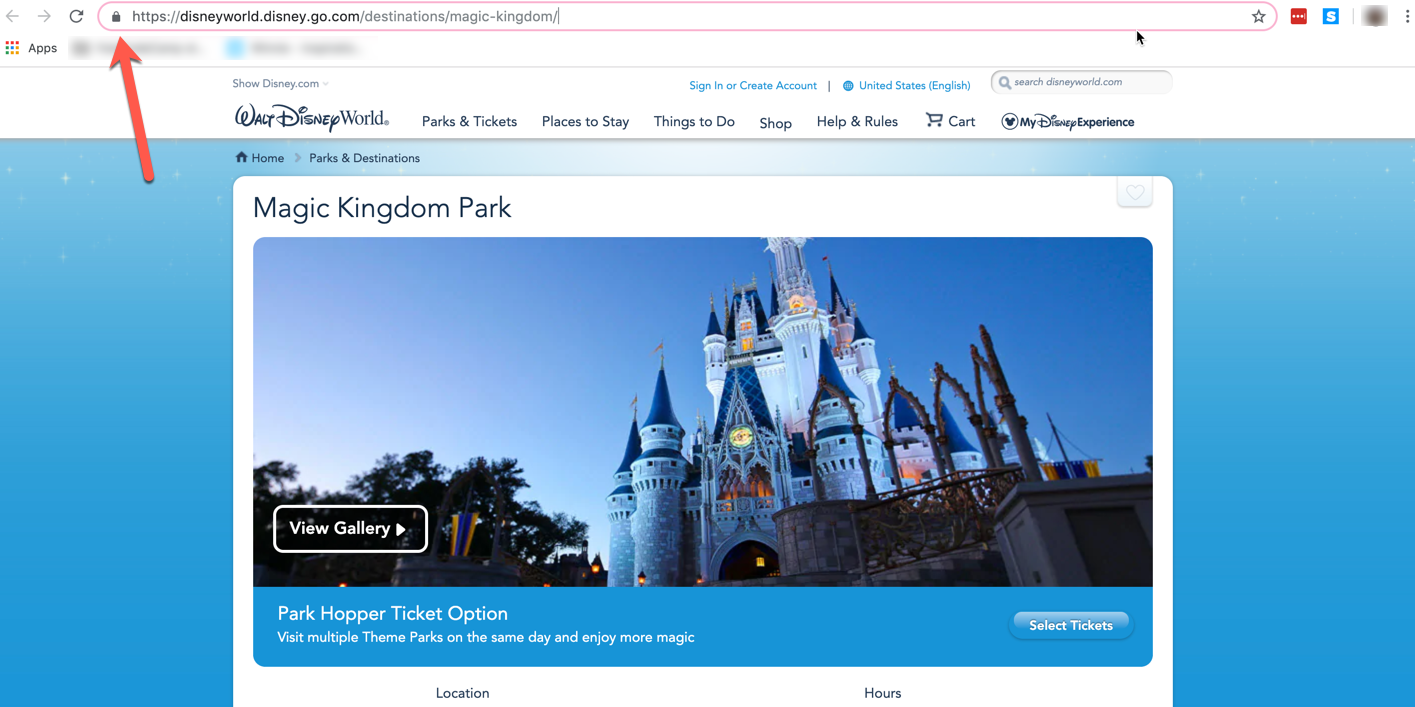
Let’s indulge in some childish awe and magic, shall we? We want to view all of the sparkling magical goodness on Disney’s Magic Kingdom site, which employs Flash.
Look for the little grey lock in the address bar once you’ve arrived at the site.
Its Flash Settings Should be Updated
Select “Site settings” at the bottom after clicking it.
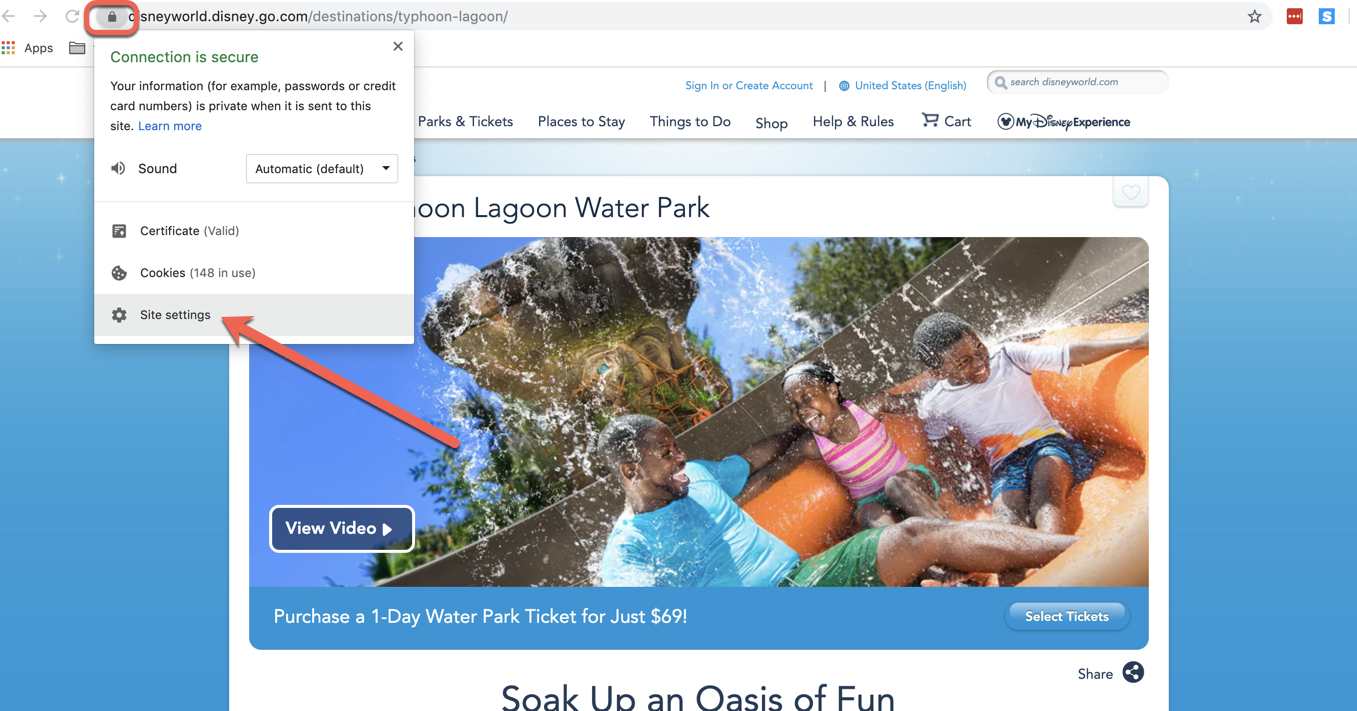
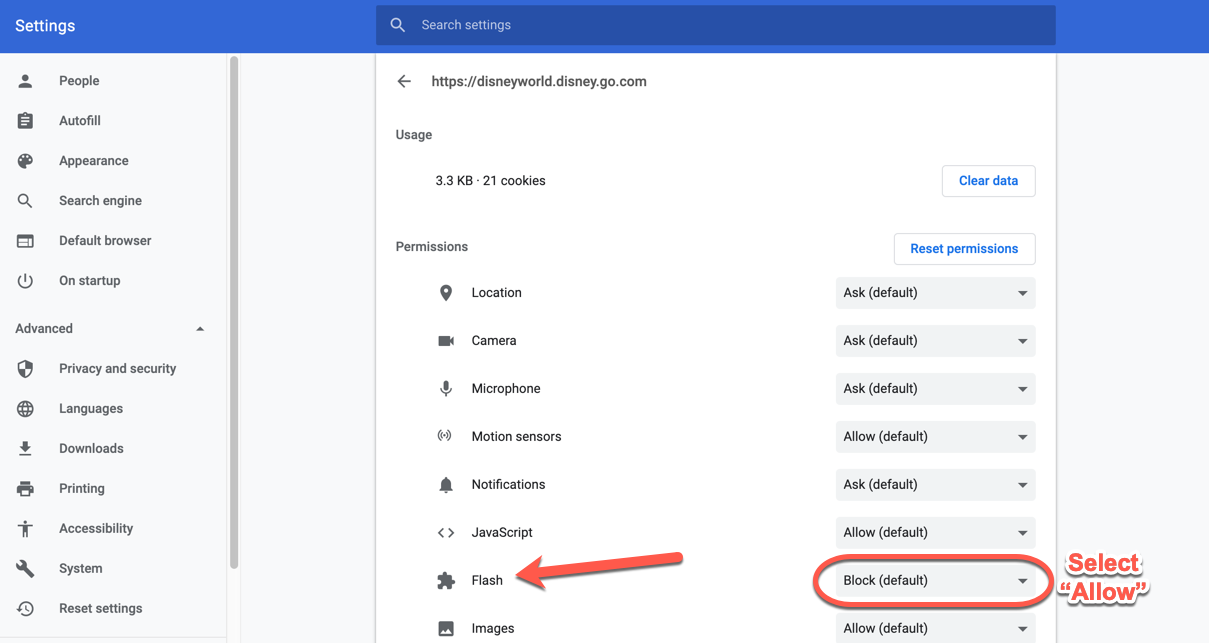
This will take you to a menu with several choices. You’ll see Flash about halfway down. A drop-down menu labeled “Block” can be found to the right.
You must click that dropdown menu and pick “Allow” instead to enable Flash.
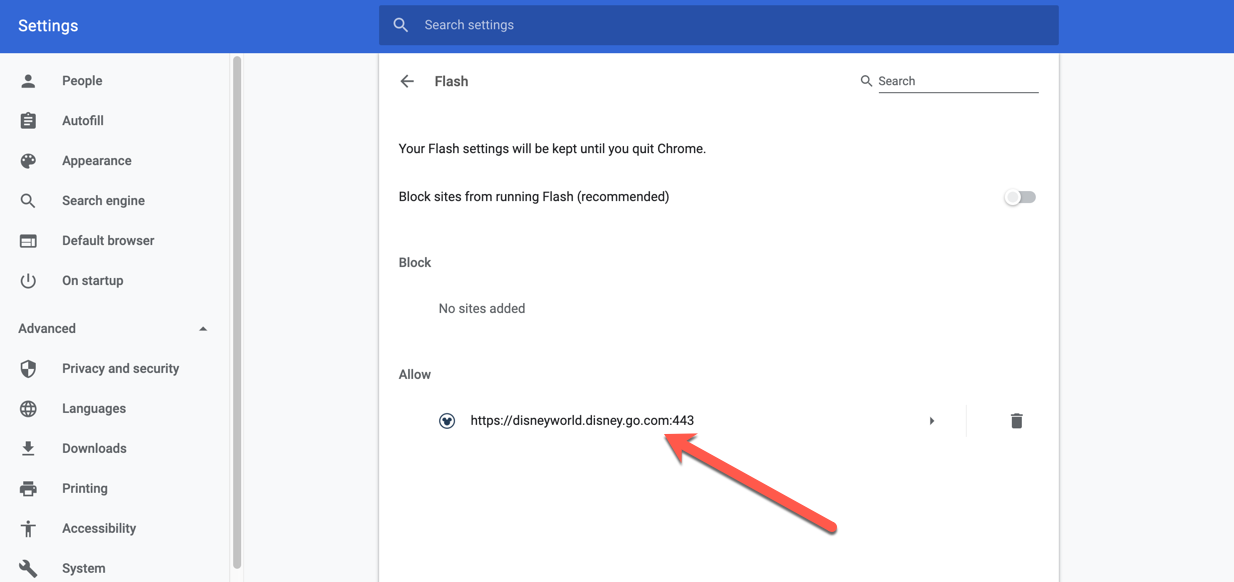
If you go back into Chrome and check your general Flash settings, you should see that site on your “authorized” list.
Reload the page by returning to the website. All of the Flash material will vanish in the blink of an eye.
You May Like:- How to Restore Chrome Tabs – Best Steps to Get back
Caution: If you’re visiting a new website, be aware. Because Flash is vulnerable to security flaws, use caution while turning it on.
Finally, if you close your browser, you’ll have to repeat the procedure the next time you wish to use Flash. Chrome intentionally discourages users from enabling Flash, making it as inconvenient as possible.
Why Flash Player Cannot Be Enabled in Chrome or Edge
- Chrome removed Flash completely in version 88
- Firefox removed support in version 85
- Edge and Safari also blocked Flash permanently
👉 Modern browsers no longer include the Flash plugin at all.
Best Alternatives to Adobe Flash Player
Instead of Flash, modern websites now use:
- HTML5 (for video and animations)
- WebGL (for graphics and games)
- WebAssembly (for performance-heavy apps)
👉 These technologies have replaced Flash entirely on the web.
FAQs About Enabling Adobe Flash Player
Can I enable Adobe Flash Player in Chrome?
No, Chrome has completely removed Flash support, and it cannot be enabled in any version after 2021.
Is Adobe Flash Player still available for download?
No, Adobe has removed official download links and blocked Flash content from running.
How can I run Flash content now?
You can use Flash emulators, standalone players, or archived tools to access Flash content.
Why was Adobe Flash Player discontinued?
It was discontinued due to security risks, poor performance, and the rise of modern web technologies.
Is it safe to install Flash Player from third-party sites?
No, downloading Flash from unofficial sources can expose your system to malware and security threats.
Pro Tips for Handling Flash Content Today
- Avoid installing unofficial Flash versions
- Use trusted emulators for legacy content
- Switch to modern platforms whenever possible
- Keep your browser and system updated
- Do not rely on Flash for critical applications