You have seen network errors on streaming websites that can appear anywhere. In fact, in many cases where you expect them the least. While Twitch network error 2000 is no exception, the only thing is, the errors in this case now come both expectedly and unexpectedly in any given situation, and users can’t get enough of it.
Table of Contents
What is Twitch Network Error 2000?
It is a network-related error that occurs when users receive an unsecured connection, preventing them from accessing their website and making chats and streams inaccessible. However, it is not exactly clear why the error appears, but there are a few solutions that can help in fixing the problem.
1. Clearing out Browser Cookies
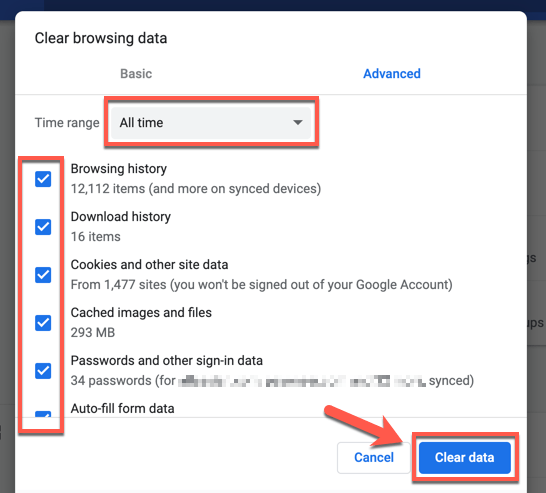
There can be a conflict between cookies that are created initially and the ones that are trying to be accessed right now. Hence, clearing them is an easy solution. This can be done through the following steps:
- Launch your browser (we are taking Chrome, for example)
- Click on the three dots on the upper right and click on settings
- On the left, click on privacy and security
- Click on Clear browsing data
- Click on cookies and other site data (if you want to clear only cookies, then untick all the other options); however, it is preferred to perform a total cleanup of all data stored in Chrome.
- Select the time range to all time and click on clear data
- After cookies have been cleaned, visit the website again
Read More:- Twitch Chat Overlay – How to Add in the Game?
If the issue is still present, don’t worry, we have more ways to fix it
2. Make Twitch Antivirus-Friendly
A lot of antiviruses go hard on websites and block their actions as potentially dangerous applications. As a result, this may seem inappropriate to Twitch as it finds a user trying to block certain services while accessing it. To confirm this, we need to verify whether your antivirus is causing the issue or not. For that, we need to disable the antivirus for a short period of time to ensure the website is accessible.
- Launch the dashboard of the antivirus application
- Click on settings (either available on the left-hand menu or top of the menu bar)
- Go to protection and security settings, turn off real-time protection
- Now visit the website to ensure whether it is accessible or not
If it’s still not accessible, then u can happily turn on your anti-virus and skip to the next solution
If it is accessible, then your antivirus is the problem. Follow the steps below
- Now you will have to add it to the list of exceptions so that the antivirus doesn’t go all out on the website once it’s accessed again. So we have taken the interface of Kaspersky Internet Security as an example.
- Launch the app, click on settings, then click on additional settings, then click on threats and exclusions
- Select on exclusions, then select specify interested applications, click on add
- Now, here you will have to add the following URL: twitch.tv
3. Disable Ad Blockers and Browser Extensions
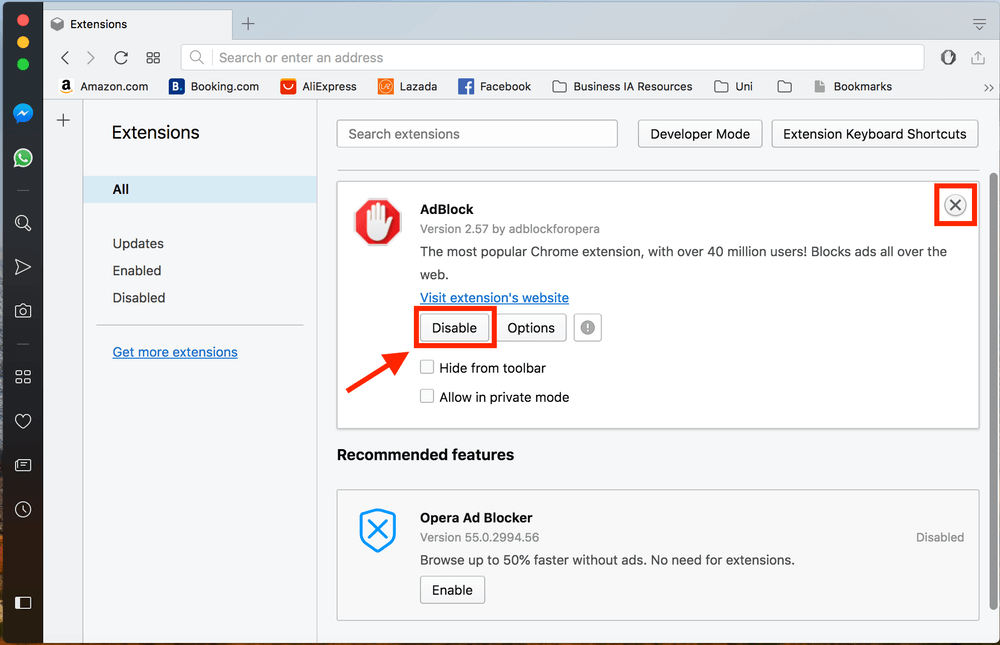
Extensions like Ad-blockers or other miscellaneous extensions can be a cause of conflict between your connection and the website. Many extensions interfere with the script of the website, which can disrupt the structure of how the website loads and eventually end up throwing an unwanted error. In order to get rid of that, it is better to disable ad blockers and other possible extensions and check the status of the website again.
4. Access the Website from Another Browser
It has been found out that level 2000 has been reported mostly on Google Chrome; hence it can be eliminated by using other popular browsers such as Mozilla Firefox, Microsoft Edge, Safari, etc. After installing other browsers, access the same website again.
5. The Permanent Solution: Switch to the Desktop Client
If you want to get rid of the problem completely, it is better to download the official app from the website to get uninterrupted access to live streams.
We hope these solutions mentioned would have helped you to come to a favorable resolution.