Twitch error 3000 is one of the most common errors that Twitch users face. When this error appears, it says “3000: media resource decoding error” alongside a black screen. As a result, you are not able to play or stream any video on Twitch. So hang around. We’ve got some solutions.
Table of Contents
Why does Twitch Error 3000 occur?
Many reasons cause this issue, primarily rooted in the browser’s inability to decode media while streaming on Twitch. These reasons include:
- Non-responsive HTML 5 player: The browser may not be able to provide output while decoding and streaming videos on your browser
- A browser may be using the latest version of Flash. The same may not be compatible with your browser.
- Corrupt cookies and cache files can also be a cause of this error.
- This error is mostly reported by Chrome users, so a fix might be on the way from developers.
How can I fix the Twitch error code 3000?
Fix #1: Clear cache and cookies
Cookies and caches are one of the front-facing issues that can cause the error to show up. Due to the conflict of accessing data between cookies stored in the browser and the website processing, it can cause an issue with its functionality:
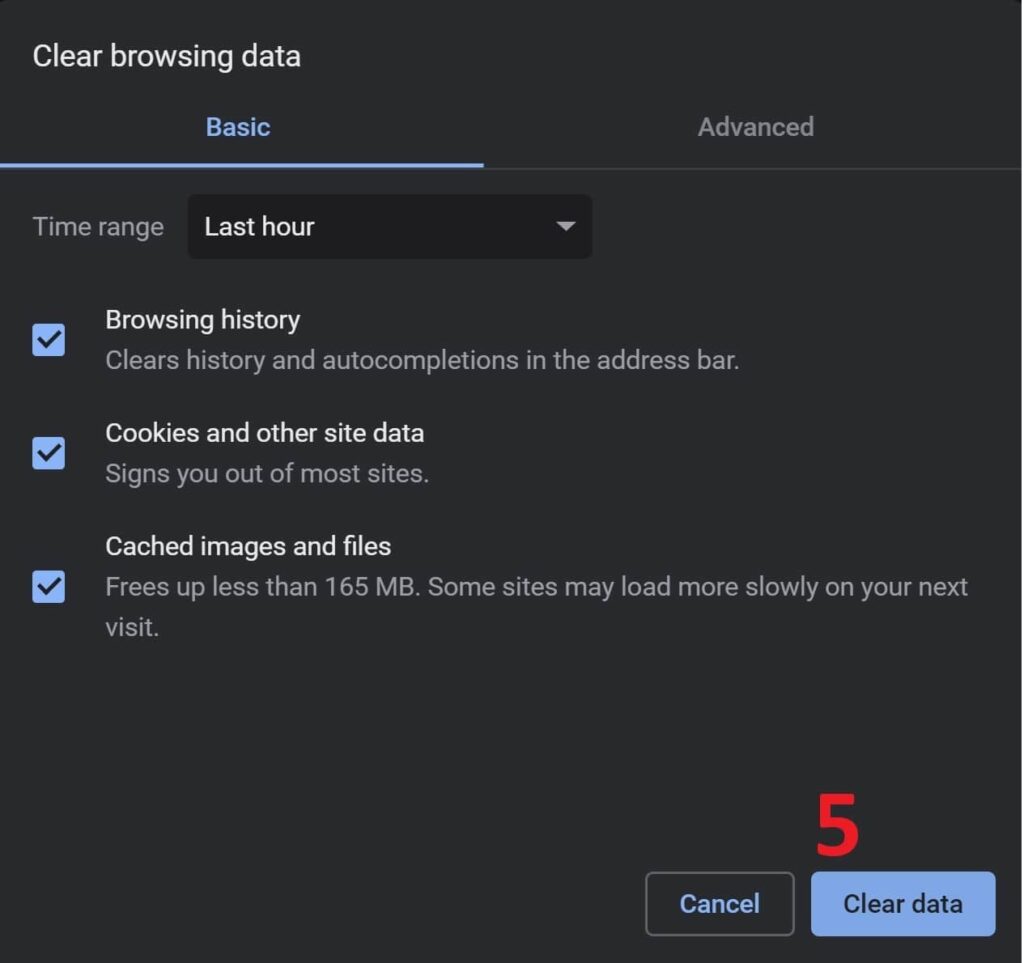
- Launch your browser (we are taking Chrome, for example)
- Click on the three dots on the upper right and click on settings.
- On the left, click on privacy and security.
- Click on precise browsing data.
- Click on cookies and other site data (if you want to clear only cookies, then untick all the different options. However, it is preferred to perform a total cleanup of all data stored in Chrome.
- Select the time range to all time and click on the exact data
- After cookies have been cleaned, revisit the website.
Fix #2: Disable hardware acceleration
This option utilizes system hardware to load web pages and stream on websites. This helps in adjusting as per the resources available on the PC and prioritizes accordingly. However, the hardware may often act as a conflict, while specific websites may demand individual specifications to run a particular function. Hence, it becomes necessary to disable hardware acceleration to allow the website to work as intended.
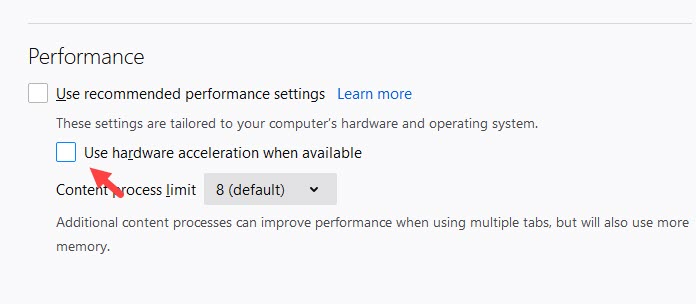
- Launch the Google Chrome browser.
- Then, from the top right side of your browser, click on the three vertical dots.
- From there, go to the settings.
- No,w from the settings tab, on the left-hand side, click on Advanced.
- Then, click on the system.
- Under it, uncheck the option which says “Use hardware acceleration when available.”
- After that, restart your browser to implement the changes.
- Once you are done with every step, go to Twitch and see if you are still getting the same error code 3000, or not.
Fix #3: Enable third-party cookies from the website
Cookies are files that are stored in your browser as a package of tastes and preferences you want your website to function in. It helps in making your browsing experience better. Often, the website asks for separate permission for storing cookies in your browser to work correctly. Blocking those cookies can stop them from enabling certain functionality. Hence, those cookies need to be allowed.
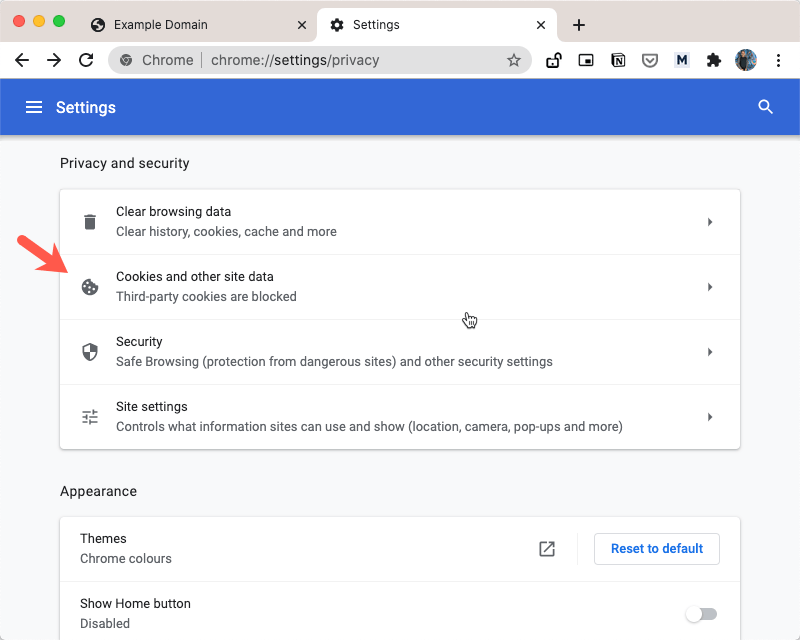
- First of all, visit the same page where you are facing the issue.
- After that, look at the side of the address bar, and you will find a cookie icon.
- Click on it, and a new menu will pop up.
- From here, select the ‘Always allow <website> to set cookies’ option, and you are good to go.
- Then, check if you are still getting the same Twitch media resource decoding error on your browser or not.
Fix #4: Last but not least, try changing your browser
Since this problem has been reported mainly by Google Chrome users, it is better to try visiting from another browser and see whether the issue persists. Try using Firefox, Microsoft Edge, or Safari to check whether the same appears to occur again. If it does not, then it’s mainly Chrome Chrome-related issue, and a software update might be in the way by Google.
Conclusion
The mentioned fixes should surely help you fix Twitch error code 3000. If no one works, you can always download a desktop client and enjoy uninterrupted entertainment for good.