Quick answer: Most slow laptops improve dramatically from four fixes, in this order: disable unnecessary startup apps, free up disk space (aim for at least 15–20% free), run a full malware scan, and install pending OS and driver updates. If performance is still poor after all four, the laptop’s hardware — usually RAM or an aging hard drive rather than an SSD — is likely the real bottleneck.
Table of Contents
Why Laptops Slow Down Over Time
Slowdowns almost always come from one of four sources: too many programs launching automatically at startup, a nearly-full storage drive, background malware or bloatware consuming resources, or genuinely outdated hardware struggling with modern software demands. Working through fixes in the right order matters — there’s no point troubleshooting hardware limits before ruling out the free, five-minute fixes first.
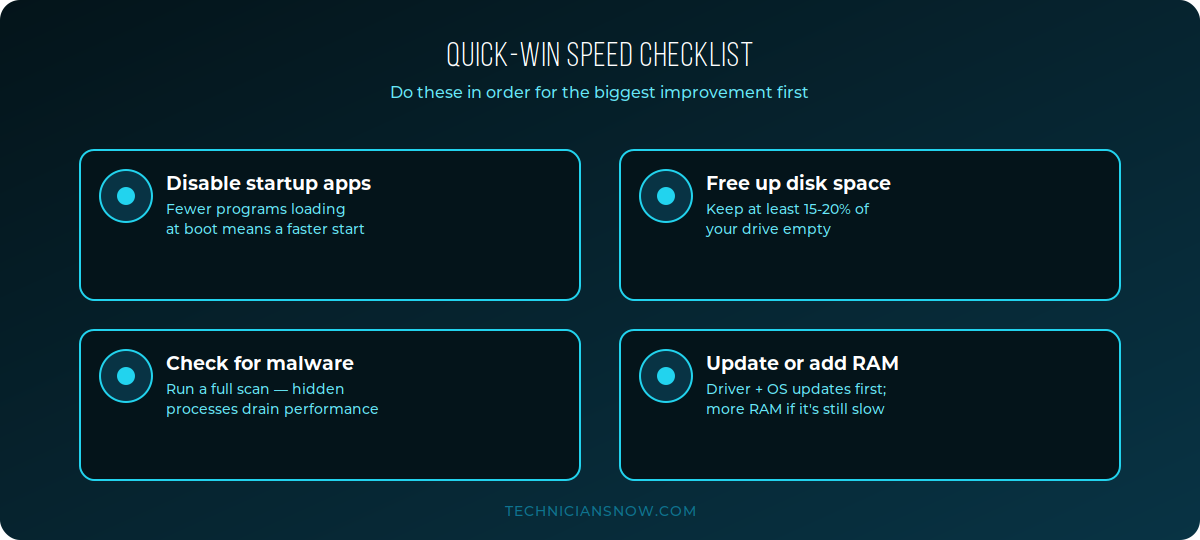
Work through these in order — most laptops see the biggest improvement from the first two steps alone.
Fix #1: Disable Unnecessary Startup Apps
On Windows:
- Press Ctrl + Shift + Esc to open Task Manager.
- Click the Startup apps tab.
- For anything you don’t need running the moment your laptop turns on, right-click and select Disable.
On Mac:
- Open System Settings → General → Login Items & Extensions.
- Remove any apps listed under Open at Login that you don’t need launching automatically.
This single step often produces the most noticeable improvement, especially on laptops that have accumulated software over several years.
Fix #2: Free Up Disk Space
A drive that’s nearly full slows down both Windows and macOS significantly, since the operating system needs free space for temporary files, virtual memory, and updates.
On Windows:
- Open Settings → System → Storage.
- Use Storage Sense to automatically clear temporary files, or manually review large folders under Storage → Show more categories.
- Uninstall unused applications under Apps → Installed Apps.
On Mac:
- Open About This Mac → Storage → Manage.
- Review the Recommendations panel — it typically surfaces large, unused files and apps automatically.
- Empty the Trash and clear old iOS device backups if you don’t need them anymore.
Aim to keep at least 15–20% of your total drive free — going much below that is one of the most common causes of sudden, dramatic slowdowns on laptops with smaller SSDs.
Fix #3: Run a Full Malware/Adware Scan
Background processes from malware or aggressive adware can silently consume CPU, memory, and network resources without any obvious symptoms beyond general sluggishness.
- On Windows: Run a full scan using Windows Security (built into Windows) or a reputable third-party antivirus tool.
- On Mac: While macOS has strong built-in protections, it isn’t immune — a reputable Mac-specific security scanner can catch adware and unwanted browser extensions that built-in tools sometimes miss.
Fix #4: Update Your OS, Drivers, and Apps
Outdated drivers — especially graphics drivers — and pending OS updates are a frequent, overlooked cause of slowdowns and stability issues.
On Windows: Go to Settings → Windows Update and install any pending updates, then separately check Device Manager for outdated graphics or chipset drivers if you notice specific performance issues (like video playback stutter).
On Mac: Go to System Settings → General → Software Update and install any available updates.
When the Problem Is Actually Hardware
If you’ve worked through all four fixes above and performance is still poor, the laptop’s hardware is likely the real limiting factor. A few signs point specifically to hardware rather than software:
- Still using a traditional hard drive (HDD) instead of an SSD — this is one of the single biggest speed differences in laptop computing, and upgrading an older laptop from HDD to SSD often produces a bigger improvement than any software fix.
- 8GB of RAM or less while running modern browsers with many tabs — RAM is one of the most common bottlenecks for everyday multitasking, and adding more (where the laptop supports it) can meaningfully help.
- A CPU several generations old struggling with current web pages and apps — this is the one limitation that generally can’t be fixed without replacing the laptop, since processors aren’t upgradeable in almost all modern laptops.
A Simple Monthly Maintenance Routine
Once you’ve done the initial cleanup, a short monthly routine keeps most laptops running smoothly:
- Restart the laptop fully at least once a week — this clears accumulated background processes that build up over long uptime periods.
- Review startup apps again after installing new software, since many programs quietly add themselves to startup during installation.
- Keep an eye on free disk space, especially if you regularly download large files or media.
- Install OS and security updates promptly rather than deferring them repeatedly.
Browser-Specific Fixes (Often the Real Culprit)
For many people, “my laptop is slow” really means “my browser is slow” — and browsers have their own set of fixes worth trying before assuming it’s the whole system:
- Limit extensions — each installed browser extension runs in the background on every tab; disable ones you don’t use regularly.
- Clear cache and cookies periodically — a bloated cache can slow page loading and, in rare cases, cause rendering issues.
- Use a tab-suspending feature or extension — most modern browsers can automatically “sleep” inactive tabs to free up RAM without closing them outright.
- Check for a runaway tab or extension — Chrome’s built-in Task Manager (Shift+Esc) and Firefox’s about:performance page both show exactly which tab or extension is consuming the most resources.
Windows-Specific Extras
- Disable visual effects and animations under Settings → Accessibility → Visual effects (or System → Advanced system settings → Performance on older Windows versions) for a small but real speed gain on lower-spec hardware.
- Check for excessive background apps under Settings → Apps → Installed apps, sorted by size or last used, to spot bloatware you may not remember installing.
Mac-Specific Extras
- Check Activity Monitor (Applications → Utilities) for any single process consuming unusually high CPU or memory, which sometimes indicates a misbehaving app rather than a general slowdown.
- Rebuild Spotlight’s index if search feels sluggish system-wide — this can indicate a deeper indexing issue affecting overall performance, fixable under System Settings → Siri & Spotlight.
Cloud Sync Services Running Quietly in the Background
A commonly overlooked cause of ongoing slowdowns is cloud storage sync software — OneDrive, iCloud Drive, Google Drive, and Dropbox all run continuous background processes that scan and sync files, which can meaningfully affect performance on lower-spec laptops, especially right after adding a large number of new files.
- Check whether any cloud sync app is actively indexing or uploading a large batch of files under its system tray/menu bar icon.
- Consider pausing sync temporarily during demanding tasks (gaming, video editing) if your laptop is lower-spec.
- Review which folders are actually set to sync — syncing an entire large photo or video library when you only need a few folders is a common, easily fixed source of ongoing background load.
If background network activity is part of your slowdown, our explainer on what a VPN is and how it works is worth a read too, since some VPN configurations add their own overhead.
Frequently Asked Questions
Will reinstalling Windows or macOS fix a slow laptop?
Often yes, if the slowdown is caused by years of accumulated software bloat, but it’s a last resort — work through the four fixes above first, since a fresh install means reinstalling all your applications from scratch.
Does closing background browser tabs actually help?
Yes — modern browsers, especially Chrome, can consume significant RAM per open tab, and closing unused tabs (or using a tab-suspending extension) noticeably frees up memory on lower-RAM laptops.
Is it worth upgrading RAM on an older laptop?
Often yes, if the laptop’s RAM is user-upgradeable (not all modern thin laptops allow this) — going from 8GB to 16GB is one of the more cost-effective upgrades for everyday multitasking performance.
Can a bad battery affect laptop speed?
Indirectly — some laptops throttle CPU performance when running on a degraded battery or in a low-power mode to preserve remaining battery life, which can feel like a general slowdown.
How often should I restart my laptop?
At least once a week for most users — restarting clears accumulated memory usage and background processes that build up over long periods without a full shutdown.