Free up storage on iPhone starting with the fixes that recover the most space for the least effort: empty Recently Deleted in Photos, enable Optimize iPhone Storage, offload apps you rarely use, and clear cached data from heavy apps. Most people never get past the first two steps and are already missing several gigabytes they don’t need to lose.
Table of Contents
First: See Where Your Storage Is Actually Going
Before deleting anything, check what’s actually taking up space — guessing wastes time and often targets the wrong thing.
- Go to Settings → General → iPhone Storage.
- Wait a moment for the bar chart to fully calculate — this can take 30–60 seconds on a phone with a large library.
- Review the breakdown by category: Photos, Apps, System Data, Media, Messages.
- Scroll down to see every individual app sorted by how much space it uses.
For most people, Photos is the single largest category, often 20GB or more — which is why the next few steps focus there first.
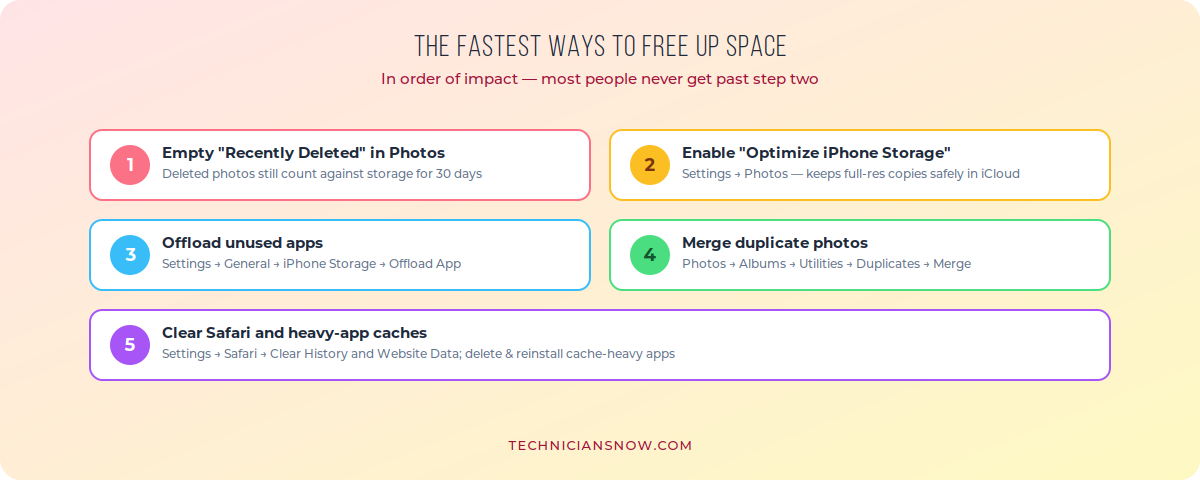
Most people stop after step one or two — the rest recovers even more.
Step 1: Empty “Recently Deleted” in Photos
This is the single most commonly missed step, and it trips up almost everyone doing a cleanup for the first time: deleting a photo doesn’t actually remove it. iOS holds deleted images in the Recently Deleted album for 30 days, and they still count against your storage the entire time.
- Open Photos → Albums → Recently Deleted.
- Tap Select, then Delete All.
- Confirm. The freed space shows up immediately.
Step 2: Enable “Optimize iPhone Storage”
This single setting is one of the most effective in the entire system for photo-heavy users, and it doesn’t require deleting a single image:
- Go to Settings → Photos.
- Select Optimize iPhone Storage.
- Your iPhone keeps space-saving versions of photos locally, while full-resolution originals stay safely in iCloud. Opening a photo pulls the full version down automatically and invisibly.
This requires an active iCloud Photos connection and enough iCloud storage to hold your full library — check your iCloud plan if you haven’t already.
Step 3: Offload Apps You Rarely Use
Offloading removes an app itself while keeping its documents and data, so you don’t lose saved progress or files if you reinstall it later.
- Go to Settings → General → iPhone Storage.
- Tap an app you rarely use.
- Select Offload App.
- To automate this going forward, go to Settings → App Store and enable Offload Unused Apps — iOS will then handle this automatically for apps you haven’t opened in a while.
Step 4: Merge Duplicate Photos
iOS has a built-in duplicate detector that’s easy to miss if you’ve never gone looking for it:
- Open Photos → Albums → Utilities → Duplicates.
- Review each duplicate set — iOS shows them grouped together.
- Tap Merge on each set. iOS automatically keeps the highest-quality version and moves the rest to Recently Deleted.
Step 5: Clear Safari and Heavy-App Caches
Certain apps accumulate cache data far faster than others, and clearing it doesn’t touch your actual account, photos, or messages within that app:
- Safari: go to Settings → Safari → Clear History and Website Data. This alone can free several hundred megabytes to multiple gigabytes.
- Social and streaming apps (Instagram, TikTok, Spotify, and similar): these are among the worst offenders for silent cache growth. Deleting and reinstalling the app resets its cache without affecting your actual account, since your data lives on the app’s servers, not just your device.
- Streaming app downloads: check Netflix, YouTube, Disney+, and similar apps for downloaded content you forgot about — these can easily add up to several gigabytes.
A Few Lesser-Known Ways to Free Up Storage on iPhone
- Reset your keyboard dictionary: go to Settings → General → Transfer or Reset iPhone → Reset Keyboard Dictionary. Predictive text data accumulates over years and rarely gets cleared otherwise.
- Force a storage recalculation: attempting to download a large app (even if it fails due to insufficient space) can prompt iOS to clear some of its own temporary system files automatically.
- Restart your iPhone: this clears some categories of temporary “System Data” cache — a simple step that’s easy to forget in a manual cleanup.
- Check iCloud’s own recommendations: go to Settings → [your name] → iCloud → Recommended for You for account-level cleanup suggestions Apple surfaces automatically, separate from the on-device storage screen.
When “System Data” Won’t Shrink
If the System Data category stays unusually large (15GB or more) even after working through everything above, a full restore through Finder or iTunes — with a complete backup taken first — can clear deeply accumulated temporary files that on-device cleanup can’t reach. This is a last resort rather than a routine step, since it’s more involved than everything above it.
On Android instead? Our guide on how to recover deleted photos on Android covers the equivalent photo-management basics for that platform.
Managing Messages: The Silent Storage Thief
Text and chat apps rarely get blamed for storage problems, but they’re often a bigger contributor than people expect, especially over several years of use:
- Go to Settings → General → iPhone Storage → Messages to see exactly how much space Messages itself is using.
- Within Settings → Messages → Keep Messages, change the setting from Forever to 1 Year or 30 Days to have iOS automatically delete old conversations and their attached media going forward.
- Review large attachments directly: open a long conversation, tap the contact’s name at the top, and look for an option showing shared photos and videos — deleting a handful of large video attachments can recover more space than dozens of individual photos.
Files App: Local Storage Hiding in Plain Sight
The Files app often holds forgotten downloads and documents that never show up when people think about “photos” or “apps” specifically:
- Open Files → On My iPhone.
- Sort by size if the option is available, or review folders manually for anything unexpectedly large.
- Delete files you no longer need directly from this view — anything here counts as on-device storage just like everything else.
Music and Video Downloads Add Up Fast
If you use Apple Music, Spotify, or a video-streaming app’s offline download feature, downloaded media can silently consume many gigabytes without appearing as an obvious culprit:
- In Settings → Music, enable Optimize Storage to have iOS automatically remove downloaded songs you haven’t played recently once space gets tight.
- Check Netflix, Disney+, and similar apps individually for downloaded episodes or movies sitting unused — these downloads don’t automatically expire the way streaming caches often do.
Frequently Asked Questions
Why did deleting photos not free up any space?
Deleted photos move to the Recently Deleted album and still count against your storage for 30 days unless you empty that album manually.
Does “Optimize iPhone Storage” delete my original photos?
No — your full-resolution originals stay safely stored in iCloud; only a smaller, space-saving version stays on your device, and the full version downloads automatically whenever you open that photo.
What’s the difference between offloading an app and deleting it?
Offloading removes the app itself but keeps its documents and data, so reinstalling later restores your saved progress; deleting removes both the app and its data entirely.
How much storage does iOS itself take up?
Typically 10–20GB depending on the iPhone model and iOS version, and this can fluctuate with software updates and temporary files — it isn’t something you can reduce directly.
Is it safe to clear an app’s cache?
Yes, in almost all cases — cache data is temporary and gets rebuilt automatically; clearing it (usually by deleting and reinstalling the app) doesn’t affect your saved account data, which lives on the app’s own servers for most major apps.