Best Minecraft mods for most players fall into three categories that solve different problems: performance mods (Sodium, Lithium) that make the game run smoother without changing how it looks, shader support (Iris) for players who want a visual upgrade, and gameplay mods (JEI, Create) that add real functionality. This guide covers the essentials in each category, plus how to install them safely.
Table of Contents
Choosing a Mod Loader First: Fabric or NeoForge
Before installing any mod, you need a mod loader — mods aren’t installed directly into vanilla Minecraft.
- Fabric is the current standard for performance-focused setups. Sodium, Lithium, and Iris are all built for Fabric first, and it tends to update fastest after a new Minecraft version drops.
- NeoForge has become the community’s preferred successor to the older Forge loader, especially for large content-heavy modpacks with hundreds of mods. If you’re chasing a specific big modpack, check which loader it actually requires before picking one.
Many players run Fabric for a lean, performance-first setup and switch to NeoForge only when a specific modpack demands it.
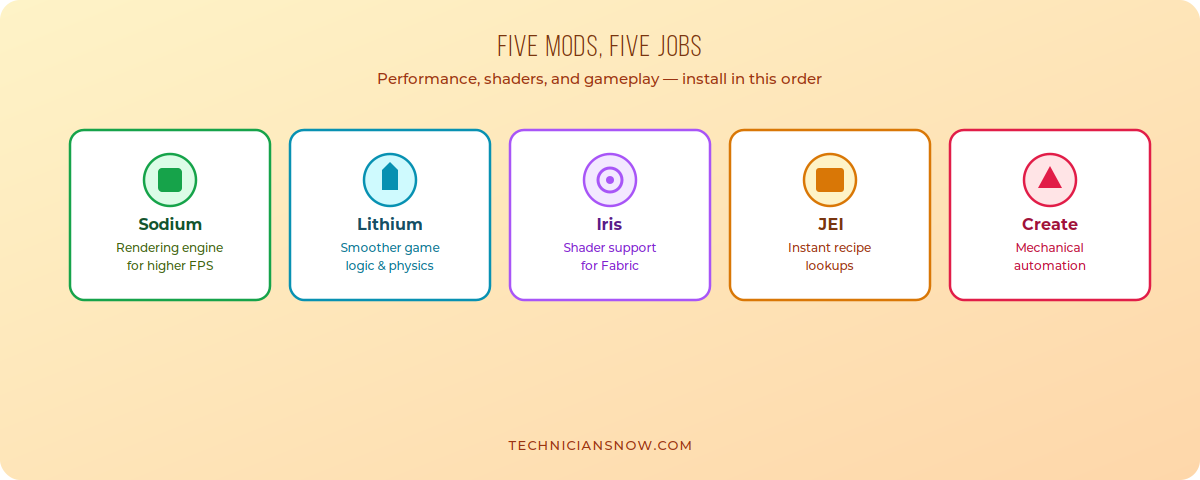
Install performance mods first, then layer visual and gameplay mods on top.
The Performance Trio: Sodium, Lithium, and FerriteCore
If you install nothing else, these three make the single biggest difference to how Minecraft actually feels to play:
- Sodium — replaces Minecraft’s rendering engine with a far more efficient one, often producing a dramatic FPS increase with zero gameplay changes. This is usually the first mod any Fabric player installs.
- Lithium — optimizes the game’s internal logic rather than its graphics: mob AI, block updates, world ticking, and physics calculations all run more efficiently, which especially helps in busy worlds with farms or lots of entities.
- FerriteCore — reduces Minecraft’s memory footprint by cleaning up how block states and other objects are stored in memory. This matters most on large modpacks or lower-RAM systems.
Together, these three are often called the “performance trio,” and they’re compatible with almost every other mod on this list.
Iris: The Modern Way to Run Shaders
Iris is a shader-loading mod that works on top of Sodium, letting you use popular community shader packs (BSL, Complementary, Sildur’s, and others) while keeping most of Sodium’s performance gains. It’s widely considered the standard shader solution for Fabric today, replacing the older OptiFine approach for players on that loader.
- Best for: players who want dramatically improved lighting, water, and shadows without abandoning a performance-focused setup.
- Note: Iris and OptiFine can’t run together, since both try to control the same rendering pipeline — pick one or the other, not both.
- Shader pack recommendation for beginners: Complementary Reimagined is a common starting point, since it includes presets tuned for both weaker and stronger hardware.
JEI (Just Enough Items): The Quality-of-Life Essential
JEI adds an in-game recipe browser, letting you look up how to craft any item — or what any item is used for — without leaving the game or opening a wiki in another tab. It’s one of the most universally recommended mods regardless of what kind of Minecraft you play, since it saves time in every single play style without changing any actual gameplay mechanics.
Create: For Players Who Want Mechanical Automation
Create adds an entirely new layer of mechanical contraptions — rotational power, conveyor belts, mechanical presses, and elaborate factory-style automation — built with an unusually polished, satisfying visual style. It’s less about “quality of life” and more about giving experienced players a genuinely new way to play, especially those who enjoy engineering-style problem solving.
A Few More Worth Knowing About
- Biomes O’ Plenty — significantly expands world generation variety with new biomes, for players who find vanilla terrain repetitive after a while.
- Cobblemon — a large, actively developed Pokémon-style mod that’s become one of the most downloaded content mods on the platform, built for both Fabric and NeoForge.
- Entity Culling — a smaller performance mod that stops the game from rendering entities that are hidden behind walls or terrain, a surprisingly effective and low-risk optimization.
How to Install Minecraft Mods Safely
- Install your chosen mod loader (Fabric or NeoForge) using its official installer.
- Download mods only from Modrinth or CurseForge — both are well-moderated, mainstream sources. Avoid random third-party mirror sites, which sometimes repackage mods with unrelated bundled software.
- Place downloaded mod files in your
.minecraft/modsfolder. - Launch the game through your mod loader’s profile, not the vanilla launcher profile.
- Add mods one at a time when you’re building a new setup, launching the game after each one — this makes it far easier to spot which specific mod causes a crash or conflict if something goes wrong.
If performance is your main concern rather than new content, our dedicated guide on how to fix lag in Minecraft goes deeper into settings and RAM allocation alongside these same performance mods.
Building a Balanced Modpack From Scratch
If you’re assembling your own setup rather than downloading a pre-made modpack, a sensible build order looks like this:
- Start with the performance trio — Sodium, Lithium, and FerriteCore — and launch the game to confirm everything loads correctly before adding anything else.
- Add Iris if you want shaders, along with one beginner-friendly shader pack like Complementary Reimagined.
- Add quality-of-life mods like JEI once the performance base is confirmed stable.
- Add content mods last (Create, Biomes O’ Plenty, Cobblemon), one at a time, since these are the most likely to conflict with each other or require specific compatibility patches.
Testing after each addition — rather than installing twenty mods at once — makes it dramatically easier to identify the specific mod responsible if something crashes.
Modpacks vs. Building Your Own List
If assembling mods individually feels like too much manual work, curated modpacks (available through CurseForge and Modrinth’s own launchers, or third-party launchers with one-click installs) bundle a tested, compatible set of mods around a specific theme — tech-focused, exploration-focused, or performance-only. Modpacks trade some customization for convenience and pre-tested compatibility, which is often the better starting point for newer players, while building your own list from scratch gives more control once you know what you specifically want.
Keeping Mods Updated Without Breaking Your World
Mod updates occasionally introduce compatibility issues, especially right after a new Minecraft version releases and mods haven’t caught up yet:
- Back up your world before updating any mod, not just before major Minecraft version updates.
- Update one mod at a time on an existing world rather than updating everything simultaneously, so a problem is easy to trace back to its source.
- Check each mod’s changelog on Modrinth or CurseForge before updating — breaking changes are usually flagged there directly.
Frequently Asked Questions
Do I need Fabric or NeoForge to use mods?
Yes — mods require a mod loader; you can’t add them directly to a vanilla Minecraft installation.
Can I use Iris and OptiFine together?
No — both try to control the same rendering pipeline, so you need to choose one or the other, not both at once.
Are Sodium and Lithium safe to use on multiplayer servers?
Generally yes for most survival servers, since they’re client-side performance mods rather than gameplay-altering cheats — though some competitive PvP servers restrict specific mods, so check individual server rules.
What’s the difference between a performance mod and a content mod?
Performance mods (Sodium, Lithium, FerriteCore) make the existing game run more smoothly without changing what you can do; content mods (Create, Cobblemon, Biomes O’ Plenty) add genuinely new gameplay, items, or mechanics.
Where’s the safest place to download Minecraft mods?
Modrinth and CurseForge are the two most widely trusted sources — both moderate uploads and clearly label mod-loader and version compatibility.