Quick answer: DuckStation is the best overall PS1 emulator for most people — it combines high compatibility, sharp upscaling, and an actively maintained codebase across PC, Android, and several handhelds. RetroArch (using the Beetle PSX core) is the better choice if you want one app covering multiple retro consoles, and ePSXe remains a solid, lightweight option with long-standing plugin support.
Table of Contents
Before You Start: Emulation and Legality
Emulator software itself is legal in most countries — it’s simply a program that replicates the original PlayStation hardware. What determines legality is how you get your games: dumping ROM/ISO files from PlayStation discs you personally own is the only legally safe way to use them with an emulator. Downloading copyrighted game files from the internet, even for a console you own, is copyright infringement in most jurisdictions. This guide covers the emulator software only — for game files, always use discs from your own collection.
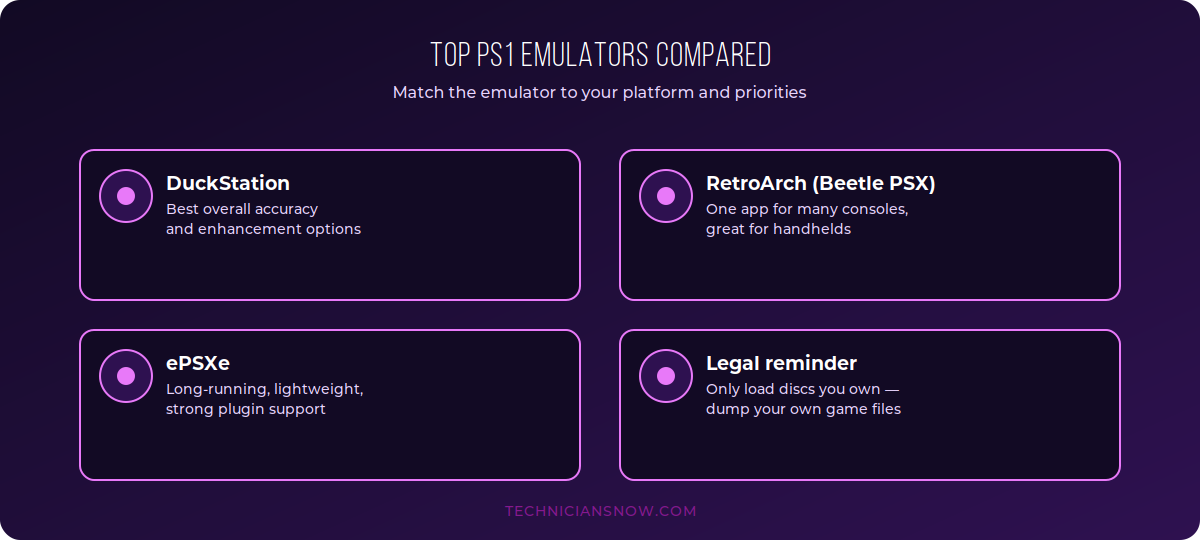
Match the emulator to your platform and how much setup complexity you’re comfortable with.
Best Overall: DuckStation
DuckStation is a modern, actively developed PS1 emulator built specifically around accuracy and performance, and it’s become the default recommendation across most retro gaming communities.
- Strengths: excellent compatibility with the PS1 library, clean upscaling for sharper visuals on modern displays, frequent updates, and a genuinely simple setup process.
- Platforms: Windows, Linux, Android, and several handheld gaming devices ship it as a default or easily installable core.
- Best for: most players, from casual retro fans to more demanding accuracy-focused users.
Best for Multi-Console Setups: RetroArch (Beetle PSX Core)
RetroArch isn’t a PS1 emulator on its own — it’s a front-end that runs individual emulator “cores,” including Beetle PSX for PlayStation games. If you’re also emulating other consoles (SNES, Genesis, N64), RetroArch lets you manage everything through one consistent interface.
- Strengths: one unified app and control scheme across many systems, extensive shader and filter options, strong handheld device support.
- Platforms: Windows, Linux, macOS, Android, and virtually every popular retro handheld.
- Best for: players building a multi-console retro library who don’t want a separate app per system.
Best Lightweight Option: ePSXe
ePSXe has been around for decades and remains a capable, low-overhead choice, particularly for older or lower-spec computers that might struggle with more resource-intensive front-ends.
- Strengths: low system requirements, mature plugin ecosystem for video/audio customization, long track record of stability.
- Platforms: primarily Windows and Android.
- Best for: older hardware, or players who prefer a simpler, plugin-based setup over RetroArch’s broader (and more complex) interface.
PS1 Emulation on Android and Handhelds
Both DuckStation and RetroArch have dedicated Android builds and are commonly pre-installed or easily added on popular retro handheld devices. For handhelds specifically, DuckStation tends to offer the best out-of-the-box performance-to-setup-effort ratio, while RetroArch is preferable if the same device is also running emulators for other consoles.
How to Set Up a PS1 Emulator (General Steps)
- Download your chosen emulator from its official website or official app store listing — avoid third-party download sites that repackage emulator software.
- Install it following the standard installation process for your platform.
- Configure your controller — most modern PS1 emulators auto-detect common controllers, with manual remapping available in settings.
- Add your legally-owned game files (dumped from your own discs) to the emulator’s library folder.
- Adjust video settings — enable upscaling/filtering if you want a sharper-than-original look, or keep it native for the authentic PS1 aesthetic.
How to Legally Dump Your Own PS1 Discs
For readers who own original PS1 discs and want to use them with an emulator, the legitimate process is called “dumping” — creating a digital file directly from your own physical disc:
- Use a computer with a compatible optical drive capable of reading PS1 discs (most standard DVD drives work).
- Use a reputable, well-known disc-imaging tool designed for this purpose to create an ISO or BIN/CUE file from your disc.
- Store the resulting file for your own personal use with the emulator — this process, applied to discs you own, is what makes emulation legally sound.
This is a meaningfully different action from downloading a pre-made file from the internet, even for a game you already own physically — the legal distinction rests specifically on the file originating from your own copy.
Common PS1 Emulation Issues and Fixes
- Choppy audio or stuttering: usually a sync settings issue — most emulators have a “frame limiter” or audio sync option worth checking in settings.
- Controller not detected: confirm the controller is recognized by your OS first (Windows Game Controllers panel, or macOS Bluetooth settings) before troubleshooting the emulator itself.
- Save states not working across emulators: save states are typically emulator-specific and not interchangeable between DuckStation, RetroArch, and ePSXe — in-game memory card saves are more portable if you switch emulators later.
- Black screen on launch: often a missing or incorrectly placed BIOS file — double-check the emulator’s BIOS folder path in settings.
Enhancements PS1 Emulators Offer Over Original Hardware
Part of the appeal of emulation over original hardware is a set of enhancements the original PlayStation simply couldn’t offer:
- Internal resolution upscaling — rendering well beyond the PS1’s native resolution for a noticeably sharper image, especially effective on modern high-resolution displays.
- Texture filtering options — smoothing or sharpening textures depending on personal preference, something not configurable on original hardware at all.
- Save states — instant save/load at any point, rather than being limited to a game’s built-in save system and memory card slots.
- Widescreen patches — some games support unofficial widescreen hacks through emulator-specific patches, adapting the original 4:3 image for modern displays.
- Fast-forward and rewind — useful for skipping slower sections or correcting a mistake without reloading a full save.
Choosing Between Software Rendering and Enhanced Modes
Most PS1 emulators offer both a “native”-style rendering mode (closely matching the original hardware’s visual quirks) and an enhanced mode with upscaling and filtering active. Purists focused on preserving the exact original look often prefer native rendering, while players prioritizing visual clarity on modern displays tend to prefer the enhanced modes — there’s no objectively “correct” choice here, and most emulators make switching between them a simple settings toggle rather than a permanent decision.
Controllers Worth Using for PS1 Emulation
Since original PS1 controllers don’t connect to modern PCs or phones without an adapter, most players use one of the following instead:
- A modern Xbox or PlayStation controller connected via USB or Bluetooth — both are natively recognized by Windows, macOS, and Android without extra drivers in most cases.
- A dedicated USB adapter for original PS1/PS2 controllers, for players who specifically want the authentic original feel and already own the physical controllers.
- On handheld emulation devices, the built-in controls are typically pre-mapped to a sensible PS1 layout out of the box, needing little to no manual configuration.
If your PC also handles modern gaming, our guide to creating a Steam account covers the other major piece of a PC gaming setup.
Frequently Asked Questions
Is using a PS1 emulator illegal?
No — emulator software itself is legal in most countries. What matters is how you obtain game files; only use discs you personally own, dumped through a legitimate process.
Do I need a BIOS file for PS1 emulation?
Most PS1 emulators require an original PlayStation BIOS file for full compatibility and accuracy. Like game files, a BIOS should be sourced from a console and disc you legitimately own, not downloaded from a third-party site.
Which PS1 emulator has the best compatibility?
DuckStation and RetroArch’s Beetle PSX core are generally considered to have the strongest overall compatibility with the PS1 library today.
Can I play PS1 games on a phone?
Yes — both DuckStation and RetroArch have Android versions that run well on modern phones, and several popular retro handhelds ship with one or both pre-configured.
Do PS1 emulators support upscaling beyond the original resolution?
Yes — DuckStation in particular is well known for clean internal resolution upscaling, which sharpens visuals considerably compared to the original hardware’s output, while keeping the original art style intact.