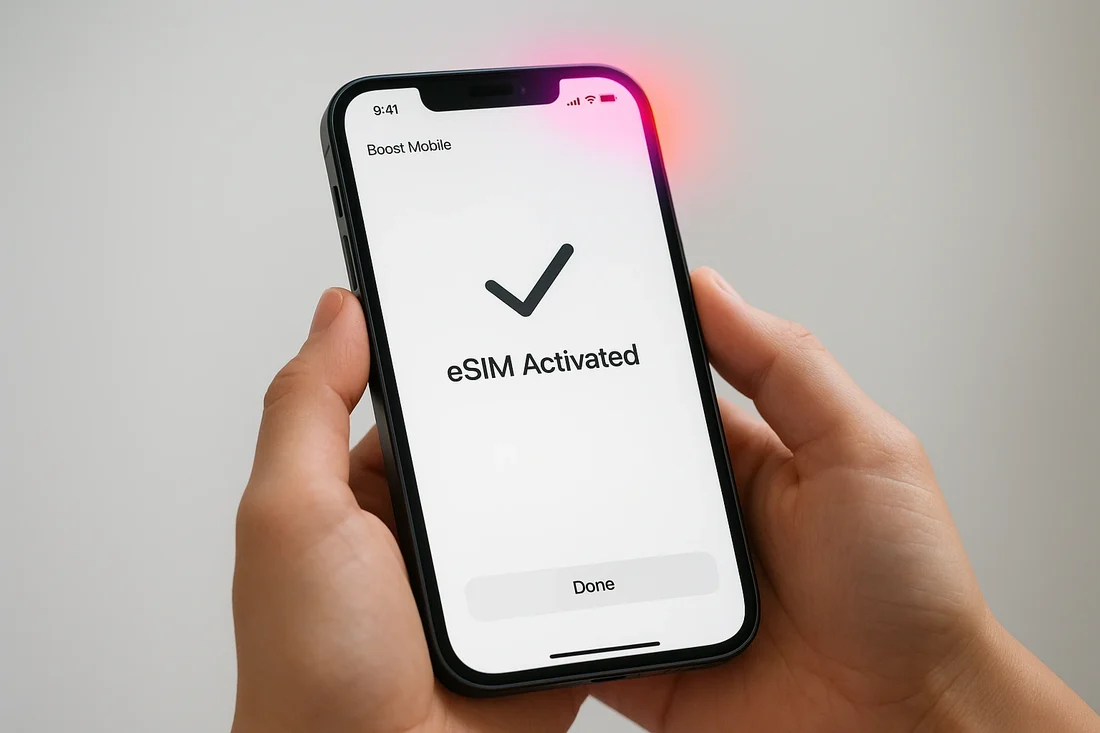
Most eSIM problems on a trip are setup problems that surface at the worst moment: in the arrivals hall, with a dead-end Wi-Fi login page and a driver waiting outside. A QR code that will not scan, a phone that turns out to be carrier-locked, or a data line that stays on your home SIM can all be found and fixed at home, where you have time, reliable Wi-Fi and a way to contact support.
This checklist covers what to confirm before departure day. If you are using an iPhone, keep a step-by-step guide on how to activate an eSIM on iPhone open alongside it, so you can follow each screen in order as it appears.
Table of Contents
1. Confirm Your Phone Supports eSIM
Not every phone does. On iPhone, Apple lists the iPhone XS, iPhone XS Max, iPhone XR and later models as eSIM-capable. On Android, support depends on the exact model and sometimes the region it was sold in, so check the manufacturer’s specifications for your model rather than assuming from the brand.
2. Check the Phone Is Unlocked
A travel eSIM from a different provider will not work on a phone locked to your home network. Phones bought on a contract or payment plan are sometimes locked. On iPhone, open Settings, tap General, then tap About. If the phone is unlocked, “No SIM Restrictions” appears next to Service Provider Lock. If it is locked, contact your provider well before the trip, because unlocking is not always immediate.
3. Read the Activation Terms
Before you install anything, read when the plan’s validity starts. Some plans count days from installation, others from the first connection to a network in a covered country. That detail decides whether you should install a week early or the night before you fly. Check the country list, data allowance and whether hotspot use is allowed at the same time.
4. Install on Reliable Wi-Fi
Apple’s page on using eSIM while travelling internationally with your iPhone lists a Wi-Fi connection as a requirement for setting up eSIM, with an exception for eSIM-only models in some countries or regions. Use your home network, not a café or airport hotspot that might drop halfway through. Keep the QR code or installation details on a second screen or printed out, since scanning a code displayed on the same phone can be awkward. Do not delete the eSIM after installing, because some travel eSIMs cannot be reinstalled once removed.
5. Label Your Lines
Once installed, give the travel line a clear label so you can tell the two lines apart in Settings. This helps when choosing which line carries mobile data and which line receives calls and texts.
6. Decide Which Line Handles Data
Apple explains that you can keep both your home line and the travel eSIM active, with the travel eSIM used for data, or use the travel eSIM on its own. If you keep both, your home line may still incur roaming fees, so check your home provider’s terms. To set the data line manually on iPhone, open Settings, tap Mobile Service, then tap Mobile Data, and select the line you want. With iOS 26 and later, you may also see a Turn On Travel eSIM notification when you arrive.
7. Keep Your Home Number for Codes
Banks and many online services send verification codes by SMS to your usual number. If you need those codes abroad, keep the home line switched on for texts while the travel eSIM carries data, and remember the roaming caveat above.
8. Save Everything Offline
Take screenshots of the installation details, the plan’s support contact and your accommodation address. Download offline maps for your arrival city. If the eSIM does not connect straight away, you will want this information without needing data to find it.
9. Know the Common Error Messages
An error on the screen is easier to deal with if you have seen it before. A message such as “SIM not provisioned” usually points to an activation or account issue on the provider’s side, and this explainer on what “SIM not provisioned” means and how to solve it covers the usual causes. For a travel eSIM, the first step is often to contact the plan’s support team with the details you saved.
10. Do a Final Check the Night Before
Confirm the travel line appears in Settings with the right label, the correct line is selected for mobile data, and your screenshots are saved. Then charge the phone and pack a cable you can reach in your carry-on.