Quick answer: On your PS5 or PS4, go to Settings → Users and Accounts → Sign In → Create a New Account, or visit playstation.com on any browser and select Sign Up. You’ll need an email address, a birthdate, and a unique Online ID — your public PSN username. Verify your email and you’re ready to play, download the PS App, and access the PlayStation Store.
Table of Contents
What You Need Before You Start
- A valid email address you can access immediately (for verification)
- Your date of birth (PSN enforces age-based account restrictions)
- A unique Online ID in mind, since common names are usually taken
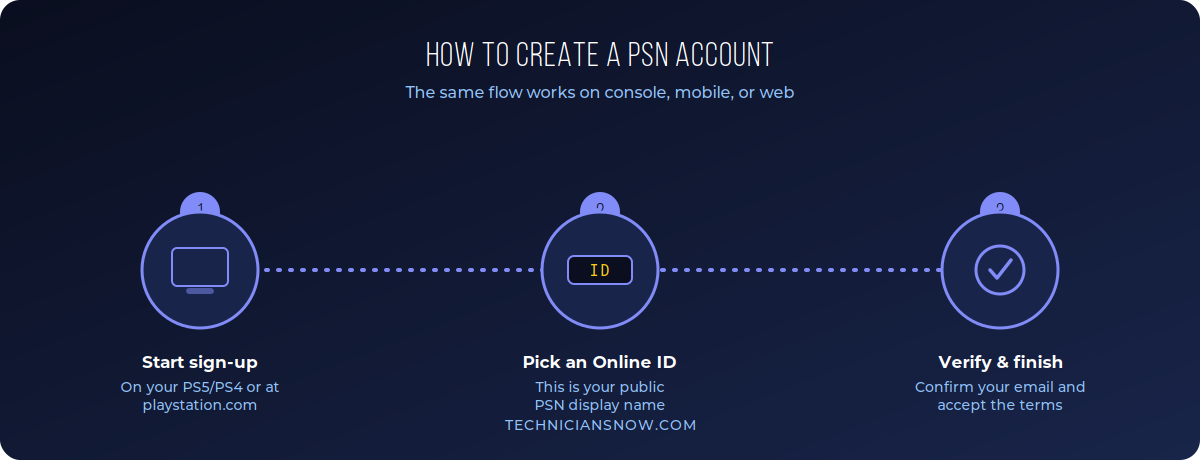
The same basic flow works whether you start on console, mobile, or the web.
How to Create a PSN Account on PS5 or PS4
- From the console home screen, go to Settings (or the gear icon on PS5).
- Select Users and Accounts → Sign In, then choose Create a New Account at the bottom of the sign-in screen.
- Enter your email address and create a password.
- Choose your Online ID — this is your permanent public PSN username (Sony allows one free change later, then charges for further changes).
- Fill in your birthdate, region, and language.
- Accept the User Agreement and Privacy Policy.
- Check your email for a verification message and confirm it — your PS5 or PS4 will recognize the account as active once verification completes.
How to Create a PSN Account on Mobile or Web
- Go to playstation.com in a browser, or open the PlayStation App on iOS/Android.
- Select Sign Up and enter your email and a password.
- Choose your Online ID and complete your birthdate and region details.
- Verify your email via the link Sony sends you.
- Once verified, you can sign into this same account on any PS5, PS4, or the PS App.
Creating a PSN Account for a Child
If you’re setting up an account for a player under 18, PSN routes this through Family Management rather than a standard adult sign-up:
- An adult with their own PSN account creates the child’s account under Settings → Family and Parental Controls → Add Family Member.
- The adult sets spending limits, playtime restrictions, and content restrictions appropriate for the child’s age.
- The child’s account is linked under the family group, and the managing adult can adjust settings at any time.
Choosing a Good Online ID
Because so many common usernames are already taken, a few practical tips help:
- Combine a name or nickname with a number, word, or symbol variation rather than trying dozens of plain-word combinations.
- Avoid anything you might associate with another platform’s username if you want a consistent gamer identity across services — though PSN Online IDs don’t need to match anything else.
- Remember Sony currently allows one Online ID change for free; after that, changes may carry a small fee, so pick carefully.
Troubleshooting PSN Account Creation
- “This Online ID is already taken”: Try adding numbers, underscores, or a modifier word — most short, common names are unavailable.
- Verification email not arriving: Check spam/junk folders, and confirm you typed your email correctly during sign-up — a typo here is the most common cause.
- Age-restriction errors: If your entered birthdate makes you a minor, PSN will require Family Management setup rather than a standalone account — this is expected behavior, not a bug.
- Account created but can’t sign in on console: Double-check you’re using the exact email and password combination — PSN accounts are case-sensitive on password entry.
Setting Up Two-Factor Authentication on PSN
Once your account is created, adding two-factor authentication is one of the most effective ways to keep it secure, especially if you have a payment method saved for the PlayStation Store:
- Go to Settings → Users and Accounts → Account → Security → 2-Step Verification.
- Choose a verification method — typically a text message code or an authenticator app.
- Confirm the setup by entering a test code.
- Save any backup codes provided in case you lose access to your primary device later.
PSN Account vs. PlayStation Plus: What’s Actually Required
A common point of confusion for new players is what’s free versus what requires a subscription:
- A PSN account itself is entirely free and required just to use any online PlayStation feature, including the PlayStation Store, friends list, and basic app access.
- PlayStation Plus is a separate, optional paid subscription layered on top, required specifically for online multiplayer in most games, plus monthly game downloads and cloud save storage depending on the tier.
- You do not need PlayStation Plus to create a PSN account, browse the store, or play single-player games online-enabled features aside.
Merging or Transferring a PSN Account
Sony does not support merging two separate PSN accounts into one — if you’ve accidentally created a second account, your purchases and trophies on each will remain separate. This is worth knowing before creating a new account “just to try a different Online ID,” since you can’t later combine libraries between two accounts. If you’re unsure whether you already have an account, try account recovery through playstation.com with any email you might have used previously before creating a new one.
Setting Up a PSN Account for a New PS5 or PS4
If you’re setting up a freshly purchased console for the first time, account creation happens as part of the initial console setup wizard rather than as a separate step:
- During first-time setup, the console will prompt you to sign in — select Create Account if this is your first PlayStation account.
- Complete the same email, Online ID, and birthdate steps covered earlier in this guide.
- The console will offer to set this account as the primary account on the device, which controls default purchase and content-sharing permissions for other users added later.
- If other household members will also use the console, they can each create or sign into their own PSN account as additional users under Settings → Users and Accounts → Add New User.
Regional Considerations for PSN Accounts
Your PSN account’s region is set during creation and affects which PlayStation Store you see, available payment methods, and pricing currency. A few things worth knowing:
- Region cannot be changed after account creation — if you select the wrong country, you’ll need to create a new account with the correct region rather than adjusting the existing one.
- Content availability varies by region — some games, add-ons, or services are region-locked, which is why players who travel frequently sometimes maintain accounts in more than one region (each requiring separate sign-in).
- Currency and payment methods are tied to your account’s region, so a mismatch between your actual location and your account’s region can complicate adding payment methods later.
Also setting up other platforms? See our guides to creating an EA account and a Steam account.
Frequently Asked Questions
Is a PSN account free? Yes — creating a PlayStation Network account costs nothing. PlayStation Plus is a separate paid subscription for online multiplayer and other perks.
Can I use the same PSN account on PS4 and PS5? Yes, one PSN account works across PS4, PS5, and the PlayStation App interchangeably.
Can I change my Online ID after creating my account? Yes, Sony allows one free change; additional changes may require a small fee.
Do I need a PSN account to play games offline? Most single-player content works without signing in, but online features, trophies syncing, and the PlayStation Store all require an active PSN account.
What’s the difference between a PSN account and PlayStation Plus? A PSN account is free and required to use any PlayStation online service; PlayStation Plus is an optional paid subscription layered on top for online multiplayer, monthly games, and cloud storage.