In today’s digital communications domain, it is essential to have an email service that is reliable, secure, and easy to use. AT&T Mail is one of the most popular email services in the United States. Whether you’re new to the world of email or experiencing problems, you’ve come to the right place. This blog will provide you with everything you need to know about using ATT Mail. We will cover everything from how to create an account, to how to log in and deal with troubleshooting common problems.
Table of Contents
What Is AT&T Mail?
AT&T Mail is a web-based email service provided by AT&T that allows users to send, receive, and manage emails online through the Currently.com platform. Users with email addresses such as:
- @att.net
- @currently.com
- @sbcglobal.net
- @bellsouth.net
- @ameritech.net
can all access their accounts through the AT&T Mail login portal.
AT&T Mail includes features such as:
- Spam protection
- Cloud-based inbox access
- Calendar and contact management
- Multi-device synchronization
- Secure password recovery
Most AT&T email services now operate through the Currently.com email platform managed in partnership with Yahoo Mail.
Official AT&T Mail Login Pages
Users can sign into their AT&T email accounts through the following official portals:
- AT&T Mail Login:
https://currently.att.yahoo.com/ - Currently.com Mail Access:
https://currently.com/mail - AT&T Support Email Login:
https://www.att.com/support/email-support/
Users with legacy SBCGlobal and BellSouth email addresses can continue using the same credentials through AT&T Mail services.
How to Access AT&T Mail on Different Devices
AT&T Mail can be accessed from browsers, smartphones, tablets, and third-party email applications.
Access AT&T Mail on Desktop Browser
- Open the official AT&T Mail login page.
- Enter your AT&T email address.
- Type your password.
- Complete any security verification process.
- Access your inbox dashboard.
Users can manage:
- Emails
- Contacts
- Attachments
- Calendar events
- Account settings
directly from the webmail interface.
Access AT&T Mail on Android and iPhone
Users can also configure AT&T Mail through:
- Apple Mail
- Gmail app
- Outlook
- Yahoo Mail app
For smoother synchronization, AT&T recommends using secure mail settings and updated applications.
Access SBCGlobal or BellSouth Email
Legacy SBCGlobal and BellSouth email accounts are still supported under AT&T Mail.
Users can continue logging in using:
- Existing email address
- Same password
- Currently.com login portal
AT&T Mail IMAP and SMTP Settings
Users configuring AT&T Mail manually in Outlook or other email applications may need the following server settings.
| Setting Type | Server | Port |
|---|---|---|
| IMAP | imap.mail.att.net | 993 |
| SMTP | smtp.mail.att.net | 465 or 587 |
| POP3 | inbound.att.net | 995 |
Additional settings:
- SSL encryption enabled
- Full AT&T email address as username
- Authentication required for outgoing mail
Correct IMAP and SMTP settings help synchronize emails securely across multiple devices.
Common AT&T Mail Login Problems and Fixes
Many users experience login or synchronization issues while accessing AT&T Mail accounts. Below are some common problems and troubleshooting solutions.
Forgot AT&T Mail Password
If you cannot remember your password:
- Open the AT&T password reset page.
- Verify your identity.
- Reset the password securely.
- Update saved passwords on all devices.
AT&T provides official password recovery support for mail accounts.
AT&T Mail Not Loading
If the inbox or login page does not open:
- Clear browser cache and cookies
- Disable browser extensions
- Restart the browser
- Try incognito mode
- Switch browsers temporarily
Users have also reported browser-specific compatibility problems in some cases.
Too Many Login Attempts Error
AT&T may temporarily block access after repeated failed login attempts.
Possible fixes:
- Wait one hour before retrying
- Reset the password
- Verify account ownership
- Complete account security verification
Cannot Access ATT.net or SBCGlobal Email
Some legacy email users report account synchronization or migration problems after AT&T system updates.
Common fixes include:
- Resetting the password
- Logging in through Currently.com
- Updating app passwords
- Reconfiguring email clients
AT&T Mail Not Syncing on Mobile
If emails stop updating on phones:
- Remove and re-add the account
- Update the mail application
- Verify IMAP settings
- Check app permissions
- Restart the device
Community users have also reported occasional synchronization bugs on mobile apps.
Account Locked or Inactive
AT&T may temporarily deactivate accounts flagged for suspicious activity or spam-related behavior.
Users can:
- Reset passwords
- Review account security
- Contact support if access remains blocked
Tips to Keep Your AT&T Mail Account Secure
Email accounts often contain sensitive personal and financial information. Following proper security practices helps protect your inbox from unauthorized access.
- Use a strong password with symbols and numbers
- Change passwords regularly
- Avoid using public WiFi for login
- Enable recovery options
- Monitor suspicious account activity
- Avoid phishing emails and fake login pages
- Sign out from shared devices
AT&T also recommends updating recovery phone numbers and recovery email addresses for easier account recovery.
Features Available in AT&T Mail
AT&T Mail offers several built-in productivity and organization tools for personal and business communication.
Users can:
- Organize emails with folders
- Use spam filtering
- Manage contacts
- Access calendars
- Search inbox history
- Send attachments
- Configure forwarding and filters
Currently.com integration also provides a modern inbox experience with cloud-based accessibility across multiple devices.
How to Access AT&T Mail?
Accessing AT&T Mail is a simple process. It offers users flexibility based on their preferences and devices. To start using AT&T mail services, you need to create an account.
Follow these steps to create your ATT account.
- Visit the official AT&T website.
- Now go to the “Sign Up” or “Create Account” option and click on it.
- You will be asked to provide the necessary information. It will include your name and contact details.
- Create a secure password for your account.
- The next step is to verify your identity. It may include confirming your email or receiving a code on your phone.
That’s it! By following these steps, you’ve successfully created your AT&T account.
Interesting:- My KP HR Login: Features and Troubleshoot
Logging In to AT&T Mail
Great! Now that you have created your account, let’s see how to log in to your AT&T mail account. You have two options: one from a web browser and the other from your mobile device. Simply follow the steps for the method that fits your preference.
Method 1: Accessing AT&T Mail through a Web Browser
- Open your web browser.
- Visit the official AT&T Mail website.
- Enter your AT&T username and password.
- Click the “Login” option.
- If the details are correct, you will be given access to your AT&T mail account.
That’s it! You have successfully logged into your ATT Mail through a web browser.
You May Like:- HDIntranet Login: Heartland Dental Services Portal
Method 2. Accessing the AT&T Mail App on Mobile Devices
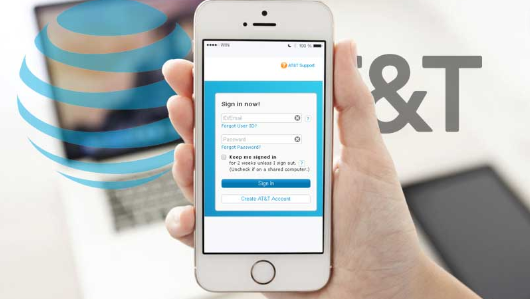
- Open the App Store (iOS) or Google Play Store (Android) based on your device.
- Search for “AT&T Mail” and install the app. Make sure to install the official application.
- Open the app and enter your AT&T username and password.
- Tap on the “Login” option.
That’s it! With the right credentials, you will be able to log into your AT&T mail account.
Note – Consider using a secure password manager to store and retrieve your AT&T login details.
Setting Up AT&T Mail on Email Clients
Setting up AT&T Mail on email clients means making your email compatible with programs like Microsoft Outlook, Mozilla Thunderbird, or Apple Mail instead of using the web version. This way, you can manage your AT&T emails through these applications.
Here are simple steps to set up your AT&T account on different email clients.
1. Set up AT&T Mail on Popular Email Clients
- Open your email client, eg. Outlook or Mozzila whichever you prefer.
- Go to the settings or account setup section to add a new email account.
- Choose “AT&T Mail” from the list of email providers during the setup.
- Follow the on-screen instructions provided by the email client to complete the process. It will include entering your AT&T username and password.
2. IMAP and SMTP Settings for AT&T Mail
-
- For IMAP, use “imap.mail.att.net” with port 993.
- For SMTP, use “smtp.mail.att.net” with port 465.
- Ensure secure connections (SSL/TLS) are enabled.
By following these steps, users can easily access ATT Mail through different platforms.
Know More:- H5 Hyperverse: How to Register and Login
Troubleshooting Common AT&T Mail Issues
While accessing Mail is generally straightforward, users may encounter common issues. Let’s see what are the common problems faced by users and how to deal with them.
Can’t Sign into ATT Mail?
If you are facing this issue, the following might be the reason. Follow the instructions to solve these issues.
1. Forgotten Username or Password Recovery
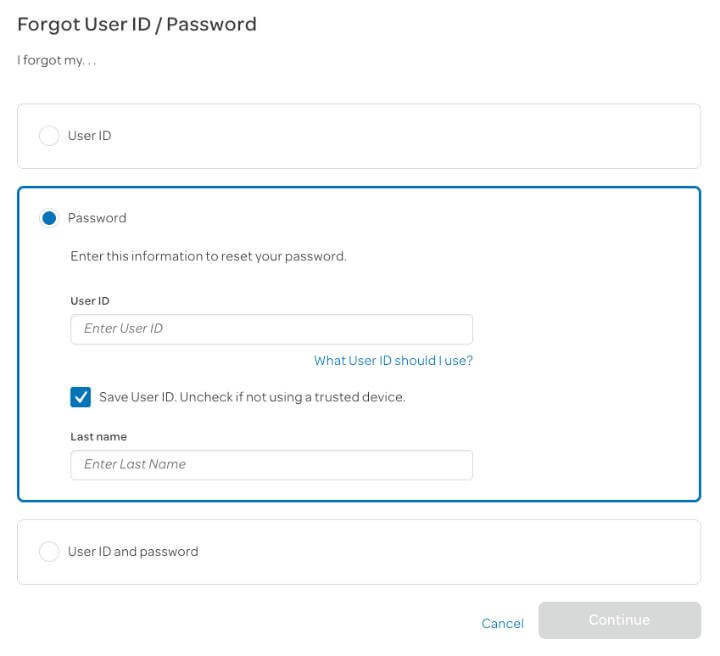
- Click on the “Forgot Password?” link.
- Enter your AT&T username and last name.
- Choose a password recovery method: temporary password via email or phone, security questions, or another verification method.
- Follow the provided instructions to create a new password.
- Log in to your AT&T Mail account using the updated password.
For Forgotten ID (with a slight difference):
- Visit the official AT&T Mail login page.
- Click on the “Forgot ID?” link.
- Enter required information, such as your email address or phone number linked to your AT&T account.
- Follow on-screen instructions to verify your identity, which may include a verification code on your registered email or phone.
- Once verified, your AT&T username will be displayed or sent to your registered email or phone.
By following these steps, you can successfully recover a forgotten username or password for your ATT Mail account.
2. Two-factor authentication Setup and Troubleshooting
Two-factor authentication (2FA) adds an extra layer of security to your AT&T Mail account. It requires you to provide two forms of identification before accessing your account. Here are the steps to set up and troubleshoot Two-Factor Authentication for your ATT Mail account.
- Log in to your AT&T Mail account on the official website.
- Access your account’s security or profile settings.
- Enable Two-Factor Authentication and follow the on-screen instructions.
- Choose your preferred method for receiving verification codes (text, email, or authenticator app).
- Verify your identity using the selected method.
- If available, generate and store backup codes securely.
Troubleshooting Two-Factor Authentication
- If you’ve changed your phone number, update your 2FA settings.
- Use backup codes if you’ve lost access to your device.
- Contact AT&T support for assistance if needed.
Remember, enabling Two-Factor Authentication enhances the security of your ATT Mail account by requiring an additional verification step beyond your password.
Must Read:- Spectrum Webmail Login: TWC & Roadrunner (RRmail)
Conclusion
That’s all we had to share. We hope you have found solutions to your queries related to AT&T Mail through this blog.
Frequently Asked Questions
How do I log into my AT&T Mail account?
Users can access AT&T Mail through the Currently.com login portal using their email address and password.
Is AT&T Mail the same as Currently.com?
Yes, AT&T Mail services now operate through the Currently.com platform.
Can I still use my SBCGlobal.net email address?
Yes, SBCGlobal email addresses remain active through AT&T Mail services.
Why is my AT&T Mail login not working?
Login problems may happen because of incorrect passwords, browser issues, account locks, or synchronization errors.
How do I reset my AT&T Mail password?
Users can reset passwords through the official AT&T password recovery system after identity verification.
Does AT&T Mail work with Outlook?
Yes, AT&T Mail supports Outlook and other email clients through IMAP and SMTP settings.
Why does AT&T Mail keep logging me out?
This may happen because of browser cookies, expired sessions, or security verification settings.
Is AT&T Mail secure?
Yes, AT&T Mail uses secure authentication systems and encrypted email protocols for account protection.