Over the past decade, video gaming has become one of the popular forms of online entertainment. One of the widely popular live streaming and gaming platforms is Twitch and it is loved by most of us, gaming lovers. If you too are a gamer or you enjoy gaming and live streaming, you would want to join this platform. Don’t worry we will guide you on how to activate Twitch on Xbox, Roku, Android, iOS, Playstation, Apple TV, and Fire Stick.
Table of Contents
What is Twitch?
Twitch is a live video-streaming platform created for gaming enthusiasts all over the world. This platform allows streamers to create and record their live stream and share it with others. It has become the go-to platform for gamers and streamers over the last few years. It allows them to interact with like-minded people and chat with them. Viewers can support their favorite streamers, by subscribing to their channels at small monthly fees or tipping them with credits. Why do people love this platform you ask? The videos uploaded on this platform are unedited making it relatable and real for viewers.
What Is Twitch Device Activation?
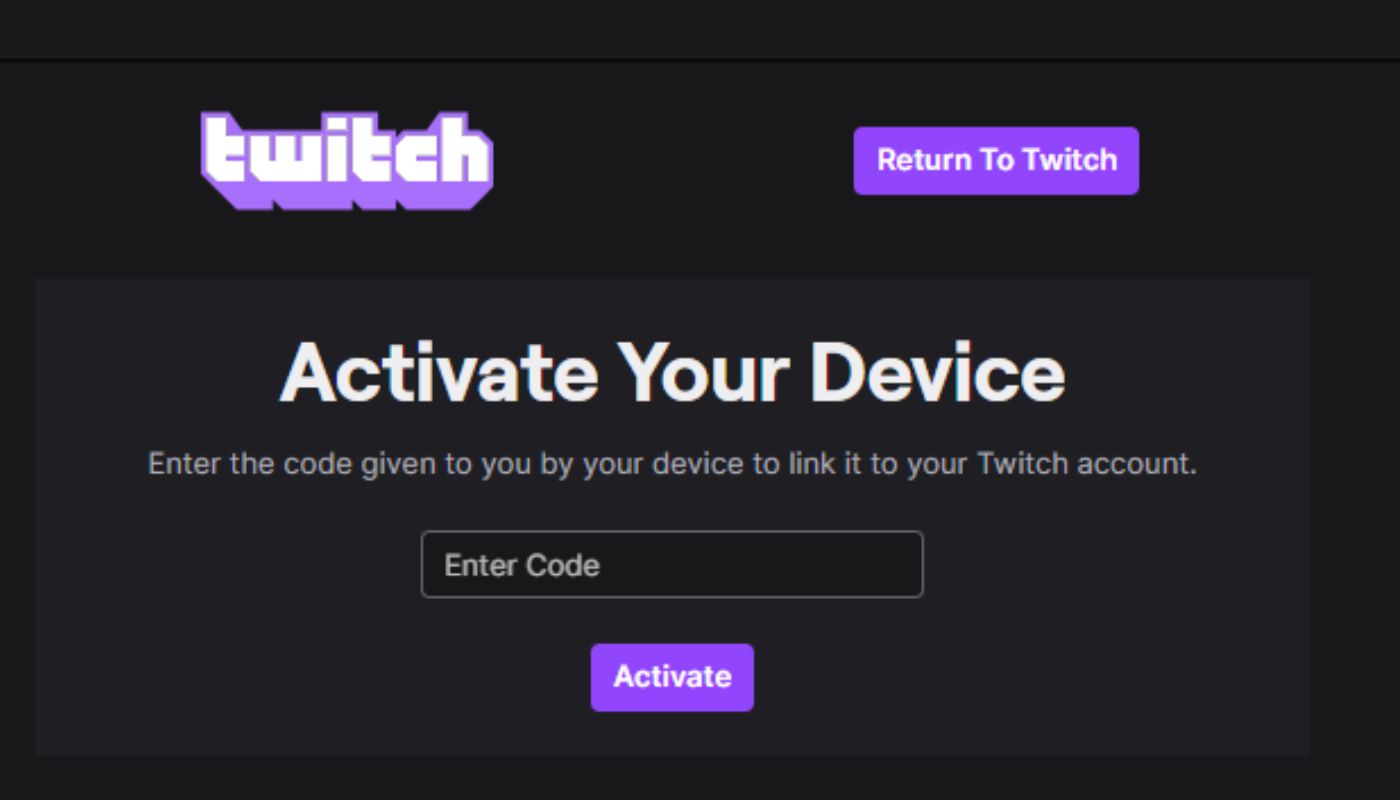
Twitch device activation is the process of linking a Smart TV, gaming console, streaming device, or media player to a Twitch account using a temporary activation code. Once activated, users can watch Twitch livestreams, esports tournaments, gaming content, music streams, and creators directly on larger screens.
Most Twitch-supported devices display a unique activation code that users must enter on the official Twitch activation website using a mobile phone or desktop browser. After successful verification, the Twitch app automatically signs into the account on the selected device.
Twitch activation is commonly used for:
- Smart TVs
- PlayStation consoles
- Xbox consoles
- Fire TV devices
- Apple TV
- Android TV
- Roku streaming devices
Official Twitch Activation Website
Users should always use Twitch’s official activation portal to securely link devices to their accounts.
Official Activation URLs
- Twitch Device Activation:
https://www.twitch.tv/activate - Twitch Login Page:
https://www.twitch.tv/login - Twitch Account Access:
https://www.twitch.tv/
The activation portal allows users to enter the code displayed on their TV or streaming device and securely authorize account access.
How to Create Your Twitch Account?
Creating a Twitch account is an easy process. You just have to follow the steps given below.
- Go to the Twitch Website.
- You will see the “Sign up” button on the top right side of the home page. Click on the “Sign up” button
- Choose a username for your account and create a secure password.
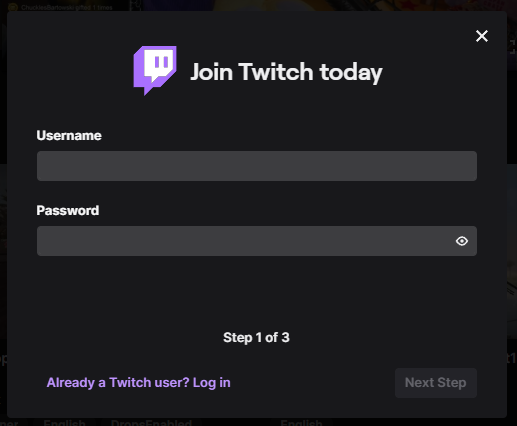
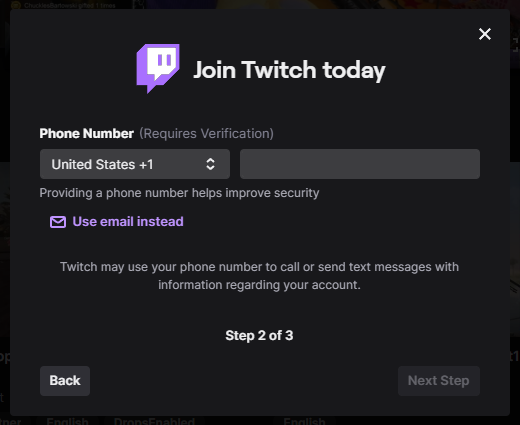
- Now, enter your valid email ID or your mobile number for verification purposes. Remember you will get alerts and confirmation on this id or number.
- Enter your Date of Birth.
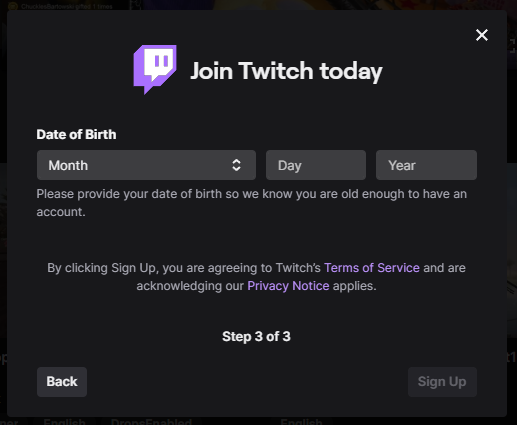
- Next, you need to agree to the Terms and Conditions. Make sure you read it first and then click on “Sign up“.
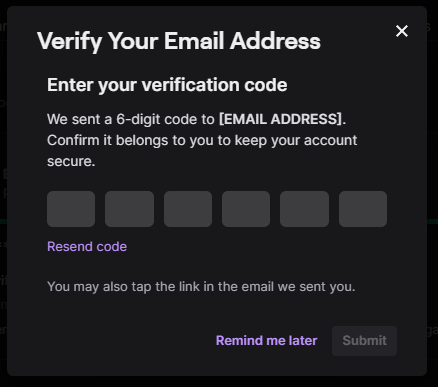
- You will then get a verification code on your email ID or phone number. Enter that verification code and submit it.
That’s it! You have created your Twitch Account. Now you need to understand how to activate your account on various devices. Here, we have provided you with the instructions.
Interesting Blog:- Twitch Chat Overlay – How to Add in the Game?
How to Activate Twitch on Xbox?
Follow these simple steps to activate your Twitch account on Xbox One.
- By using the Xbox controller, click on the “store” option available on the dashboard.
- Choose the “Apps” option, you will find it in the top right corner of the dashboard.
- In the Apps tab, look for the “Twitch” app. Choose the “Get for free option” to download the app.
- After the installation, open the Twitch app and log in with your credentials. i.e. your username and password which you had chosen while creating your account.
- Once you are logged in, you will be redirected to the activation page. Then the system will provide you with the six-digit activation code and copy it.
- Now go to https://www.twitch.tv/activate site, paste that activation code, and click on Activate.
Once your activation code is accepted, you can then enjoy Twitch TV on your Xbox.
How to Activate Twitch on Roku?
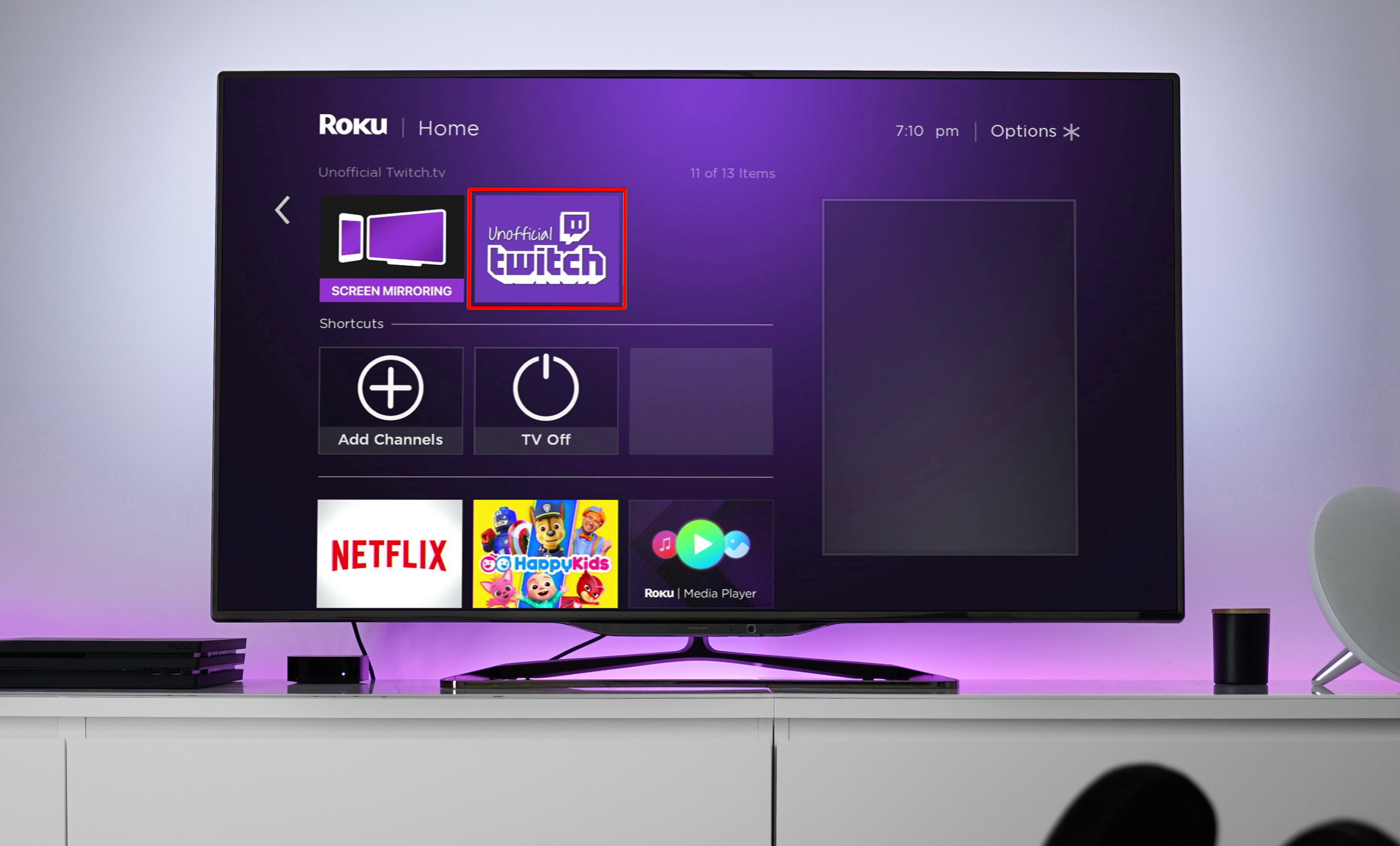
Activating your Twitch account on Roku is a simple process. Just follow the steps mentioned below.
- From your Roku remote, press the home button. Then select “Streaming Channels“.
- Using the search feature, look for the “Twitch” app.
- After the Twitch screen opens, you need to download the app. To do that click on the “Add Channel” option.
- After installation, open the Twitch app and log in using your credentials. i.e. your username and password.
- Once you are logged in, Roku will provide you with an activation code.
- Now go to https://www.twitch.tv/activate on your mobile or computer.
- Type the activation code on the screen. Then click on Activate.
Done! Once your activation code is accepted you will get a confirmation message on both your Roku and the device you used for activation.
You May Like:- How to Host on Twitch? Step-By-Step Guide
How to Activate Twitch on Android and iOS?
Activating Twitch on a Mobile device is the simplest process.
- Go to the Play Store for Android devices and download Twitch. For iOS go to the App Store and download Twitch.
- Now login to your Twitch account using your credentials.
Only by following these two steps, you can enjoy Twitch on your mobile device.
How to Activate Twitch on the PlayStation?
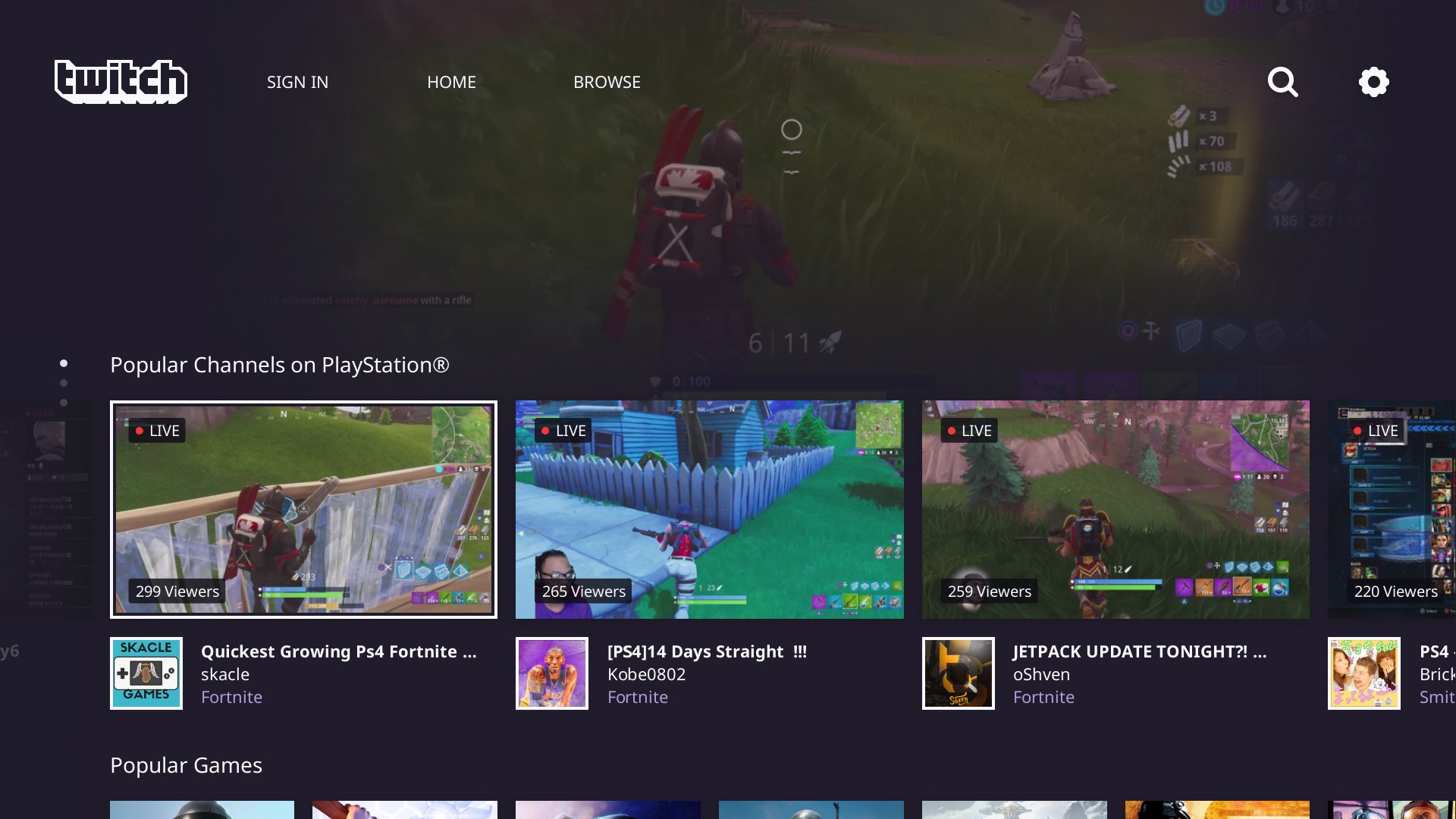
Twitch can be accessed on PlayStation 4 and 5 (PS3 does not support Twitch anymore). So if you own one of these and want to enjoy Twitch on it, follow these steps.
- Go to the Play Store of your PlayStation using the controller.
- With the search feature, look for the “Twitch” app.
- After the Twitch screen opens, you need to download the app on your PlayStation. To do that, click on the “Download” option.
- After installation, open the Twitch app and log in using your credentials. i.e. your username and password.
- Now an activation code will appear after login is successful.
- Copy the code and visit https://www.twitch.tv/activate website. Now, paste that code in the given respective field.
- You will see the “Activate” button. Now, tap on it.
- You will receive a confirmation message after the activation code is accepted.
Once you receive the confirmation, you can now start enjoying Twitch on your PlayStation.
Read More:- How to Host Someone On Twitch – Some Easy Steps
How to Activate Twitch on Apple TV?
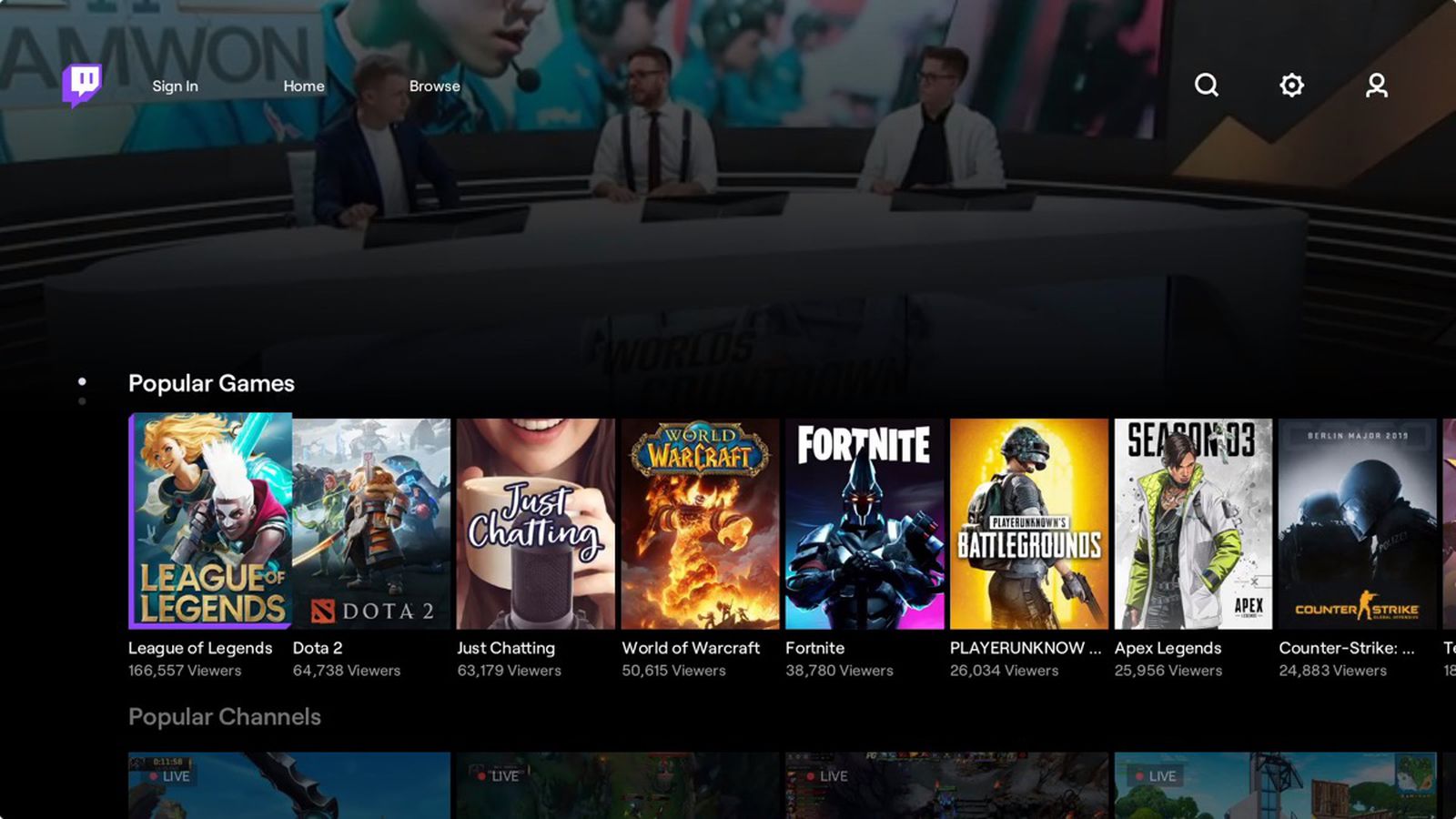
You need to follow these simple steps to use Twitch on your Apple TV.
- Using your Apple remote, go to the App Store.
- Use the search feature and look for the “Twitch” app.
- Once you find the app. Tap on the “Get” option. It will allow you to download the application.
- Once it’s installed, open the Twitch app on your Apple TV and log in with your credentials.
That’s it now you are good to go and enjoy Twitch on your Apple TV.
How to Activate Twitch on Amazon Fire Stick?
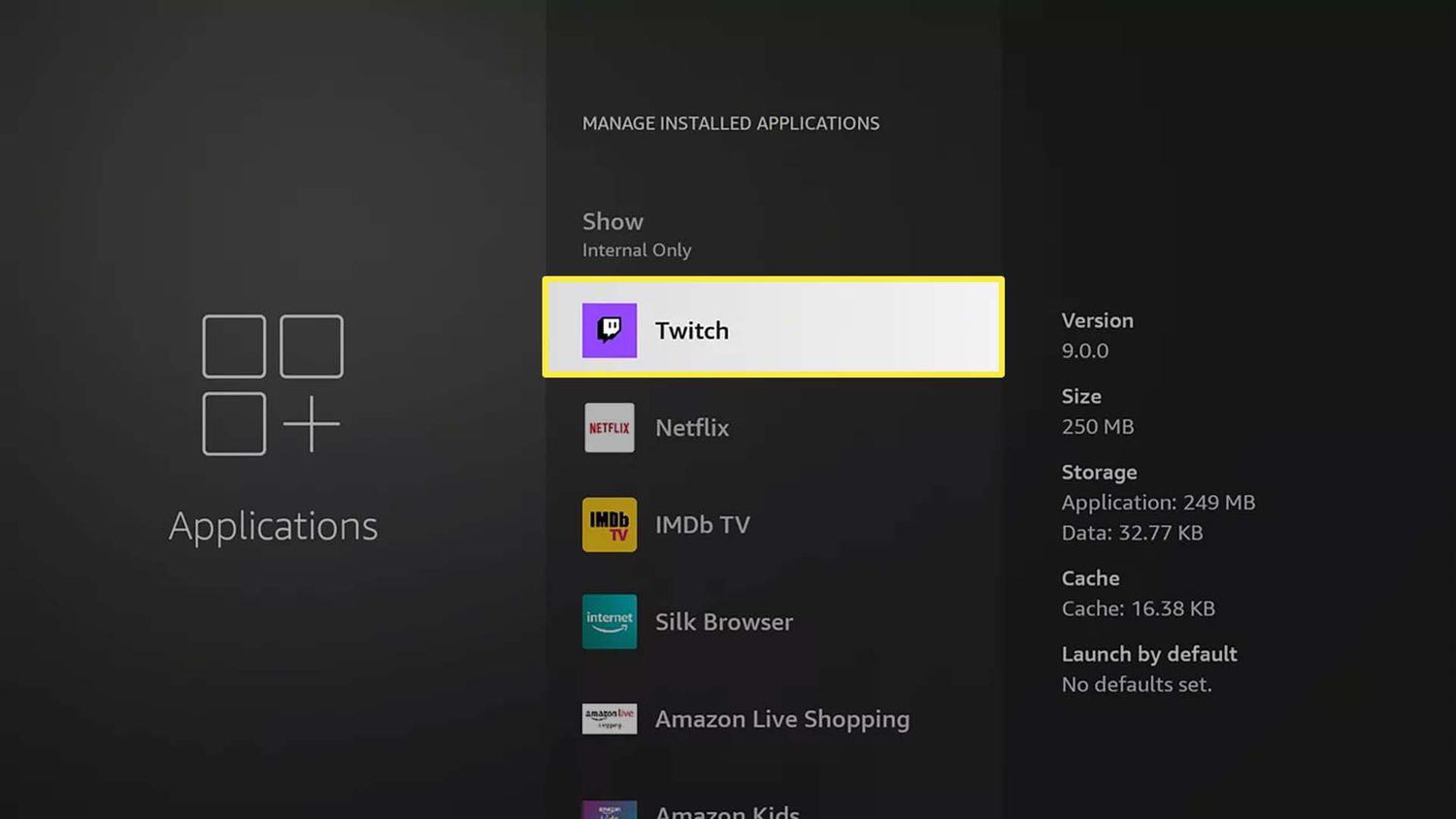
Follow the given procedure and activate your Twitch account on Amazon Fire Stick.
- Go to the Amazon app store and find the “Twitch” app.
- Download the application and log in using your credentials.
- After you are logged in you will get the Activation code.
- After copying the code, visit https://www.twitch.tv/activate website and paste that code.
- Once you have pasted the code, click “Activate“.
Done! Your account will be activated, and you will get a confirmation message as well.
Common Twitch Activation Problems and Fixes
Users may occasionally experience login, code verification, or device activation issues while setting up Twitch.
Twitch Activation Code Not Working
Activation codes may expire after a short period.
To fix this:
- Restart the Twitch app
- Generate a new activation code
- Refresh the activation page
- Re-enter the code carefully
Expired or incorrect codes are one of the most common activation issues.
Twitch App Not Loading on TV
If the Twitch app freezes or crashes:
- Restart the Smart TV
- Update the Twitch app
- Clear app cache
- Reinstall the application
- Check internet connectivity
Unable to Login to Twitch Account
Users may face login issues because of:
- Incorrect password
- Browser problems
- Two-factor authentication errors
- Suspicious login verification
Twitch may also ask users to verify new devices or locations before allowing account access.
Twitch Activation Page Not Opening
If twitch.tv/activate does not load:
- Try another browser
- Disable VPN temporarily
- Clear cookies and cache
- Use incognito mode
- Verify internet connection
Twitch Two-Factor Authentication Problems
Some users may experience issues receiving authentication codes during login.
Possible fixes:
- Verify phone number settings
- Check spam or blocked messages
- Restart authentication apps
- Re-sync device time settings
Twitch recommends enabling two-factor authentication for improved account security.
Devices Supported by Twitch
Twitch supports streaming on a wide range of devices and operating systems.
Supported Platforms Include
- Smart TVs
- Android TV
- Apple TV
- Amazon Fire TV
- Roku
- PlayStation consoles
- Xbox consoles
- Android smartphones
- iPhones and iPads
- Desktop browsers
Users can also stream Twitch through:
- Google Chrome
- Microsoft Edge
- Safari
- Mozilla Firefox
Tips to Keep Your Twitch Account Secure
Streaming accounts often contain payment methods, subscriptions, chat history, and personal information. Following proper security practices can help protect your Twitch account from unauthorized access.
- Use a strong password
- Enable two-factor authentication
- Avoid sharing account credentials
- Monitor connected devices regularly
- Sign out from public devices
- Avoid unofficial Twitch apps
- Verify suspicious login alerts immediately
Twitch also recommends verifying your email address and enabling phone verification for additional account protection.
Frequently Asked Questions
What is the official Twitch activation website?
The official Twitch activation page is:
https://www.twitch.tv/activate
How do I activate Twitch on my TV?
Open the Twitch app on your TV, generate the activation code, and enter it on Twitch’s official activation website.
Why is my Twitch activation code not working?
Activation codes may expire quickly or be entered incorrectly. Restarting the app usually generates a new working code.
Can I activate Twitch on PlayStation and Xbox?
Yes, Twitch supports activation on PlayStation and Xbox consoles through the Twitch app.
Why is Twitch not working on my Smart TV?
App issues may occur because of outdated software, internet connectivity problems, or corrupted app cache.
Do I need a Twitch account to activate devices?
Yes, users must create and log into a Twitch account before linking devices.
Is Twitch free to use?
Yes, Twitch offers free streaming access, although subscriptions and premium features are also available.
Is Twitch activation safe?
Yes, device activation is safe when using Twitch’s official activation website and verified applications.
Great! Now you know how to create your Twitch account and how to activate it on various devices. We hope we have provided answers to all your queries related to Twitch account activation. If you still have any doubt let us know by commenting below. Enjoy your Twitch experience!