Quick answer: Open the Peacock app on your Roku or Firestick, select Sign In, and note the activation code on screen. On your phone or computer, go to peacocktv.com/tv, enter the code, sign in with your Peacock account, and your TV will refresh automatically within about 30 seconds.
That’s the whole process in one sentence — but if this is your first time doing it, or the code keeps failing, the walkthrough below covers every device, every plan, and every common error.
Table of Contents
What Is peacocktv.com/tv?
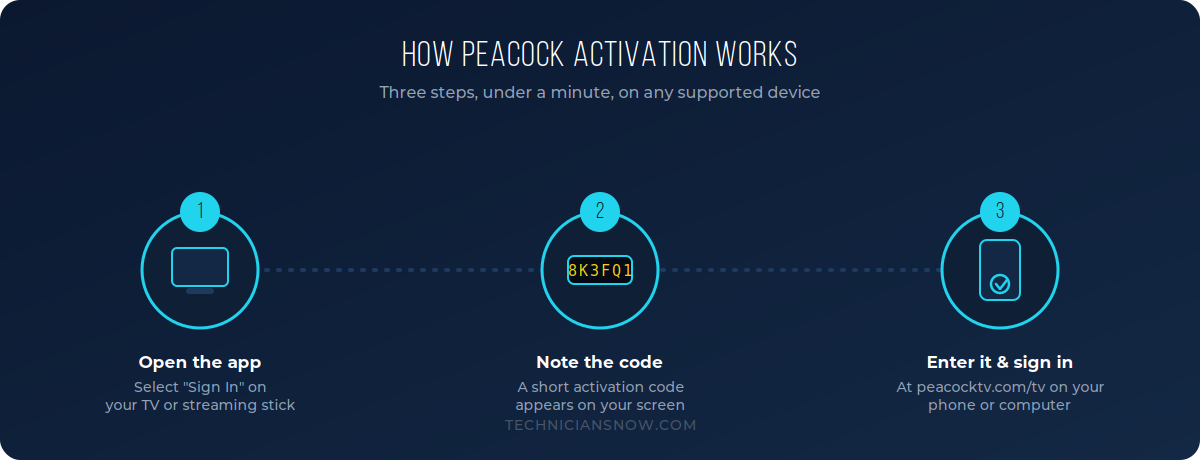
peacocktv.com/tv is Peacock’s official device-linking page. Instead of typing your email and password with a TV remote, Peacock generates a short, temporary code on your screen. You enter that code on a phone or computer, which is faster to type on and lets Peacock confirm it’s really you signing in — not someone else who happens to be near your TV.
You only need to do this once per device, unless you sign out, factory-reset the device, or your session expires from inactivity.
Before You Start
- A Peacock account (free, Premium at roughly $10.99/month, or Premium Plus, ad-free, at roughly $16.99/month — Xfinity and select Comcast broadband customers may already have Premium included)
- A stable Wi-Fi connection on your streaming device
- A second device (phone, tablet, or laptop) to open the activation page
How to Activate Peacock TV on Roku
- From the Roku home screen, go to the Streaming Channels store and search for Peacock TV. Select Add Channel if it isn’t installed yet.
- Open the Peacock channel and choose Sign In.
- Roku will display a 6-digit activation code. Leave this screen open.
- On your phone or computer, open a browser and go to peacocktv.com/tv.
- Enter the 6-digit code exactly as shown, then select Continue.
- Sign in with your Peacock email and password (or create an account if you’re new).
- Your Roku screen will refresh automatically and load your Peacock library — no need to touch the remote again.
Roku compatibility note: Peacock runs on Roku models from the Roku 2 (4210X) onward, including Roku Express, Streaming Stick, Ultra, and all Roku TVs.
How to Activate Peacock TV on Amazon Firestick
- From the Firestick home screen, search for Peacock TV in the Amazon Appstore and install it.
- Open the app. If you’re not signed in, select Sign In — you’ll see the option to Activate on Your Phone.
- Note the activation code shown on your Firestick screen.
- On a separate device, visit peacocktv.com/tv in any browser.
- Enter the code, select Continue, and log in with your Peacock credentials.
- Your Firestick will reload and drop you straight into the Peacock home screen.
Tip: If your Firestick software is out of date, the app can hang on the sign-in screen. Go to Settings → My Fire TV → About → Check for Updates before you begin if it’s been a while.
How to Activate Peacock TV on Apple TV, Android TV, or Samsung/LG Smart TVs
The flow is nearly identical across every connected-TV platform:
- Install Peacock from your device’s app store (Apple App Store, Google Play, Samsung Smart Hub, or LG Content Store).
- Launch the app and select Sign In.
- Note the activation code on screen.
- On a phone or computer, go to peacocktv.com/tv and enter the code.
- Log in with your Peacock account. The TV app refreshes automatically once activation completes.
Peacock Subscription Plans (2026)
| Plan | Monthly Price | Ads | Highlights |
|---|---|---|---|
| Peacock (with ads) | ~$10.99 | Yes | Full library, live sports, next-day NBC shows |
| Premium Plus | ~$16.99 | No | Ad-free, downloads for offline viewing |
| Apple TV + Peacock bundle | ~$14.99–$19.99 | Varies | Bundled with Apple TV+ |
Pricing and bundle offers change periodically, so always confirm current rates on the official Peacock plans page before recommending a tier to readers.
Troubleshooting: peacocktv.com/tv Code Not Working
- Code expired: Activation codes are time-limited. If Peacock says the code is invalid, go back to the TV app, exit and reopen it, and generate a fresh code.
- Typo in the code: Codes mix letters and numbers — double-check for 0 vs. O and 1 vs. I.
- Wrong account: Make sure you’re signing in with the same email used for your Peacock subscription, not a secondary or family email.
- Weak connection: Peacock recommends at least 8 Mbps for 1080p streaming. Test your speed under the device’s network settings if the page won’t load at all.
- Page won’t load on browser: Clear your browser cache or try a different browser/device — some older mobile browsers block the activation redirect.
Peacock TV: Roku vs. Firestick — Any Real Difference?
Functionally, no. Both platforms use the same activation flow and the same Peacock account back end. The differences are cosmetic (remote layout, app store navigation) and around app performance on older hardware — very old Firestick (1st gen) and Roku models may run the app more slowly, but activation itself works the same way.
Activating Peacock on Gaming Consoles (Xbox and PlayStation)
Peacock is also available on Xbox One, Xbox Series X/S, and PlayStation 4/5. The activation logic is identical to a smart TV:
- Install Peacock from the Microsoft Store or PlayStation Store.
- Open the app and select Sign In.
- Note the activation code shown on your console screen.
- On a phone or computer, go to peacocktv.com/tv, enter the code, and log in.
- Your console will refresh and load Peacock automatically.
Console users occasionally see a slightly longer refresh delay compared to Roku or Firestick — this is normal and tied to how the console handles background app refreshes rather than an activation problem.
Why Peacock Uses Code-Based Activation Instead of a Password Login
It’s worth understanding why Peacock — and virtually every major streaming service — has moved to this two-device activation model rather than letting you simply type your email and password directly into the TV app. There are two real reasons behind it:
- Typing security matters more than it seems. Entering a password using a TV remote’s on-screen keyboard is slow, error-prone, and — on a shared or public screen — visible to anyone nearby. A short activation code avoids exposing your actual account password on a screen other people might see.
- It reduces credential-stuffing risk. Because the code is single-use and time-limited, it can’t be captured and reused later the way a typed password potentially could be if a device were compromised or shared.
This is the same security pattern used by Paramount+, Hulu, Disney+, Max, and most other major platforms — so once a reader understands it once, it transfers directly to every other streaming activation they’ll ever do.
Extended Troubleshooting: Less Common Peacock Activation Problems
The fixes earlier in this guide solve the vast majority of activation failures. A smaller number of readers run into less common issues, so it’s worth covering them here too:
- No code appears on screen at all. This usually means the app itself failed to load properly rather than a code-generation issue. Fully close the app (not just back out of the screen), reopen it, and try again. On Firestick, hold the Home button and select the app, then choose Close.
- Activation succeeds but content won’t play. This is typically a regional licensing restriction rather than an activation problem — Peacock is only available as a standalone service within the United States. A VPN can mask location but may also trigger additional verification prompts or violate the platform’s terms of service.
- “This device has reached its activation limit.” Each Peacock account has a maximum number of registered devices. Go to peacocktv.com, sign in, navigate to Account → Devices, and remove an old or unused device to free up a slot.
- Activation code works but the wrong profile loads. If your household uses profile-level parental controls, make sure you’re selecting the correct profile after the account-level sign-in completes — this is a separate step from device activation.
- TV shows “session expired” a few seconds after activation. This is almost always a network hiccup rather than an account issue. Confirm the TV isn’t on a guest Wi-Fi network with a time-limited captive portal, which can silently drop the connection mid-activation.
Peacock Activation: What People Are Actually Searching For
Understanding search intent is what separates a page that ranks from one that ranks and keeps visitors satisfied enough that Google — and AI answer engines — keep recommending it. Most people typing “peacocktv.com/tv activate” fall into one of three intent buckets:
- First-time setup — someone who just bought a new TV or streaming stick and is doing this for the very first time. They need the full step-by-step, which is why this guide leads with device-specific sections rather than one generic list.
- Troubleshooting — someone who has done this before but is stuck on an error right now. They skip straight to symptoms, which is why the troubleshooting section uses bolded error-style phrases people actually search (“code not working,” “code expired”) rather than technical labels.
- Re-activation after a reset — someone who factory-reset a device, got a new TV, or hasn’t used Peacock in months and is unsure if the process has changed. This is the fastest-growing segment as households replace streaming hardware every few years, and it’s why a visible “last updated” date builds trust for this specific reader.
Writing content that explicitly answers all three intents in one page — rather than forcing a search back to Google — is exactly what both classic SEO ranking systems and modern AI answer engines reward with repeat visibility.
Frequently Asked Questions
Do I need a separate Peacock account for each device?
No. One Peacock account can be signed in and activated on multiple supported devices, subject to Peacock’s simultaneous-stream limits per plan.
Can I activate Peacock without a smartphone?
Yes — any browser works, including a laptop or desktop, as long as you can reach peacocktv.com/tv.
Why does my Roku or Firestick keep asking me to reactivate?
This usually happens after a factory reset, a long period of inactivity, or if you’ve signed out manually. Simply repeat the activation steps above.
Is Peacock free?
Peacock no longer offers a free trial for new sign-ups; a limited ad-supported free tier may still be available in some regions, but most content requires a paid plan.
Can I activate Peacock using mobile data instead of Wi-Fi?
Yes — activation only needs an active internet connection on both the TV and the second device; it doesn’t have to be Wi-Fi, though a stable connection avoids mid-activation drops.
Does activating Peacock on a new TV remove it from my old TV?
No, unless you’ve hit your account’s device limit. Both devices can remain activated and signed in simultaneously, subject to Peacock’s concurrent-stream restrictions.
What happens if I enter the activation code on the wrong website?
Nothing will happen except a wasted attempt — always confirm the URL reads exactly peacocktv.com/tv before entering any code, since look-alike domains are a known phishing tactic for streaming activation pages.
Why does Peacock ask me to verify my email during activation?
This is a standard account-security step, most common on new accounts or after a password reset, and simply requires clicking a confirmation link sent to your inbox before activation completes.