Quick answer: Download the Steam client from steampowered.com (or open the Steam mobile app), select Create Account, choose an account name and password, verify your email, then enable Steam Guard for security. Your account works across Windows, Mac, Linux, and Steam Deck the moment it’s created — no separate sign-up needed per device.
Table of Contents
Before You Start
- A valid email address you can access immediately
- A device to install Steam on (Windows, Mac, Linux, or Steam Deck) — or the Steam mobile app if you’re starting from a phone
- A plan for your account name (this is different from your public display name — see below)
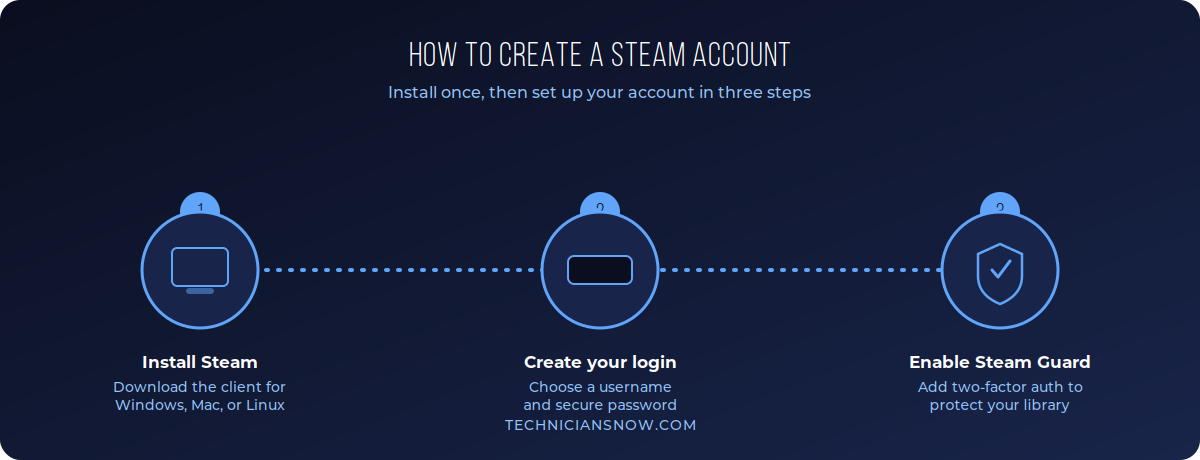
Steam Guard is optional but strongly recommended — see the security section below.
Step-by-Step: Creating a Steam Account
- Go to store.steampowered.com and click Install Steam, or download it directly for your operating system.
- Install and open the Steam client.
- Click Create Account on the login screen (or Join Steam on the website).
- Enter a valid email address and complete the CAPTCHA verification.
- Check your inbox for a verification code from Steam and enter it.
- Choose your account name (used for login) and a secure password.
- Steam will prompt you to set a profile display name — this is the name other players see, and it can be changed freely later.
- Complete the country/region selection and accept the Steam Subscriber Agreement.
Creating a Steam Account on Mobile
If you’d rather start on your phone before moving to a PC or Steam Deck:
- Install the Steam app from the App Store or Google Play.
- Tap Create Account and follow the same email verification and account-name steps as the desktop flow.
- Once created, you can log into this same account later on any PC, Mac, or Steam Deck.
Account Name vs. Display Name: A Common Point of Confusion
Steam has two separate identities that new users often mix up:
- Account name — set once during sign-up, used to log in, and rarely shown to other players.
- Display name (persona name) — the public name shown on your profile and in-game, which can be changed at any time from your profile settings without affecting your login.
If you’re trying to “change your Steam username” after account creation, you almost always want to change your display name, not your account name, which Steam does not allow you to change through normal settings.
Setting Up Steam Guard (Strongly Recommended)
Steam Guard is Steam’s two-factor authentication system, and setting it up immediately after account creation is one of the most effective ways to prevent your account — and your game library — from being compromised:
- Open Steam → Account Details → Manage Steam Guard Account Security.
- Choose Get Steam Guard codes by email for the simplest setup, or install the Steam Mobile App and enable the in-app authenticator for stronger protection.
- Follow the prompts to confirm your chosen method.
- Store your recovery code somewhere safe — you’ll need it if you ever lose access to your authentication method.
Accounts protected by the mobile authenticator are significantly harder to compromise than email-only verification, and Steam requires Steam Guard to be active for a period before you can trade or use the Community Market — worth knowing if you plan to trade items later.
Verifying Your Steam Account (Adding a Phone Number)
Beyond Steam Guard, Steam also has a separate “account verification” step tied to a phone number, required for some features like Steam Trading and the Community Market:
- Go to Account Details → Phone Number and select Add Phone Number.
- Enter your number and confirm the SMS code Steam sends you.
- Once verified, features that require a “verified” account (rather than just Steam Guard) become available.
Steam Family Sharing (Sharing Your Library)
If you’re setting up an account for a household rather than a single player, Steam’s Family Sharing feature is worth setting up right after account creation:
- Go to Steam → Settings → Family.
- Select Authorize Library Sharing on this computer.
- Add the family member’s Steam account to share your library with — subject to Steam’s simultaneous-play restrictions, since only one shared account can play a given title at a time.
Troubleshooting Steam Account Creation
- Verification code not arriving: Check spam/junk folders; if it’s been more than a few minutes, request a new code rather than reusing the old one.
- “This account name is already taken”: Account names must be unique across all of Steam — try a variation with numbers or underscores.
- Can’t log in after creating the account: Double-check for accidental Caps Lock or extra spaces in your password; account names and passwords are case-sensitive.
- Stuck at Steam Guard setup: If you didn’t receive a mobile authenticator code, confirm your phone has an active internet connection and the correct time zone set, since authenticator codes are time-sensitive.
- Trying to change your username but the option is greyed out: Remember Steam separates account name (fixed) from display name (changeable) — you’re very likely looking for the display name setting instead.
Setting Up Steam on a Steam Deck
If your first Steam account is being created directly on a Steam Deck rather than a PC:
- On first boot, select Sign in to Steam from the setup wizard.
- Choose Create Account and follow the same email verification and account-name steps covered above.
- Once created, the same account works identically on your Steam Deck, any PC, and the mobile app — your library and Steam Guard settings carry over automatically.
Steam’s Refund Policy: What New Users Should Know
Since a new Steam account often means a first purchase soon after, it’s worth understanding Steam’s standard refund policy upfront: most purchases are eligible for a refund within 14 days of purchase and under 2 hours of playtime, requested through Help → Steam Support → purchase history. This policy is automatic and doesn’t require special justification for eligible purchases, though it’s handled case-by-case outside those thresholds.
Setting Up a Steam Profile
Once your account exists, a few optional profile settings are worth configuring right away since they affect how you appear to other players and how you receive friend requests:
- Go to View → My Profile, then Edit Profile.
- Add an avatar image and a short bio if you’d like your profile to be more than a blank username.
- Under Privacy Settings, choose whether your game library, playtime, and friends list are public, friends-only, or private.
- Review Friend & Game Requests settings to control who can send you invites, which is worth tightening if you plan to livestream or share your profile publicly.
If you’re a multi-platform gamer, our guides to creating an EA account and a PSN account cover the other two most common gaming account types.
Frequently Asked Questions
Is creating a Steam account free? Yes, Steam accounts are completely free to create; you only pay for games or content you choose to purchase.
Can I use one Steam account on multiple computers? Yes — you can log into the same account on as many devices as you like, though simultaneous play across two devices at once is restricted per game.
What’s the difference between Steam Guard and phone verification? Steam Guard is two-factor login security; phone verification is a separate step tied to a mobile number, required specifically for trading and Community Market access.
Can I change my Steam account name later? No — your account name (used for login) is fixed after creation. Your public display name, however, can be changed anytime through your profile settings.
Do I need a credit card to create a Steam account? No, a payment method is only required when you make a purchase — account creation itself needs only an email address.