Quick answer: The best all-around Minecraft texture pack depends on your priority: Faithful for a sharper version of the vanilla look, a realistic-style pack for immersive survival builds, a lightweight/low-end pack for older hardware, and a minimalist pack for distraction-free building. All of the packs covered below work on Java Edition, with Bedrock-compatible versions noted where available.
Table of Contents
How to Choose the Right Texture Pack
Before picking a pack purely on screenshots, it helps to think about three things: your hardware, your play style, and whether you want the pack to change vanilla Minecraft’s identity or simply sharpen it.
- Survival/building for looks → realistic or high-detail packs
- Multiplayer/PvP → lightweight, high-contrast packs that improve visibility
- Older PC, laptop, or low-spec device → optimized low-end packs
- Content creation/streaming → packs with clean, camera-friendly detail that reads well on video
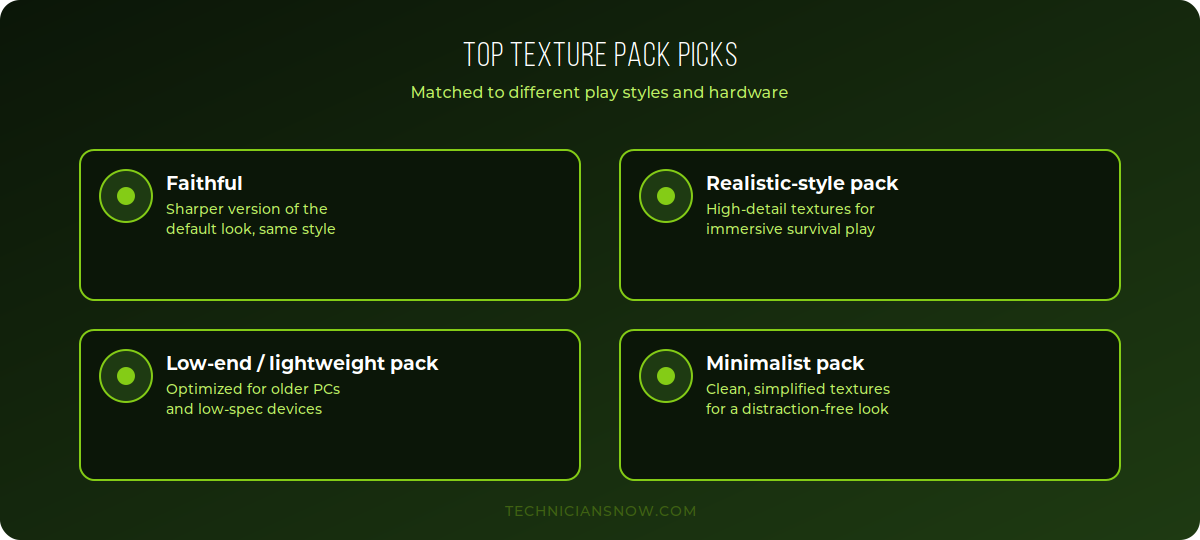
Four categories cover the vast majority of what players are actually looking for.
Best Overall: Faithful
Faithful is built on a simple idea: keep every texture recognizable as vanilla Minecraft, just with more detail and cleaner edges. It’s the safest first texture pack for most players because it doesn’t change the feel of the game — blocks, mobs, and items all still look like themselves, just sharper.
- Best for: players who want vanilla nostalgia with better visual clarity
- Performance impact: minimal — very close to vanilla’s own resource usage
- Platform support: Java and Bedrock versions both actively maintained
Best for Realism: A High-Detail Realistic Pack
Realistic-style packs replace Minecraft’s flat, cartoonish textures with high-resolution, physically-based materials — wood grain, weathered stone, real-looking metal and glass. These packs dramatically change Minecraft’s visual identity, closer to a survival sandbox game than its usual blocky art style.
- Best for: singleplayer survival worlds, screenshots, and cinematic builds
- Performance impact: noticeably higher — these packs typically require a mid-range or better GPU, and pair best with a shader pack for full effect
- Platform support: primarily Java, since Bedrock’s shader/rendering support is more limited
Best for Low-End Devices: A Lightweight Optimization Pack
Not everyone is playing on a gaming PC. Lightweight packs specifically target lower texture resolutions and simplified lighting to keep frame rates high on older laptops, budget PCs, and even some mobile devices running Bedrock.
- Best for: older hardware, laptops without dedicated graphics, and large multiplayer servers where performance matters more than visual detail
- Performance impact: often improves frame rates above vanilla textures, not just matches them
- Platform support: both Java and Bedrock, with Bedrock especially benefiting given mobile and console hardware constraints
Best for Multiplayer/PvP: A High-Contrast Pack
Competitive Minecraft players often use a completely different category of pack — not for realism, but for clarity. High-contrast PvP packs simplify textures and boost color differences between blocks, mobs, and players so opponents are easier to spot at a glance.
- Best for: PvP servers, competitive building/speedrunning, and anyone prioritizing visibility over aesthetics
- Performance impact: typically very light, similar to or better than vanilla
- Platform support: primarily Java, since most competitive Minecraft communities are Java-based
Best Minimalist Pack: Clean, Simplified Textures
Minimalist packs strip away visual noise rather than adding detail — flatter colors, simplified patterns, and a calmer overall look. These have grown in popularity among builders who want their own creations to stand out rather than competing with busy vanilla textures.
- Best for: creative-mode building, content creators who want a distinct visual signature
- Performance impact: minimal
- Platform support: both Java and Bedrock, though selection is wider on Java
How to Install a Texture Pack (Java Edition)
- Download the texture pack
.zipfile from a trusted source — do not extract it. - Open Minecraft, go to Options → Resource Packs.
- Click Open Resource Pack Folder and drop the
.zipfile directly into that folder. - Return to Minecraft; the pack will now appear in your available resource packs list.
- Select it and move it to the Selected column, then click Done.
How to Install a Texture Pack (Bedrock Edition)
- Download the
.mcpackfile for the pack you want (Bedrock packs use this format instead of a plain.zip). - Open the file directly — Minecraft Bedrock will automatically import it if it’s already installed.
- In-game, go to Settings → Global Resources (or apply it per-world under a world’s individual settings) and activate the pack.
Combining Texture Packs with Shaders
Texture packs and shaders solve different problems and are often used together rather than as alternatives:
- Texture packs change the actual images used for blocks, items, and mobs.
- Shaders change how lighting, shadows, water, and reflections are rendered, independent of the textures themselves.
A realistic-style texture pack paired with a compatible shader produces a dramatically different look than either alone — but shaders carry a much heavier performance cost, so this combination is best reserved for higher-end hardware. If you’re on a lower-spec device, stick to a texture pack alone (or a lightweight one specifically) rather than adding a shader on top.
Texture Packs vs. Resource Packs: Same Thing?
“Texture pack” and “resource pack” are used almost interchangeably in the Minecraft community, though there’s a small technical distinction: a resource pack can modify more than just textures — sounds, fonts, UI elements, and some models can be included too. Nearly every pack recommended in “best texture pack” lists, including the ones above, are technically resource packs, so don’t be confused if you see both terms used for the same download.
Where to Safely Download Texture Packs
Sticking to well-established, reputable sources matters more for texture packs than many players realize, since resource pack files can technically execute scripts in some cases:
- CurseForge and Modrinth — both host extensive, actively moderated libraries of Minecraft mods and resource packs with clear version compatibility labeling.
- Planet Minecraft — a long-running community hub with user reviews and download counts that help gauge a pack’s reliability.
- The pack creator’s own official page, when linked directly from a reputable source rather than a third-party re-upload.
Avoid generic “download Minecraft texture packs” sites that bundle installers with unrelated software — a legitimate resource pack should never require running an installer beyond simply placing a file in your resource packs folder.
Using Multiple Texture Packs Together
Minecraft actually supports stacking more than one resource pack at once, with higher-priority packs overriding specific textures from lower-priority ones beneath them. This is useful if, for example, you want a base realistic pack but prefer a different pack’s specific UI or font style — both can be active simultaneously, with your preferred one placed higher in the Selected list under Options → Resource Packs.
If retro gaming is more your speed, our guide to the best PS1 emulators covers a different corner of the gaming world worth checking out.
Frequently Asked Questions
Do texture packs affect Minecraft’s performance?
Yes — higher-resolution and realistic-style packs increase GPU and memory usage, while lightweight packs are specifically designed to reduce it below vanilla’s own textures.
Can I use a Java texture pack on Bedrock Edition?
No — Java and Bedrock use different file formats (.zip resource packs vs. .mcpack), so you’ll need a version built for your specific edition.
Are texture packs safe to download?
Only download packs from trusted, well-known sources — CurseForge, Modrinth, and Planet Minecraft are among the most established. Avoid packs bundled inside random third-party download managers, which sometimes wrap unrelated software into the installer.
Do texture packs work with shaders?
Yes, and many realistic-style packs are specifically designed to be paired with a shader pack for full effect — texture packs handle the block/item art, while shaders handle lighting, shadows, and reflections separately.
Will a texture pack get me banned on servers?
No — texture and resource packs are purely visual and client-side, so they don’t affect server-side gameplay rules. Some competitive servers do restrict specific PvP-advantage packs (like ones that make mobs fully transparent), so check individual server rules if you’re playing competitively.