ESPN Plus activate in three steps: install the ESPN app (not a separate “ESPN+” app) on your smart TV, open it, and select Sign In → Activate on another device. Note the activation code shown, then go to espn.com/activate on your phone or computer, enter the code, and log in. One important 2025 update: ESPN+ was rebranded to ESPN Select, so if you’re activating a subscription today, you’re technically activating ESPN Select — the process and the content are the same as what people still search for as “ESPN Plus.”
Table of Contents
First: What “Activating ESPN Plus” Actually Means Today
If you set up ESPN+ a couple of years ago and haven’t touched it since, here’s the update that explains anything that looks different now: in August 2025, Disney retired the ESPN+ brand name and split its direct-to-consumer service into two plans:
- ESPN Select — the direct continuation of ESPN+. Same live out-of-market sports, same originals like 30 for 30, same price tier, just a new name. If you already had ESPN+, you were moved to this automatically with no action needed.
- ESPN Unlimited — a brand-new, separate, higher-priced plan that adds live linear ESPN channels (ESPN, ESPN2, ESPNU, SEC Network, ACC Network) streamed directly, something ESPN+ never included.
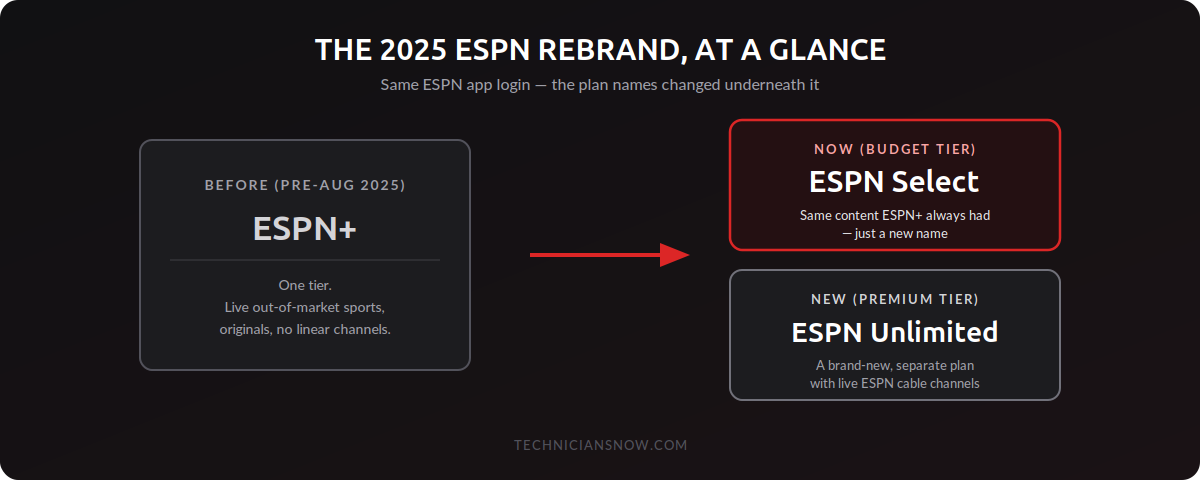
Both plans still live inside the same single ESPN app — there was never a separate “ESPN+” app to begin with, which is the detail that trips up the most people during activation. This guide uses “ESPN+” throughout because that’s still what most people search for, but every step below applies whether your account currently shows as ESPN Select or ESPN Unlimited.
Before You Start
- An ESPN account — either a direct subscription (Select or Unlimited) or access through a participating TV/mobile provider
- A supported smart TV or streaming device: Samsung, LG, Roku, Fire TV, Apple TV, Android TV, Xbox, or PlayStation
- A phone or computer to complete activation at espn.com/activate
How to Activate ESPN on Samsung Smart TV
- Press Home, go to Apps, search for ESPN, and install it if it isn’t already there.
- Open the app. Avoid the ESPN+ tab if you already have a subscription — that tab is aimed at new sign-ups.
- Select the Settings gear icon in the top corner.
- Go to Subscriptions → ESPN+ (or ESPN Unlimited) → Login.
- Note the activation code shown on screen.
- On your phone or computer, go to espn.com/activate, enter the code, and select Continue.
- Log in with your ESPN account credentials. Your Samsung TV will confirm activation automatically.
How to Activate ESPN on LG Smart TV
LG’s native app support varies by model year, so there are two paths depending on your TV:
If your LG TV has the ESPN app in the LG Content Store:
- Install it from the Content Store, open it, and follow the same Settings → Subscriptions → Login flow as Samsung above.
- Enter the resulting code at espn.com/activate.
If your LG TV doesn’t have a native ESPN app (common on older models):
- Open the ESPN app on your phone or tablet and start playing any ESPN+ content.
- Tap the AirPlay/Cast icon and select your LG TV.
- This casts the stream directly — no separate activation code needed for this method, since you’re signed in on your phone already.
How to Activate ESPN on Roku
- From the Roku home screen, go to Streaming Channels, search for ESPN, and install it.
- Open the app and select Sign In.
- Note the activation code Roku displays.
- On a phone or computer, go to espn.com/activate, enter the code, and log in.
- Your Roku will refresh and load your ESPN library automatically.
How to Activate ESPN on Fire TV, Apple TV, and Android TV
The flow is consistent across every major connected-TV platform:
- Install ESPN from the Amazon Appstore, Apple App Store, or Google Play, depending on your device.
- Launch the app and select Sign In.
- Note the activation code on screen.
- Visit espn.com/activate on a separate device, enter the code, and log in.
- The app refreshes and loads your account automatically, typically within 30 seconds.
Activating ESPN Through a TV or Mobile Provider
If your ESPN access comes bundled through a cable, satellite, or mobile carrier plan rather than a direct subscription:
- In the ESPN app, choose Sign In With TV/Mobile Provider instead of the standard login.
- Select your provider from the list.
- You’ll be redirected to your provider’s own sign-in page — use your provider account credentials, not a separate ESPN password.
- Once authenticated, the ESPN app unlocks the content included in your specific provider package.
Worth checking: provider-bundled ESPN access typically maps to the ESPN Unlimited tier (since it mirrors traditional live-channel access), while a direct paid subscription without a TV provider is usually the ESPN Select tier. If content you expect to see is missing, this mismatch is the most common cause.
Setting up other streaming apps today? Our guides to activating Peacock, Paramount+, and Hulu all follow this same code-based process.
ESPN Plus Activate Not Working? Try This
- “Code expired” error: Activation codes are time-limited. Back out of the sign-in screen on your TV and generate a fresh code.
- Code not accepted: Double-check for confusable characters (0 vs. O, 1 vs. I) and make sure there’s no trailing space.
- Signed in but missing live ESPN channels: This almost always means your account is on the ESPN Select tier, which doesn’t include linear ESPN channels — that requires ESPN Unlimited or a qualifying TV provider login instead.
- “This device isn’t supported”: Confirm your smart TV’s OS is updated — very old TV models (typically pre-2016) may have dropped native ESPN app support and need AirPlay/casting from a phone instead.
- Stuck after entering the code: Confirm both the TV and your phone/computer have active internet connections at the same time — activation needs both devices online simultaneously.
Frequently Asked Questions
Is ESPN+ still a thing, or did it disappear?
The ESPN+ content library didn’t go anywhere — it was renamed ESPN Select in August 2025. If you subscribed to ESPN+ before then, you were automatically moved to ESPN Select with no action required.
Do I need a different app now that ESPN+ is called ESPN Select?
No — everything runs through the same ESPN app you’d have installed before. There was never a dedicated standalone “ESPN+” app.
What’s the actual difference between ESPN Select and ESPN Unlimited?
ESPN Select is the same library ESPN+ always had (out-of-market live sports, originals, no linear channels). ESPN Unlimited is a separate, pricier plan that adds live ESPN, ESPN2, ESPNU, and other linear ESPN cable channels streamed directly.
Why does my TV keep asking me to reactivate ESPN?
This typically happens after a factory reset, a long period of inactivity, or signing out manually — simply repeat the activation steps for your device above.
Can I activate ESPN on more than one TV with the same account?
Yes, subject to ESPN’s simultaneous-stream limits for your specific plan tier.