Quick answer: Go to accounts.nintendo.com in any browser and select Create Nintendo Account, or do it directly on your console: open System Settings → Users → Add User → Create New User, then select Link Nintendo Account and follow the email verification steps. The same account works across Switch, Switch 2, mobile Nintendo apps, and the My Nintendo Store.
Table of Contents
What a Nintendo Account Actually Does
A Nintendo Account is the central login required for nearly everything modern Nintendo hardware does: buying digital games from the eShop, playing online multiplayer through Nintendo Switch Online, backing up save data to the cloud, and redeeming rewards through My Nintendo. It’s separate from the local user profile on your console (the icon and nickname you pick when you turn on a Switch for the first time) — a user profile becomes fully functional only once it’s linked to a Nintendo Account.
Nintendo Account vs. My Nintendo — a quick clarification: these get mixed up constantly. Your Nintendo Account is your login. My Nintendo is a free rewards program layered on top of it, where you earn points for purchases and eligible activity. You don’t sign up for them separately — My Nintendo activates automatically once your Nintendo Account exists.
How to Create a Nintendo Account Online
- Open a browser on your phone or computer and go to accounts.nintendo.com.
- Select Create a Nintendo Account.
- Enter your date of birth. Nintendo uses this to determine whether parental consent is required (see below).
- Enter your email address and create a password, or choose to sign up using an existing Google or Apple login instead.
- Check your email for a verification link or code and confirm it.
- Your Nintendo Account is now active and ready to link to a console.
How to Create a Nintendo Account Directly on Switch
If you’d rather set everything up from the console itself:
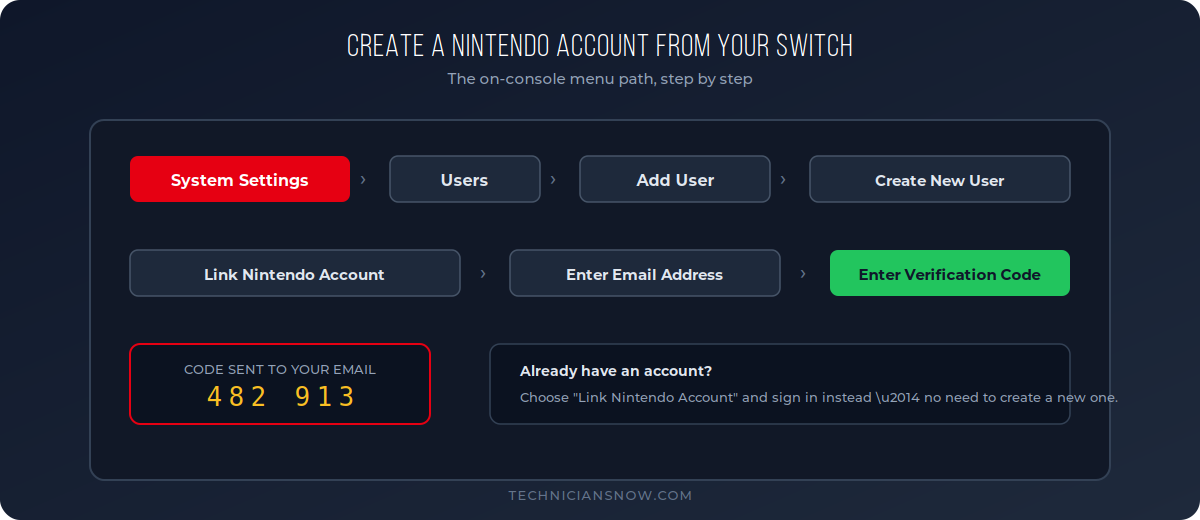
- From the HOME Menu, select System Settings (the gear icon).
- Scroll down and select Users.
- Select Add User, then choose Create New User.
- Pick a nickname and icon for this console profile.
- When prompted, select Link Nintendo Account.
- Enter your email address. Nintendo sends a verification code to that address.
- Enter the code on your console to complete the link.
Console limit to know about: a single Switch can hold up to 8 user profiles. If “Add User” doesn’t appear as an option, the console has already reached that limit and an existing profile needs to be removed first.
Setting Up a Nintendo Account for a Child
Nintendo requires verifiable parental consent for accounts belonging to younger players:
- During sign-up, enter the child’s actual date of birth rather than an adult’s — this isn’t just a formality, since Nintendo’s safety and purchase-restriction features depend on accurate age data.
- If the birthdate indicates a minor, Nintendo will prompt for a parent or guardian’s email address instead.
- The parent completes a separate consent step, then can manage the child’s account through Nintendo’s Parental Controls — either the companion app or the web-based family group settings.
- From there, a parent can set spending limits, restrict online communication features, and cap play time.
Moving to Switch 2? Your Account Comes With You
Nintendo uses a single, unified account system across generations, so upgrading hardware doesn’t mean starting over:
- During the Switch 2 initial setup screen, select the option to sign in with an existing Nintendo Account rather than creating a new one.
- Enter your existing login details — your purchases, save data (where supported by the specific game), and My Nintendo rewards all carry over automatically.
- If you’re setting up a Switch 2 for the first time with no prior Nintendo history, you can create a brand-new account directly from that same welcome screen, using the same steps as the standard console flow above.
What Happened to NNID? (Nintendo Network ID)
If you’re returning to Nintendo after a long break, you might remember an “NNID” — the older login system used for the Wii U and Nintendo 3DS. NNID is no longer required for any modern Switch console, but it hasn’t disappeared entirely: you can link an old NNID to your current Nintendo Account specifically to merge over any remaining digital balance or purchase history tied to it. This is an optional cleanup step, not something you need to do to use a modern console.
Securing Your Nintendo Account
Since a Nintendo Account can hold saved payment methods and years of digital purchases, it’s worth adding two-factor authentication right after creating it:
- Sign in at accounts.nintendo.com and go to Sign-In and Security Settings.
- Select 2-Step Verification and choose to receive codes via an authenticator app.
- Scan the QR code with an authenticator app on your phone and enter the generated code to confirm setup.
- Save the backup codes Nintendo provides somewhere safe — you’ll need one if you ever lose access to your authenticator app.
With 2-Step Verification active, signing in on a new device or console requires both your password and a time-limited code, which meaningfully reduces the risk of someone else accessing your account even if your password is ever compromised.
Troubleshooting Nintendo Account Creation
- Verification email not arriving: check spam/junk folders, and confirm the email address was typed correctly — this is the most common point of failure.
- “This email is already registered”: an account already exists for that address. Use the password reset option on accounts.nintendo.com rather than creating a duplicate.
- Console won’t show the “Add User” option: you’ve likely hit the 8-profile limit for that console — remove an unused profile first.
- Stuck on the parental consent screen: confirm the birthdate entered matches the actual player’s age; entering an adult birthdate for a child’s profile can cause mismatches later when Nintendo’s systems flag inconsistent account data.
- Switch won’t accept a verification code: codes expire after a short window — request a new one rather than reusing an old code from a previous attempt.
Setting up gaming accounts across platforms today? Our guides to creating an EA account, a PSN account, and a Steam account cover the other major ecosystems.
Frequently Asked Questions
Is a Nintendo Account free to create?
Yes — creating a Nintendo Account costs nothing. Nintendo Switch Online (for online multiplayer) is a separate, optional paid subscription.
Can I use the same Nintendo Account on more than one console?
Yes, though only one console at a time can be set as your “primary” console for sharing purchased digital games with other local user profiles.
Do I need a new Nintendo Account for Switch 2?
No — Nintendo’s unified account system means your existing account, purchases, and rewards carry over when you sign in on a new console.
What’s the difference between a Nintendo Account and a console user profile?
A user profile is local to a specific console (the icon/nickname you see at startup); a Nintendo Account is the actual login tied to purchases, online features, and rewards. A profile needs a linked Nintendo Account to unlock most functionality.
Can I change my child’s Nintendo Account settings later?
yes — a parent can adjust spending limits, communication restrictions, and play-time limits at any time through Nintendo’s Parental Controls app or web settings.