Quick answer: Go to ea.com, select Sign Up, and enter your email, a display name, and a password. Verify your email address, then link the account to whichever platform you play on — PC via the EA app, PlayStation, Xbox, or Nintendo Switch. One EA account works across every EA title, including EA FC and Apex Legends.
Table of Contents
Why You Need an EA Account
Nearly every modern EA game — EA FC (formerly FIFA), Apex Legends, Battlefield, and The Sims — requires a linked EA account, even if you’re buying the game through Steam, PlayStation, or Xbox. The EA account is what tracks your purchases, progression, and online identity across platforms, separate from your console or Steam login.
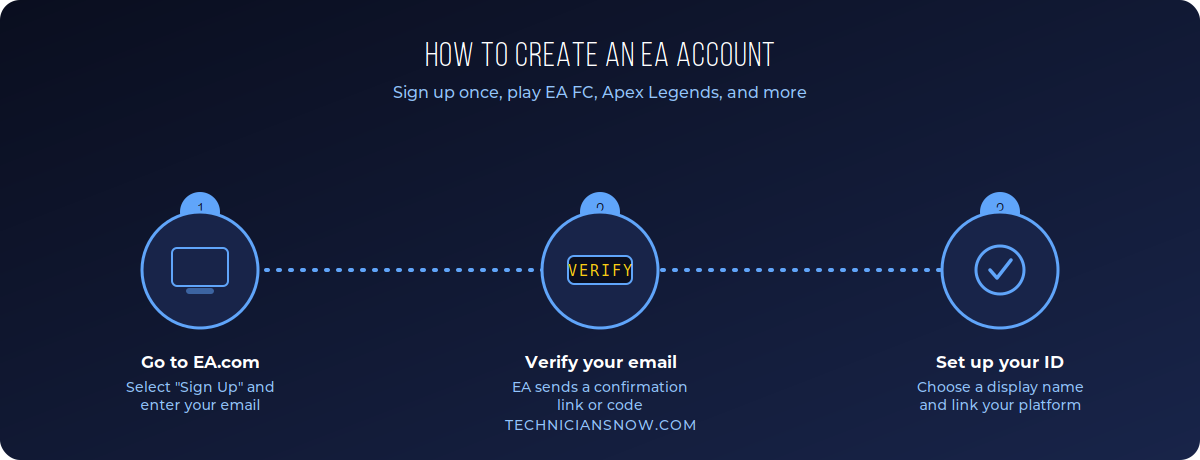
The same three-step flow applies whether you’re setting it up for EA FC or Apex Legends.
Step-by-Step: Creating an EA Account
- Go to ea.com and select Sign Up in the top corner (or open the EA app and choose Create Account).
- Enter your email address, a display name (this becomes your public EA ID), and a secure password.
- Confirm your date of birth and accept EA’s terms of service and privacy policy.
- Check your inbox for a verification email and click the confirmation link.
- Once verified, sign in and link the platform you play on — Steam, PlayStation Network, Xbox Live, or Nintendo — under Account Settings → Linked Accounts.
Creating an EA Account on Console
If you’re setting this up directly from a PlayStation or Xbox rather than a browser:
- Launch EA FC, Apex Legends, or any EA title for the first time.
- When prompted, select Create EA Account rather than signing in.
- Follow the on-screen steps to enter your email and set a password — this creates the same account you’d get from ea.com.
- Your console’s platform account (PSN or Xbox Live) is automatically linked during this process.
Creating an EA Account for Apex Legends on Steam or PC
Apex Legends specifically requires an EA account even when purchased through Steam:
- Install Apex Legends from Steam as normal.
- On first launch, you’ll be prompted to sign in or create an EA account.
- Choose Create Account, complete the sign-up form, and verify your email.
- Your Steam library purchase is now linked to your new EA account, and your Apex Legends progress will be tied to it going forward.
Linking vs. Creating: A Common Point of Confusion
A lot of readers searching “create ea account” already have one without realizing it — EA accounts are shared across every EA game and platform. Before creating a new one, check whether you already have an account tied to an old email, since EA does not merge duplicate accounts automatically. If you’re unsure, try Forgot Password on ea.com with any email you might have used previously before creating a fresh account.
Troubleshooting EA Account Sign-Up Issues
- Verification email not arriving: Check spam/junk folders first; if it still doesn’t appear after a few minutes, use Resend Verification Email on the sign-in page rather than creating a second account.
- “Email already in use” error: This means an EA account already exists for that address — use Forgot Password instead of trying to sign up again.
- Account created but game won’t launch: Make sure the EA account is linked to the correct platform account under Account Settings → Linked Accounts — a missing link is the most common cause of this specific issue.
- Underage sign-up restrictions: EA enforces minimum age requirements tied to the birthdate entered during sign-up; a parent or guardian may need to complete additional steps for younger players.
Setting Up Two-Factor Login Verification
Once your EA account is created, it’s worth adding an extra layer of security immediately, especially since it’s tied to your purchased games and any saved payment methods:
- Go to Account Settings → Security on ea.com.
- Select Login Verification and choose either email-based codes or an authenticator app.
- Follow the prompts to confirm your chosen method.
- Save any backup codes provided somewhere safe, in case you lose access to your primary verification method later.
This step isn’t strictly required to create an account, but it meaningfully reduces the risk of your account — and any linked payment methods — being compromised.
EA App vs. Origin: Which One Do You Need?
Long-time PC players sometimes have an old Origin installation and wonder whether they need to switch. EA has retired Origin in favor of the EA app, which uses the same underlying EA account system covered in this guide — there’s no separate account type for one versus the other. If you still have Origin installed, EA’s migration tools will move your existing library and account details over to the EA app automatically.
What Happens to Your EA Account If You Stop Playing
EA accounts don’t expire from inactivity in a way that affects your purchases or progress — your games, achievements, and any linked platform accounts remain associated with your EA account indefinitely. The main thing to keep current is your recovery email and any two-factor verification method, since regaining access after years of inactivity depends on those details still being valid.
Managing Multiple EA Accounts in One Household
Households with more than one player often wonder whether everyone needs a fully separate EA account, or whether one account can cover the family:
- Each player should have their own EA account if they want their own separate progress, purchases, and online identity — EA accounts are designed around individual players, not shared household logins.
- Platform-level family sharing (through PlayStation, Xbox, or Steam’s own family features) can sometimes share purchased game licenses across accounts on the same console or PC, but this is separate from and doesn’t replace each player needing their own EA account for progress tracking.
- Parental controls for younger players are generally managed at the platform level (PSN Family Management, Xbox Family Settings) rather than through EA’s own account system directly.
Updating Your EA Account Information
Once your account is set up, a few settings are worth reviewing periodically:
- Go to Account Settings on ea.com or within the EA app.
- Update your recovery email if your original sign-up address is no longer active.
- Review linked platforms under Linked Accounts to confirm everything is still connected correctly, especially after buying a new console or reinstalling Steam.
- Check Privacy Settings to control what other players can see on your public EA profile.
Setting up other gaming accounts today? Our guides to creating a PSN account and a Steam account cover the other two platforms most EA games run on.
Frequently Asked Questions
Do I need a separate EA account for EA FC and Apex Legends? No — one EA account works across every EA game, regardless of platform.
Is an EA account free? Yes, creating an EA account costs nothing; you only pay for the games or in-game content you choose to buy.
Can I change my EA display name later? Yes, though EA limits how often you can change it — check Account Settings for your current cooldown period, if any.
Do I need an EA account if I already have a Steam or PlayStation account? Yes — EA games require their own account layer in addition to your platform account, even though sign-in can happen through your console or Steam client.
What happens if I forget which email I used for my EA account? Try EA’s account recovery tool at ea.com/help, which can look up an account using your gamertag, PSN ID, or other linked platform details.