Create Epic Games account setup takes about two minutes: go to epicgames.com, select Sign In → Create Account, enter your date of birth and email (or continue with Google, Apple, or Autodesk), fill in your name, display name, and password, then confirm the 6-digit code sent to your email. From there you can link Xbox, PlayStation, or Nintendo accounts to bring existing progress along. One account works across Fortnite, Rocket League, Fall Guys, and the Epic Games Store.
Table of Contents
What an Epic Games Account Is Actually For
An Epic Games account is the single login behind everything Epic Games publishes or operates: Fortnite, Rocket League, Fall Guys, the Epic Games Store on PC and mobile, and the Unreal Engine Marketplace. It’s separate from your console’s own network account (Xbox Live, PSN, or a Nintendo Account) — those stay in place, and an Epic account links to them rather than replacing them.
Step-by-Step: Creating an Epic Games Account
- Go to epicgames.com and select Sign In in the top-right corner.
- Select Create Account.
- If you already play on a console, Epic will ask whether you’d like to sign in with that platform account first — this helps merge existing Fortnite or Rocket League progress into the new account rather than starting fresh. Choose Yes to link it now, or No to continue with just an email.
- Enter your date of birth and select Continue.
- Enter an email address, or choose Continue with Google, Apple, or Autodesk instead.
- Fill in your country, first and last name, a display name, and a password.
- Check the box accepting Epic’s terms and select Continue.
- Enter the 6-digit security code Epic emails you, then select Continue to verify.
- Choose whether to link additional platform accounts (Xbox, PlayStation, Nintendo) now, or select Done Linking to finish without linking anything else.
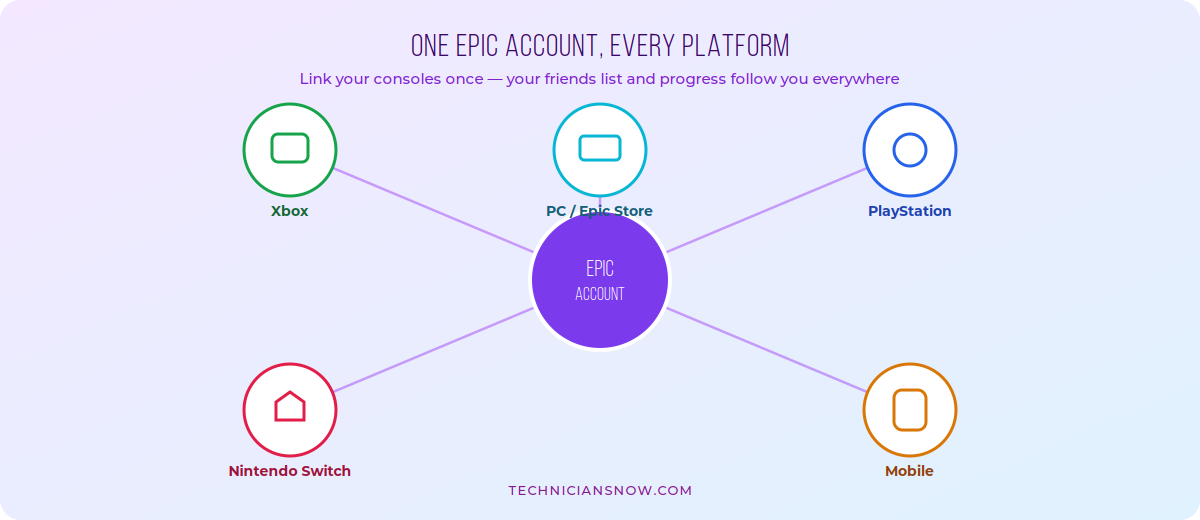
Linking a platform account merges your friends list and in-game progress — it doesn’t create a second, separate account.
Linking Xbox, PlayStation, or Nintendo to Your Epic Account
If you skipped platform linking during sign-up, you can add it anytime:
- Sign in at epicgames.com and go to Account → Connections.
- Find the platform you want to link (Xbox, PlayStation Network, Nintendo Account, Steam) and select Connect.
- Sign in with that platform’s own credentials when prompted.
- Once linked, your Epic friends list and cross-platform progress in supported games sync automatically.
Worth knowing: linking a platform account merges data into your existing Epic account — it doesn’t create a new one. If you’re trying to combine two separate Epic accounts you created by mistake (one from console, one from PC), that’s not supported; Epic accounts can’t be merged with each other, only linked to external platform accounts.
One Epic Games Account Per Email
Epic allows only one account per email address. If you’re setting up a second account — for a second console profile, a sibling, or a separate creator/competitive identity — you’ll need a different email address, since re-entering the same one will simply prompt you to sign in to the existing account instead. Keep in mind a second account starts completely fresh: purchases, V-Bucks, cosmetics, and progress do not transfer between separate Epic accounts.
Setting Up an Epic Games Account for a Child
Following regulatory requirements around children’s privacy, Epic applies extra protections to accounts registered to younger players by default — including default-off voice and text chat and additional purchase restrictions — until a parent grants permission otherwise. If you’re creating an account for a child:
- Enter the child’s real date of birth during sign-up rather than an adult’s, since Epic’s safety defaults are tied directly to that information.
- Use Epic’s Parental Controls (accessible from Account settings or the Epic Games Store app) to manage spending limits, playtime, and communication permissions.
- A linked parent email can adjust these settings at any time as the child gets older.
Securing Your Epic Games Account
Because an Epic account can hold saved payment methods, V-Bucks, and years of purchases, setting up two-factor authentication (2FA) immediately after account creation is worth the extra minute:
- Go to Account → Password & Security.
- Select Enable Two-Factor Authentication.
- Choose email codes, an authenticator app, or SMS, depending on what you have available.
- Confirm setup by entering a test code.
Enabling 2FA is also required to receive certain free in-game rewards Epic has offered periodically in Fortnite, so it’s worth turning on even purely for that reason.
Epic Games Store Refund Policy: What New Users Should Know
Since a new Epic account often means a first Epic Games Store purchase soon after, it’s worth knowing the basics upfront: most purchases are eligible for a refund within 14 days of purchase, provided the game has been played for under 2 hours, requested through Account → Transactions on epicgames.com. This mirrors the standard refund window most major PC storefronts now offer, and it’s handled automatically for eligible purchases rather than requiring a support ticket.
Create Epic Games Account Not Working? Try This
- Verification code not arriving: check spam/junk folders, and confirm the email address was typed correctly during sign-up.
- “This email is already registered”: an Epic account already exists for that address — use Forgot Password instead of creating a duplicate.
- Stuck on the platform-linking step: make sure you’re signing in with the correct platform credentials (Xbox Live, PSN, or Nintendo Account) rather than an Epic password, since this step uses each platform’s own login.
- Display name already taken: Epic display names must be unique account-wide — try adding numbers or a variation.
- Can’t link a second console to the same Epic account: confirm you’re not trying to link a platform account that’s already linked to a different Epic account, since each platform account can only connect to one Epic account at a time.
Frequently Asked Questions
Is it free to create an Epic Games account?
Yes — creating an account costs nothing. You only pay for games, V-Bucks, or other purchases you choose to make.
Do I need an Epic Games account to play Fortnite?
Yes — Fortnite, Rocket League, and Fall Guys all require a linked Epic Games account regardless of which platform you play on.
Can I merge two existing Epic Games accounts?
No — Epic doesn’t support merging two separate accounts into one. You can link platform accounts to a single Epic account, but two Epic accounts themselves stay separate.
What’s the difference between an Epic Games account and a linked platform account?
Your Epic account is the central login across all Epic-published games and the Epic Games Store; a linked platform account (Xbox, PSN, Nintendo) stays fully separate but connects for cross-platform friends lists and progress syncing.
Why does Epic ask for two-factor authentication?
It significantly reduces the risk of unauthorized account access, and it’s also required to claim certain free in-game rewards Epic has offered in Fortnite from time to time.
Setting up gaming accounts across platforms today? Our guides to creating an EA account, a PSN account, a Steam account, and a Nintendo Account cover the other major ecosystems.