iCloud provides access and storage for your Apple devices. Be it images, contacts, emails, or any other data. Thus it becomes essential to have proper iCloud Login access and solutions to various login issues you might face. If this is something you are looking for, we have got your back! We have compiled this detailed guide to make the best out of your Apple experience. It will help you clear all your doubts about account creation, the login process, and solving troubleshooting issues.
Table of Contents
What Is iCloud Login?
iCloud Login allows Apple users to securely access iCloud services using their Apple ID credentials. Once signed in, users can manage important data such as photos, videos, emails, contacts, notes, files, backups, and device settings across multiple Apple devices.
By logging into iCloud, users can also access services like Find My iPhone, iCloud Drive, iCloud Mail, Calendar, and iCloud Backup directly from a browser or Apple device. Whether you use an iPhone, iPad, Mac, or Windows PC, iCloud makes it easy to sync and manage data from anywhere.
Many users also confuse iCloud Login with Apple ID Login. While both use the same credentials, the Apple ID acts as the main account used across Apple services, while iCloud specifically handles cloud storage and syncing services.
Step-by-Step Procedure For Creating Your iCloud Account:
Your first step towards storing and accessing your Apple data is to create your iCloud account. Here is the procedure, follow the steps mentioned below and they will guide you in creating your account in a simple and hassle-free way.
For IOS Gadgets Like (iPads, and iPhones)
1. Open settings:
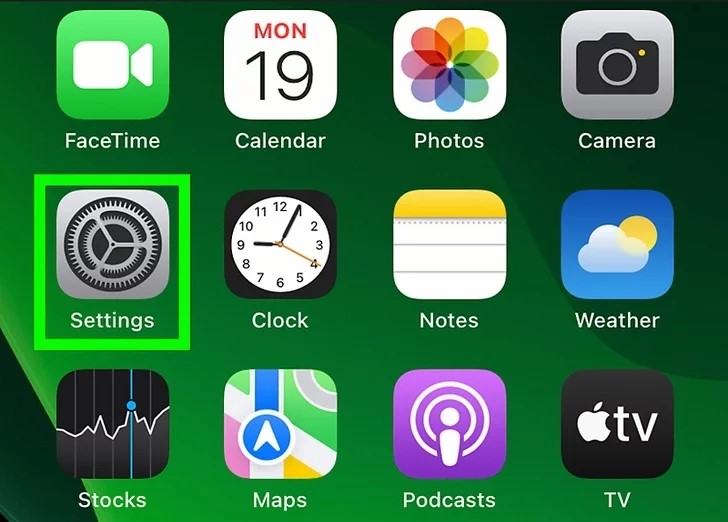
-Go to the settings app on your phone and tap open it.
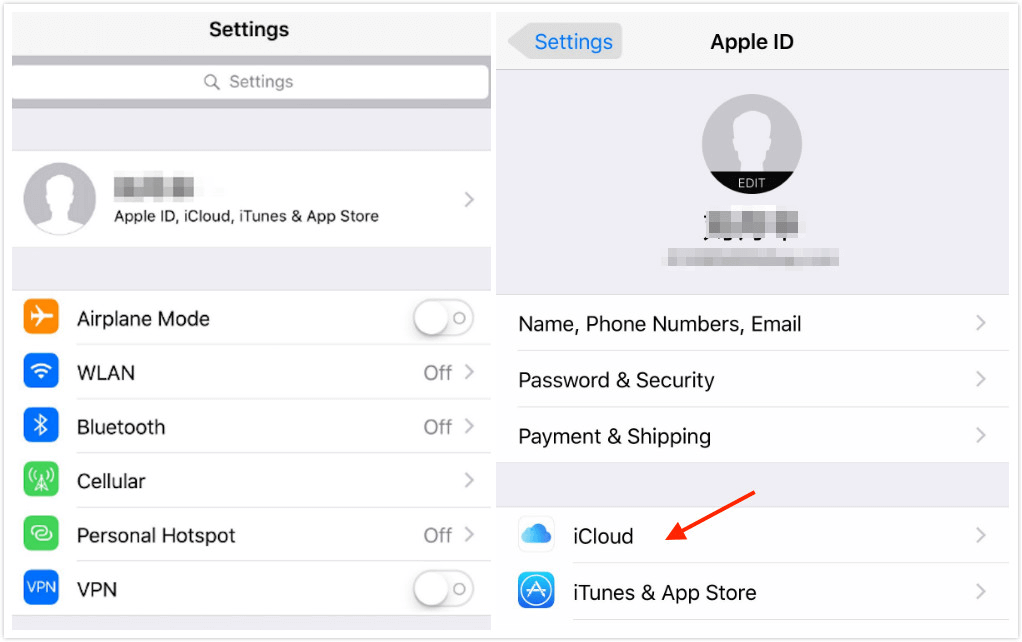
2. Tap (Your Name):
-Scroll down and at the top of the menu you will see “Your Name“. Tap and open it.
3. Open iCloud Settings:
-Now go to the Apple ID menu and click “iCloud Settings“.
4. Turn iCloud ON:
-Click the switch next to “iCloud” tap it and set it to the ON position.
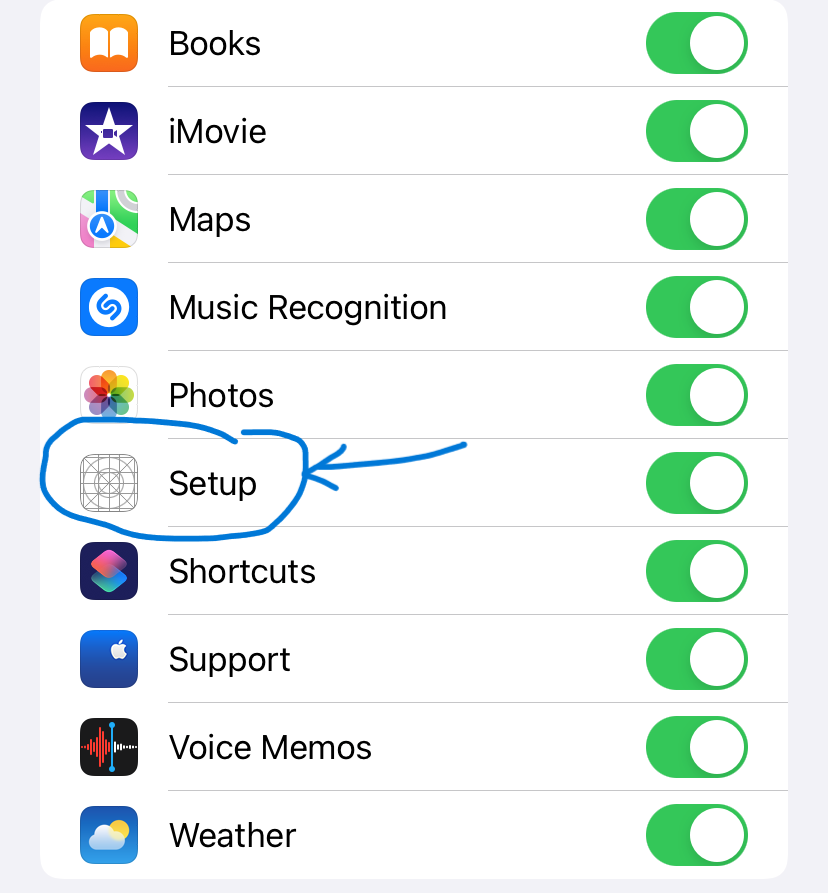
5. Enter Apple ID & Password:
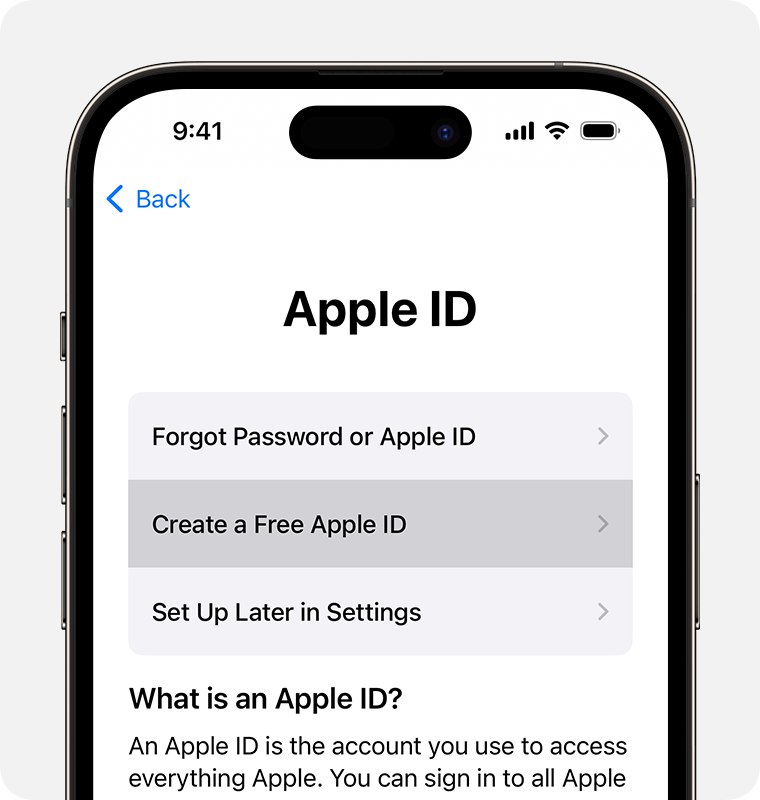
-If you already have an Apple ID, great! Just enter your login details i.e. Apple ID and password. If not, no worries, click the “Get a Free Apple ID” button on the screen. Follow the instructions and you’ll have your new ID.
6. Setup the iCloud:
–Select and choose the iCloud services that you wish to use, like images, contacts, emails, etc. Then click the “Next” button.
7. Activate Find My Phone:
-If you wish to increase security allow “Find My Phone”
8. Agree to Terms & Agreement:
-To move forward with the procedure, you need to agree with the terms and agreements. Make sure you read them properly.
9. Confirm Email:
-After following all the steps wait for the verification email and proceed as directed.
Interesting Blog:- Login to Cox net Webmail – Some Easy Steps
iCloud Login Procedure On a Mac and Windows
# Mac:
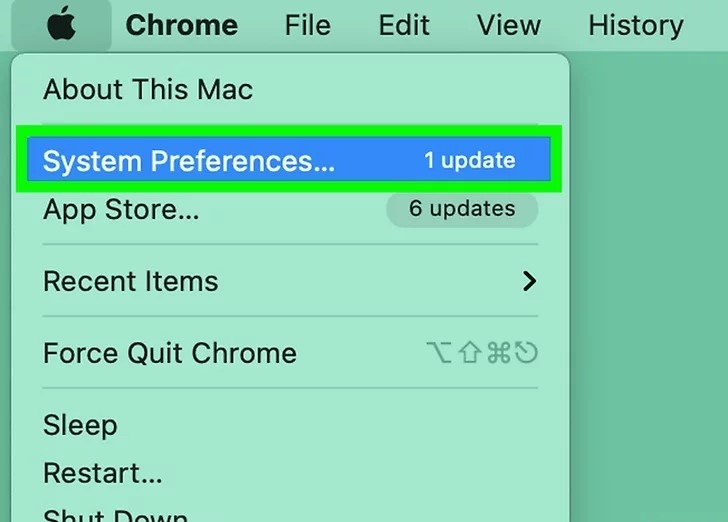
- Select Apple Menu: – Click the Apple logo in the upper-left corner.
- Go to System Preferences: Choose the “System Preferences” option.
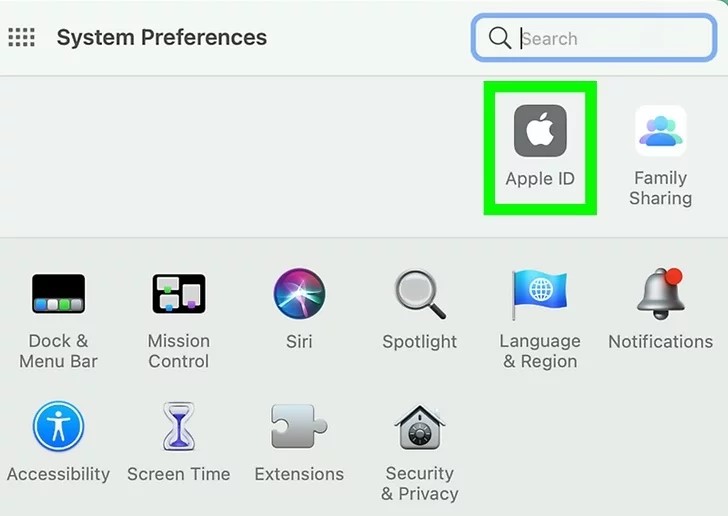
- Select Apple ID: – If you’re using macOS Catalina or a later version, select “Apple ID.” For previous versions, search for “iCloud.”
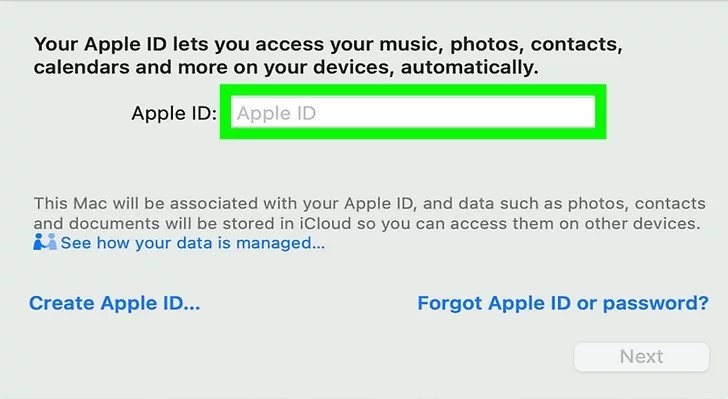
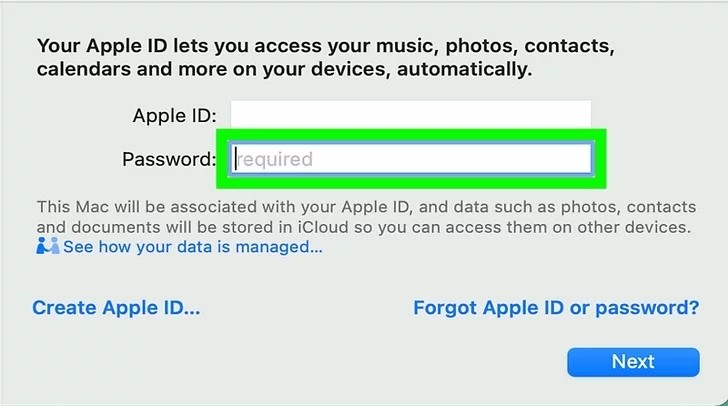
- Enter Your Apple ID and Password: – Type in your password.
- To access iCloud settings, tap “iCloud” and make the necessary configurations.
- Open iCloud for Windows on a Windows computer: – Turn on iCloud for Windows on your computer.
You May Like:- Unable to Login Microsoft Account in Windows 10/11
# Windows PC:
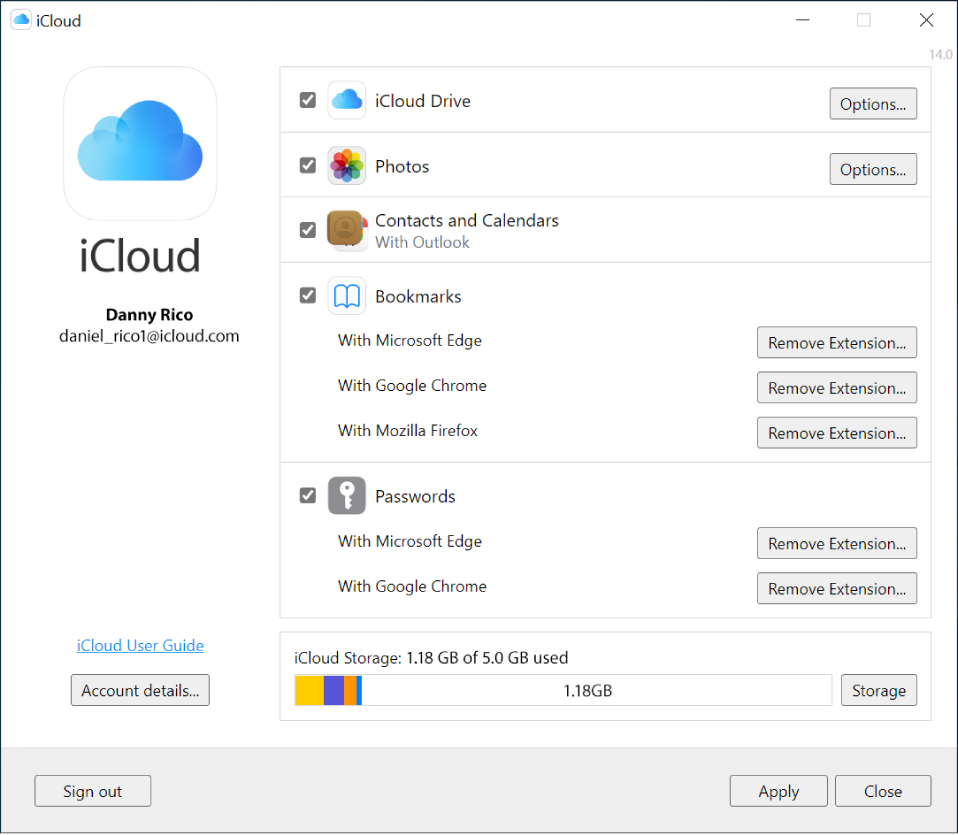
1. Open iCloud for Windows:
– Set up and open iCloud for Windows on your PC.
2. Sign In:
– Sign in by entering your Apple ID and password.
3. Configure iCloud Settings:
– Choose the services you want and click “Apply.”
Fantastic! You’ve successfully logged into iCloud. Remember to keep your Apple ID and password secure, as they grant access to various Apple services and your data stored in iCloud.
Supported Browsers for iCloud Login
For the best experience, Apple recommends using updated browsers while accessing iCloud online. Supported browsers include:
- Safari
- Google Chrome
- Microsoft Edge
- Mozilla Firefox
Using outdated browsers may lead to login errors, syncing problems, or security warnings. Always update your browser to the latest version before accessing your iCloud account.
Commonly Faced iCloud Login Issues
Are you encountering hurdles while trying to log in to iCloud? You’re not alone! Many users face common issues that can disrupt the seamless experience iCloud promises. Here are a few ways to make the troubleshooting process less daunting.
1. Forget Password
Oh No, I Forgot My iCloud Password! What to do Now?
It happens to the best of us. If you find yourself locked out due to a forgotten password, don’t panic. Here’s what you can do:
1. Visit iforgot.apple.com:
- Open your browser and go to apple.com.
2. Enter Your Apple ID:
- Type in your Apple ID and click “Continue.“
3. Follow the Prompts:
Here are the steps to follow
For IOS
- Settings> (your name) > tap “sign in & security” > change password
- Add the mobile number you used for two-step verification, once added you’ll get a code
- Enter your passcode and change your password
Read More:- Blooket Join : How to Sign up and Login
2. Why iCloud Login is Not Working
Stuck in the Login Loop? Let’s Figure Out Why:
If your iCloud login isn’t cooperating, it could be due to various reasons. Let’s troubleshoot:
- Check Internet Connection:
Ensure you have a stable internet connection. Sometimes, a wonky connection can be the culprit.
- Update Your Device:
Outdated software may cause login issues. Update your device to the latest version.
- Verify Apple System Status:
Feeling stuck? Check the Apple system status page to know about any issues with iCloud.
3. Can’t Login in iCloud: Causes and Solutions
Feeling Locked Out? Here’s what you should try:
- Network Problems:
If you can’t log in, check your internet connection. Sometimes network issues may lead to this problem. You can try switching between Wi-Fi and your cellular data.
- Update iOS:
Ensure your iOS device has the latest software. Go to Settings > General > Software Update.
- Reset Network Settings:
Sometimes, a network hiccup can be fixed by resetting network settings in your device’s settings.
4. Cannot Connect to iCloud
Trouble Connecting? Let’s Get You Back On Track:
- Restart Your Device:
Sometimes, a simple restart can do wonders. Turn off and on your device.
- Check iCloud Services:
Verify if iCloud services are experiencing downtime. Visit the Apple system status page for real-time updates.
5. An iCloud Authentication Error
Getting an Authentication Error? Let’s Decode It:
- Verify Two-Factor Authentication:
Make sure Two-Factor Authentication is enabled on your device. Go to Settings > (Your Name) > Password & Security.
- Use an Alternative Device:
If possible, use another trusted device to receive the authentication code.
How to Recover Your iCloud Account
If you lose access to your iCloud account, Apple provides several recovery options to regain access securely.
Recover Using Trusted Devices
Apple may send a verification code to your trusted iPhone, iPad, or Mac device. Enter the code to verify your identity and reset your password.
Recover Through Recovery Email or Phone Number
Users can also verify ownership through their registered recovery email address or phone number linked to the Apple ID.
Account Recovery Waiting Period
In some cases, Apple may place the account under a temporary recovery review process for security reasons. The waiting period can vary depending on account verification status.
To avoid account recovery issues, always keep your recovery phone number and email address updated.
Tips to Keep Your iCloud Account Secure
Protecting your iCloud account is important because it contains sensitive personal information, backups, photos, and payment details. Follow these security tips to keep your account safe.
- Enable two-factor authentication for additional security
- Use a strong and unique password
- Avoid logging into iCloud on public devices
- Never share your Apple ID credentials with anyone
- Regularly review connected devices
- Update your recovery email and phone number
- Avoid clicking suspicious emails or phishing links
Apple also recommends signing out from shared devices after using iCloud services online.
That is it!
Hopefully, this guide will assist you with any issues you are having with your iCloud account. The most important part of fixing these problems is ensuring that you take a systematic approach when troubleshooting. Follow the steps outlined above, and your iCloud login should be running smoothly in no time!
For more assistance, drop your queries in the comments below.
Frequently Asked Questions
Is iCloud Login the same as Apple ID Login?
Yes, both use the same Apple credentials. However, Apple ID is the main account system, while iCloud focuses on cloud storage and syncing services.
Can I access iCloud without an iPhone?
Yes, users can access iCloud through any supported web browser on Windows PCs, Macs, or Android devices.
Why is my iCloud login not working?
Login issues can happen due to incorrect passwords, browser problems, poor internet connectivity, or Apple server issues.
How do I recover my iCloud password?
You can reset your password using Apple’s password recovery process through your registered email, phone number, or trusted device.
Can I use iCloud on Windows?
Yes, Apple offers browser-based access and iCloud for Windows software to sync files, photos, and emails.
Is iCloud free to use?
Apple provides limited free iCloud storage to all users. Additional storage plans are available through paid subscriptions.
Can I access deleted photos from iCloud?
Deleted photos may remain in the Recently Deleted folder for a limited period before permanent removal.
Does iCloud require two-factor authentication?
Apple strongly recommends enabling two-factor authentication for improved account security and protection.