When an Exchange database goes down, most administrators reach for backups or fall back on the Recovery Database. That approach covers a lot of ground. But it doesn’t hold up in every case, and dirty shutdown error, Exchange server crashed are the clearest examples: the production server may be offline entirely, and you’re not restoring to a live environment or running repair tools against it. What you’re usually left with is a corrupt copy of the EDB file itself, and the job becomes recovering mailbox data from that file alone.
That’s the reason I decided to put Exchange recovery software– Stellar Repair for Exchange to the test against exactly that kind of scenario. I wanted to see how it performs when there’s no live Exchange server to lean on, not just whether it runs, but whether it genuinely deserves a place in the toolkit.
Table of Contents
Recovery Scenario
A dirty shutdown error or crashed Exchange server that leaves the production Exchange database inaccessible, with no functioning server left to fall back on.
When Exchange server is crashed, running repair commands against a live environment simply isn’t an option. What’s usually left is a copy of the EDB file pulled from backup, and the job becomes recovering as much as possible from that file alone, with no live Exchange server behind it.
That’s the situation I set up for this test: an EDB file with no accompanying Exchange environment to lean on, recovering mailbox data purely from the database file itself.
Installation
Setup was quick. The installer ran without issues, and I was inside the main interface within a couple of minutes, no configuration wizard to wade through, no prerequisites to chase down.
Browsing a corrupt EDB file
The workflow follows a logical sequence: point it at your EDB file, and start scanning process.
What I noticed right away, No documentation to read before getting started, no PowerShell prerequisites to sort out first.
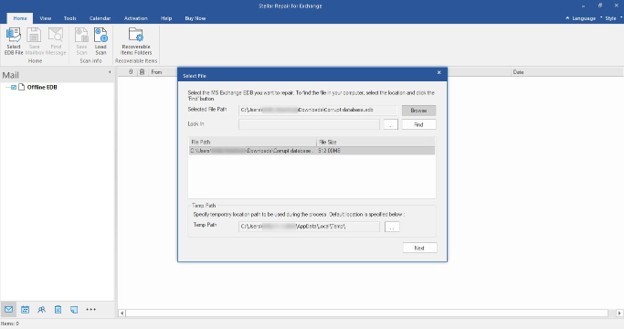
The tool offers two scan modes: Quick Scan for minor corruption, and Extensive Scan for more severe damage.
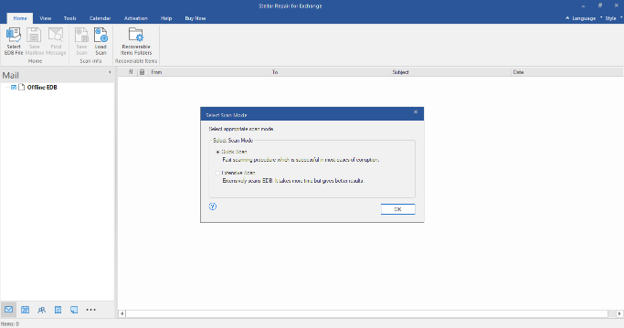
Scanning the Database
With the EDB selected, I launched the scan and stepped back.
The scan wrapped up in a reasonable amount of time. The UI stayed responsive throughout no hanging, no crashes.
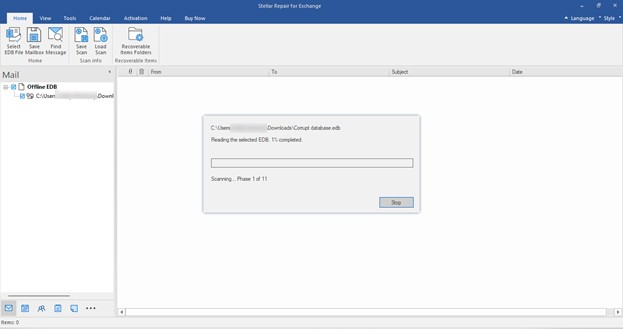
It’s also worth flagging that the original database file is never touched during the process. If something goes sideways, you’re not making the situation worse.
Previewing Mailbox Contents
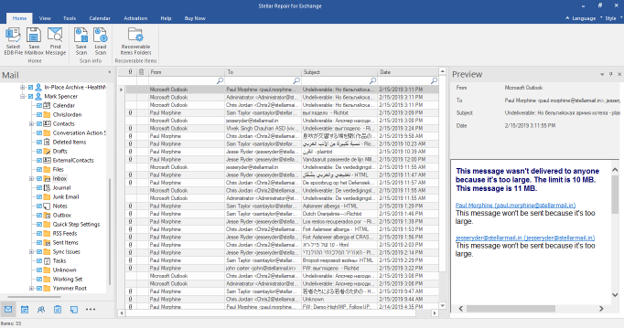
Once the scan finished, I spent time digging through the recovered mailboxes to see what had actually come back.
My usual approach at this stage is to start clicking around open a handful of emails, check a few attachments, confirm that the structure makes sense before trusting anything.
Everything was there. The Outlook-style folder layout made navigation feel natural, and none of the content looked garbled or truncated.
The preview feature ended up being one of the things I valued most. Being able to verify what’s actually recoverable before committing to an export matters.
Saving Scan Information
This one is easy to overlook, but it’s genuinely useful.
After finishing the initial scan, I saved the session and came back to it later without having to rescan from scratch.
On a large database, this feature stops being a convenience and starts being a necessity.
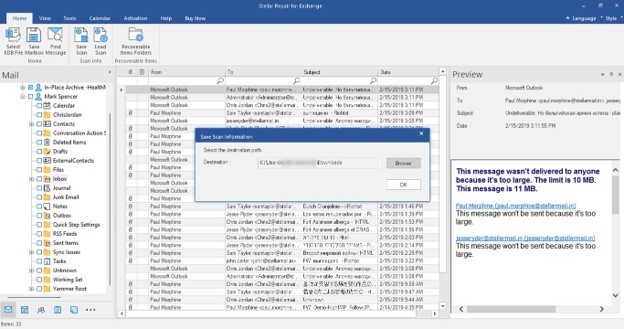
Exporting to PST
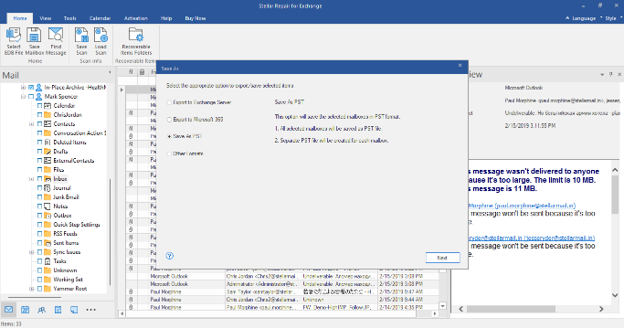
PST export was the first thing I tested, since it covers the most common recovery scenario.
I exported a few mailboxes and loaded the resulting PST files into Outlook. Folder hierarchy was intact, attachments opened fine, and calendar entries and contacts were right where they should be.
Clean output, no exceptions. That’s the standard you want to hold this kind of tool to.
Export to Exchange Server
After PST, I moved on to direct Exchange Server export, the more operationally useful path in a real outage.
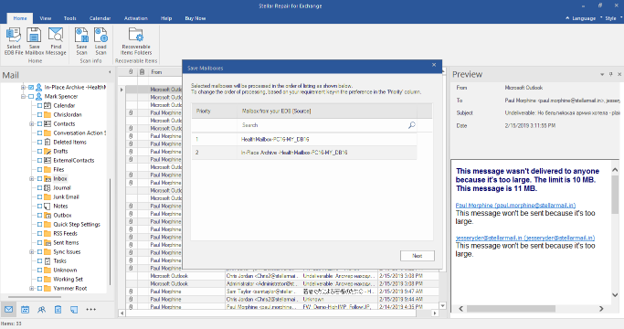
The mailbox mapping process was clean, and the mailbox priority feature caught my attention. Being able to push executive or critical mailboxes to the front of the export queue is exactly the kind of thing that matters when leadership is calling during an outage.
Any admin who has had to explain why the CTO’s mailbox is still offline will appreciate having that option.
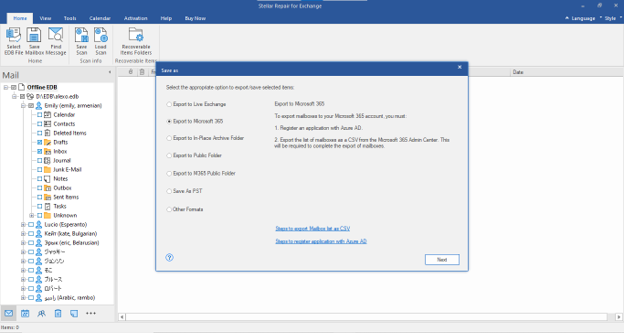
Microsoft 365 Export
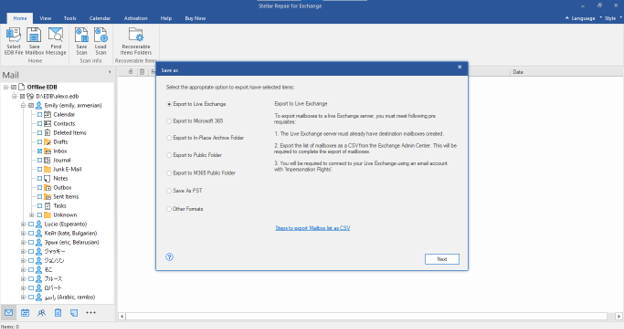
Given how many migrations are underway right now, I also ran the Microsoft 365 export path to see how it handles cloud destinations.
The tool supports automatic mapping, manual mapping, and parallel exports which covers most of the scenarios you’d run into when pushing data into a Microsoft 365 tenant.
The overall flow was intuitive and didn’t introduce extra steps just to justify itself.
Recovering Deleted Emails
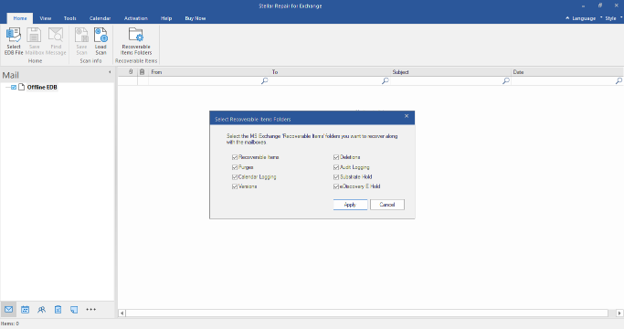
I also spent some time with the deleted email recovery side of things, which is often where the real questions come up.
Deleted emails showed up in the preview and exported cleanly alongside everything else.
That’s relevant in any situation where someone realizes they need an item after it’s already gone from their mailbox, compliance requests, legal holds, or just a user who deleted something they shouldn’t have.
Export Formats Beyond PST
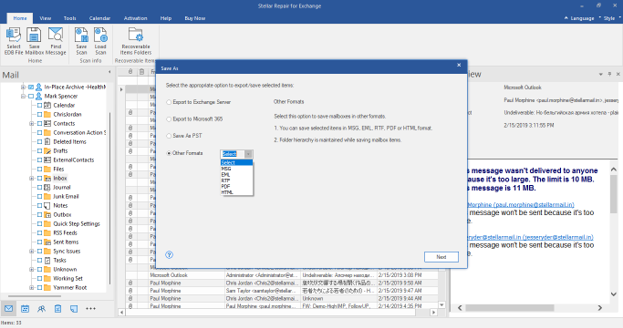
Beyond PST, I ran a quick check on the other supported save formats.
- MSG
- EML
- HTML
- RTF
These aren’t formats I reach for regularly, but they have a clear place in compliance and eDiscovery workflows where PST isn’t always the right output.
Final Thoughts
After putting Stellar Repair for Exchange through a realistic recovery scenario, my overall impression is positive and I think it’s earned. That said, I’m not going to pretend that Exchange database recovery is ever straightforward in the real world. Databases get larger, corruption is unpredictable, and there are situations where you need granular mailbox access without waiting for a full restore. There are also situations where a handful of users need to be back online, and restoring the entire database isn’t the right call. What stood out here wasn’t any individual feature in isolation. It was how well the pieces fit together: the preview capability that lets you verify before you commit, the scan resume feature that saves you from re-running a multi-hour scan, the multiple export paths for different destinations, and the mailbox priority setting that gives you control over what comes back first. That combination makes the recovery process feel manageable rather than chaotic. If you’re the person responsible for Exchange Server environment and you occasionally find yourself staring at a corrupt EDB file, this is a tool worth having in place before you actually need it.