Ever been in a room full of people, everyone’s trying to AirDrop, and you see a weird name pop up? Maybe it’s “iPhone 12” or “John’s iPhone (Work)” and you’re just sitting there like, “How do I not end up with something like that?” If you’ve ever wondered how to change your AirDrop name, don’t be worried about it I’m here to show you how.
Changing your AirDrop name on an iPhone or iPad is something you can do in under a minute. It’s super simple, and I’ll break down the steps so that even your least tech-savvy friend can follow along.
Table of Contents
What Is an AirDrop Name?
Your AirDrop name is the device name or contact identity that appears when sharing files, photos, videos, or documents through Apple AirDrop. This name helps nearby Apple users identify your device before sending content. (Apple Support)
On Apple devices, the AirDrop name is usually connected to:
- Your iPhone or iPad device name
- Your Mac computer name
- Your Apple ID contact card
- Contact sharing settings
Changing the device name automatically updates how your device appears in AirDrop, Bluetooth, Finder, and other Apple services.
AirDrop Name vs Device Name on Apple Devices
Many users think AirDrop has a separate username or profile name. However, AirDrop usually displays the device name configured in Apple settings.
| Apple Device | AirDrop Name Source |
|---|---|
| iPhone | Device Name or Contact Card |
| iPad | Device Name |
| Mac | Computer Name |
| Contacts Only Mode | Apple ID Contact Information |
Apple confirms that changing the device name changes the AirDrop display name as well.
How to Change Your AirDrop Name on iPhone or iPad
It is pretty easy to change your Airdrop name and it only takes a few seconds. Here is how you can do it step by step:
- Open the Settings App: Take your gadget and open Settings. It is that gear icon that you most likely have seen a thousand times but never really use more than you have to.
- Go to General Settings: Scroll down a little to the General option and tap on it. This is where all the minute details of your iPhone or iPad settings are managed.
- Tap About: In the General menu, tap About at the top. All the most important information related to your iPhone or iPad is contained here, including device name.
- Change the Name: Tap the field labeled Name, containing the current device name. Tap into it and wipe out the old one before typing your desired new name. Whether that be your name, fun nickname, or whatever, it’s entirely up to you.
- Change Saved: After you’ve typed it, tap the Done key on your keyboard; you’re done! Your AirDrop name has been changed.
According to Apple’s official guide, this is the easiest way to change the name of your device, and you can check it out here for more detail.
Interesting Blog:- Master the Fix: How to Turn Off SOS on iPhone
How to Change Your AirDrop Name on Mac
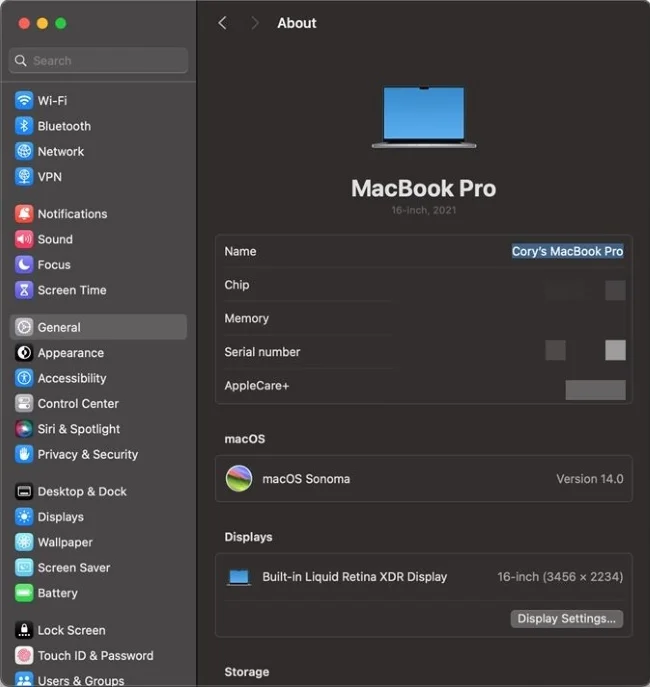
If you’re on a Mac, the steps are equally fast and simple. Here’s how you can update your AirDrop name on macOS:
- Open System Preferences: Initially, you will have to click on the apple icon, which can be found at the leftmost part of the top bar on your computer screen.
- Go to General Settings: Within the System Preferences window, click on “General” and then go to “About” tab.
- Change Your Name: A field labeled Name will be visible under the About section. Click on it, delete the previous name and type the new one. To confirm that you are the one changing the details, you will be required to enter your password or scan using Touch ID.
- Save the Changes: Press the Back button after changing your name to save it. It’s as simple as that!
Therefore, any attempt to AirDrop something to your Mac will reveal your new name.
You May Like:- MyKPHR Login: Features and Troubleshoot
Common AirDrop Name Problems and Fixes
Users occasionally experience issues where the AirDrop name does not update correctly.
AirDrop Name Not Changing
If the old AirDrop name still appears:
- Restart the device
- Toggle AirDrop off and on
- Disable and re-enable Bluetooth
- Update iOS or macOS
- Wait for device syncing
Apple community users frequently report that restarting devices refreshes AirDrop naming properly. (Apple Discussions)
AirDrop Shows Wrong Name
Some users report seeing another person’s name or an outdated device label.
Possible fixes:
- Update “My Card” in Contacts
- Verify Apple ID settings
- Restart nearby devices
- Reconnect Apple ID account
Mac AirDrop Name Not Updating
Mac users sometimes experience cached network names or Apple ID syncing issues.
Community discussions suggest:
- Logging out and back into Apple ID
- Updating Sharing settings
- Restarting the Mac
may resolve the issue. (Reddit)
AirDrop Not Detecting Devices
If devices do not appear:
- Enable WiFi and Bluetooth
- Disable Personal Hotspot
- Bring devices closer together
- Set AirDrop visibility to Everyone temporarily
Apple officially recommends checking these settings when troubleshooting AirDrop visibility.
Is Changing Your AirDrop Name Safe?
Yes, changing your AirDrop name is completely safe and officially supported by Apple. Many users customize AirDrop names to:
- Improve privacy
- Personalize devices
- Differentiate multiple Apple devices
- Avoid confusion in crowded areas
However, users should avoid:
- Sharing sensitive personal details
- Using offensive public names
- Leaving AirDrop visible to everyone permanently
Keeping AirDrop restricted to trusted contacts can improve device privacy and reduce unwanted sharing requests.
Takeaway
Knowing how to change your AirDrop name is not only practical but can also help you personalize your device quickly. In fact, changing your AirDrop name is ridiculously easy and takes less than a minute. If you’ve liked what we’ve presented and think this information may make the lives of your friends, family, or anybody around you just a bit easier, please feel free to share this article!
Frequently Asked Questions
1. What is an AirDrop name?
Ans:- The AirDrop name is the name displayed when your device is discoverable for sharing files, photos, or other data via AirDrop.
2. How often can I change my AirDrop name?
Ans:- You can change your AirDrop name as often as you like. There are no restrictions on frequency.
3. Will changing my AirDrop name affect other settings?
Ans:- No, changing your AirDrop name only updates the name displayed during AirDrop sessions. It does not affect other settings or functionality.
4. Does the AirDrop name affect my Apple ID?
Ans:- No, your AirDrop name is unrelated to your Apple ID name or profile.
5. Can I use emojis or special characters in my AirDrop name?
Ans:- Yes, most emojis and special characters are supported, making it fun to personalize your AirDrop name.
6. Is my AirDrop name visible to everyone?
Ans:- Your AirDrop name is visible only to people within range who are attempting to send files via AirDrop, based on your discoverability settings.