Quick answer: “RTC Connecting” stuck in a Discord voice channel almost always means Discord’s real-time voice servers can’t establish a connection through your current network path. Start by manually changing the server’s voice region, then restart your router and flush your DNS cache, and finally check whether a firewall, antivirus, or VPN is blocking Discord’s voice traffic. These three steps resolve the overwhelming majority of cases.
Table of Contents
What “RTC Connecting” Actually Means
RTC stands for Real-Time Communication — the underlying protocol Discord uses for voice and video. When you see “RTC Connecting…” stuck on screen, your Discord client has successfully connected to Discord’s main servers (which is why text chat still works), but it’s failing to establish the separate, direct connection needed specifically for voice or video data. This is almost always a network-path issue rather than a problem with your account or the server itself.
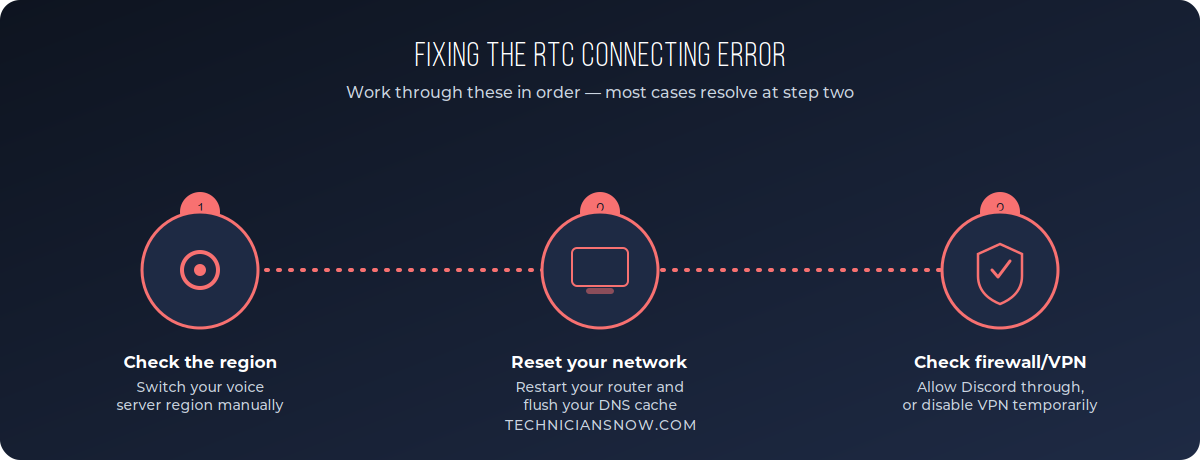
Most cases resolve at step two — a network reset — if changing the voice region alone doesn’t fix it.
Fix #1: Manually Change the Voice Region
Discord automatically picks a voice server region, but the automatic choice occasionally routes through a path your network handles poorly.
- Open the server where you’re having the issue.
- Right-click the server name (or open Server Settings).
- Go to Overview, scroll to Server Region, and manually select a region different from the current one — ideally one geographically closer to you.
- Rejoin the voice channel and check if it connects.
This single change resolves a large share of RTC Connecting issues, particularly when the automatic region selection has picked a distant or congested server.
Fix #2: Reset Your Network Connection
If changing the region doesn’t help, the issue is more likely with your local network path rather than Discord’s region selection specifically.
- Restart your router and modem — unplug both for about 30 seconds, then power them back on.
- Flush your DNS cache:
- On Windows, open Command Prompt and run
ipconfig /flushdns. - On Mac, open Terminal and run
sudo dscacheutil -flushcache; sudo killall -HUP mDNSResponder.
- On Windows, open Command Prompt and run
- Restart Discord completely — close it from the system tray/menu bar, not just the window, then reopen it.
- If you’re on Wi-Fi, try a direct ethernet connection temporarily to rule out a Wi-Fi-specific issue.
Fix #3: Check Firewall, Antivirus, and VPN Settings
Voice and video traffic uses different network ports and protocols than Discord’s text chat, so a firewall or antivirus that’s fine with text chat can still block voice specifically.
- Temporarily disable a VPN if you’re using one, and test whether voice connects — many VPN configurations interfere specifically with real-time voice/video traffic even when regular browsing works fine.
- Check Windows Defender Firewall (or your third-party antivirus’s firewall) to confirm Discord isn’t being blocked — allow Discord through both Private and Public network profiles.
- Router-level restrictions: if you’re on a school, work, or restrictive public network, RTC-style traffic is sometimes deliberately blocked at the network level — a different network may be required to resolve this specifically.
Fix #4: Update or Reinstall Discord
If the above steps don’t resolve it, a corrupted local installation is worth ruling out:
- Fully close Discord.
- Go to Settings → Windows → Apps (or Applications on Mac) and uninstall Discord.
- Download a fresh installer directly from discord.com and reinstall.
- Sign back in and test the voice channel again.
When the Problem Is on Discord’s Side
Occasionally, RTC Connecting issues are caused by a regional outage or server-side issue on Discord’s end rather than anything on your network. Before spending too long troubleshooting locally, check discordstatus.com for any reported ongoing incidents — if Discord itself confirms an outage, the fix is simply waiting it out rather than continuing to change local settings.
RTC Connecting on Mobile vs. Desktop
The underlying cause is the same across platforms, but the practical fixes differ slightly by device:
- On mobile, switching between Wi-Fi and cellular data is often the fastest test, since carrier-level network configurations sometimes handle real-time voice traffic differently than home Wi-Fi.
- On desktop, a wired ethernet connection is worth testing temporarily if you’re on Wi-Fi, since it rules out a Wi-Fi-specific interference issue in one step.
- On any platform, closing and fully reopening the Discord app (not just leaving and rejoining the voice channel) forces a fresh connection attempt, which resolves a meaningful share of one-off cases without needing any deeper network changes.
Router Settings That Can Cause This Specifically
If RTC Connecting happens consistently on your home network across multiple devices, a few router-level settings are worth checking:
- UPnP (Universal Plug and Play) — some routers have this disabled by default, which can interfere with the way real-time voice connections establish themselves; enabling it (where available in your router’s admin panel) sometimes resolves persistent issues.
- Double NAT configurations — common in setups with both a modem-router combo and a separate router, double NAT can specifically disrupt real-time connections; bridging one of the two devices often fixes this.
- Strict NAT/firewall settings on gaming-focused routers — some routers ship with aggressive default firewall rules that block the specific connection types real-time voice traffic relies on.
Discord Voice vs. Video: Do They Fail the Same Way?
RTC Connecting affects both voice and video the same way, since they share the same underlying real-time connection layer — if voice is stuck, video will be too, and fixing the connection resolves both simultaneously. One distinction worth knowing: video and screen share require somewhat more bandwidth than voice alone, so a marginal connection might handle voice fine while still struggling specifically with video — if that’s your pattern, focus on your upload bandwidth specifically rather than assuming it’s the same RTC Connecting issue.
Preventing Future RTC Connecting Issues
Once you’ve resolved the immediate problem, a few habits reduce the odds of it recurring:
- Avoid switching Wi-Fi networks or VPN states mid-call when possible, since network changes are one of the most common triggers for a fresh RTC Connecting failure.
- Keep your router’s firmware updated, since manufacturers periodically patch NAT and connection-handling bugs that can affect real-time traffic.
- If the issue happens specifically on one server, consider setting a manual, closer voice region as the server’s default rather than relying on automatic selection every time.
Since VPNs are one of the most common triggers for this error, our explainer on what a VPN is and how it works is worth reading if you use one regularly. And if your whole machine feels sluggish beyond just Discord, see our guide to speeding up a slow laptop.
Frequently Asked Questions
Why does RTC Connecting happen on some servers but not others?
Different servers can have different voice region settings, and some regions route through network paths your specific connection handles poorly — this is why manually switching the region often fixes it server-by-server.
Does restarting my router really help with a software issue like this?
Yes — RTC Connecting is fundamentally a network connectivity issue for real-time traffic, not an application bug in most cases, so resetting your router and DNS cache directly addresses the actual cause.
Can a VPN cause the RTC Connecting error?
Yes, this is one of the most common causes — many VPN configurations handle standard web traffic fine but interfere with the specific ports and protocols Discord’s voice system uses.
Is RTC Connecting a sign my account is banned or restricted?
No — this is purely a technical connectivity issue and has nothing to do with account standing or moderation status.
Does this happen more often on mobile than desktop?
It can, particularly on cellular networks with carrier-level restrictions or NAT configurations that complicate real-time connections — switching from cellular data to Wi-Fi (or vice versa) is worth testing on mobile specifically.