Install AnyDesk in Ubuntu 22.04|20.04|18.04 Linux Desktop systems are outlined in this guide. Using AnyDesk, you can connect to any computer via a powerful Linux-based network. With AnyDesk, you can provide remote support to your customers whether you are an individual, a team, or a professional organization.
The next steps in this guide explain how to install AnyDesk on Ubuntu 22.04|20.04|18.04 Linux. In our previous article, we covered how to install AnyDesk on CentOS / RHEL 8. Using TeamViewer instead of AnyDesk might be a good option for you if you are a TeamViewer user. It is available for Linux, Windows, BSD, macOS, and mobile platforms as well as for remote desktop applications.
With AnyDesk, you can access other computers remotely or let someone else access yours remotely. Because two devices use AnyDesk, not everyone can access it. A secure connection requires acceptance and/or providing a password. As a result, friends, family, and colleagues, as well as customers can receive tech support through this service.
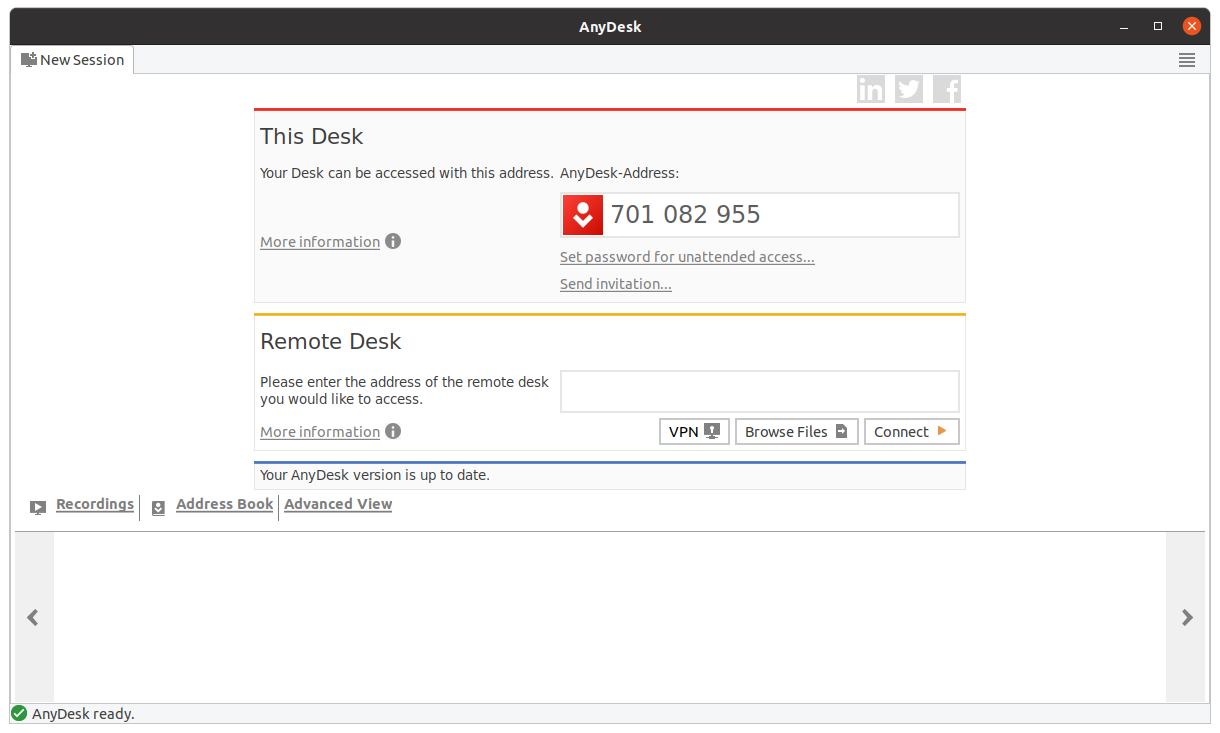
Following the Method to Install AnyDesk in Ubuntu
In the terminal, you can download files with a tool like wget. For that, use the following command:
sudo apt update

sudo apt -y upgrade
Next, download the GPG key from the AnyDesk repository and add it to the list of your trusted keys.
curl -fsSL https://keys.anydesk.com/repos/DEB-GPG-KEY|sudo gpg --dearmor -o /etc/apt/trusted.gpg.d/anydesk.gpg
You may disregard the deprecated warning about the apt-key command for now. This will allow your system to trust the software that comes from this external repository.
echo "deb http://deb.anydesk.com/ all main" | sudo tee /etc/apt/sources.list.d/anydesk-stable.list
Adding the AnyDesk repository to the repository sources of your system is the next step:
Update your package cache so that the system learns about new applications through the newly added repository.
sudo apt update

You can now install AnyDesk.
sudo apt install AnyDesk Once that is complete, you can launch AnyDesk from either the system menu or from the terminal:
$ anydesk
Enjoy AnyDesk now!