It’s sometimes just quicker to perform things from the command line. In this fast tutorial, we will discuss how to start a Command Prompt and some basic commands and parameters. Feel free to move forward if you’re already comfortable with fundamental DOS commands. Find below the steps to learn “How to Delete Folder Using CMD in Windows“.
Table of Contents
What Does the CMD Folder Delete Command Do?
The Windows Command Prompt (CMD) allows users to delete folders and directories directly using command-line tools such as rmdir or rd. These commands can remove:
- Empty folders
- Directories with files
- Nested subfolders
- Hidden system folders (with permissions)
CMD-based deletion is commonly used by:
- Developers
- IT administrators
- Power users
- Script automation systems
Unlike deleting folders from File Explorer, CMD deletion usually bypasses the Recycle Bin and permanently removes files from the system. Microsoft officially documents the rmdir command for deleting directories in Windows.
DEL vs RMDIR Commands in CMD
Many Windows users confuse the del command with rmdir.
| Command | Purpose |
|---|---|
del |
Deletes files only |
rmdir or rd |
Deletes folders/directories |
The del command cannot remove folders directly, while rmdir is specifically designed for deleting directories.
Example Commands
Delete a file:
del file.txtDelete a folder:
rmdir foldernameHow to Delete an Empty Folder Using CMD
Users can remove empty folders using the rmdir command.
Steps to Delete an Empty Folder
- Open Command Prompt.
- Navigate to the folder location using the
cdcommand. - Type the following command:
rmdir foldername- Press Enter.
Example
rmdir TestFolderThis removes the selected folder only if it contains no files or subfolders. Microsoft confirms that rmdir deletes directories directly from CMD.
How to Delete a Folder With Files and Subfolders Using CMD
To delete folders that contain files or nested directories, users must use the /s parameter.
Command Syntax
rmdir /s foldernameExample
rmdir /s ProjectsThe /s switch removes:
- The folder
- All files inside
- All subdirectories
Windows will usually ask for confirmation before deleting the entire directory tree. Microsoft officially documents the /s parameter for recursive folder deletion.
How to Force Delete a Folder in CMD Without Confirmation
Users can suppress confirmation prompts using the /q switch.
Command Syntax
rmdir /s /q foldernameExample
rmdir /s /q TempFilesThis command:
- Deletes the folder recursively
- Removes all files
- Skips confirmation prompts
The /q option activates quiet mode in CMD. Microsoft warns that files deleted this way are permanently removed without additional confirmation.
How to Delete a Folder Using Full Path in CMD
Users can also delete folders without navigating into the directory manually.
Example Command
rmdir /s /q "C:\Users\John\Desktop\TestFolder"Using quotation marks is recommended when:
- Folder names contain spaces
- Paths include special characters
This method is commonly used in automation scripts and batch files.
Alternative CMD Method Using PowerShell
Windows PowerShell also supports recursive folder deletion.
PowerShell Command
Remove-Item -Recurse -Force FolderNameExample
Remove-Item -Recurse -Force C:\Temp\TestFolderPowerShell offers:
- Advanced scripting
- Better automation support
- Force deletion controls
- Recursive file management
Windows documentation and IT tutorials frequently recommend PowerShell for complex file operations.
Common CMD Folder Deletion Problems and Fixes
Users may experience errors while deleting folders through Command Prompt.
“The Directory Is Not Empty” Error
This usually happens because:
- Files are still in use
- Hidden files remain inside
- Background processes are locking files
Possible fixes:
- Close open applications
- Restart the PC
- Retry the command
- Delete hidden files manually
Community discussions also suggest retrying the rd /s /q command multiple times if Windows temporarily locks files.
Access Denied Error
If CMD shows “Access Denied”:
- Open CMD as Administrator
- Check folder permissions
- Ensure files are not read-only
Some system directories require elevated administrator privileges before deletion.
Cannot Delete Current Directory
Windows does not allow users to delete the currently active directory.
Example:
cd ..
rmdir FolderName
Users must first switch to another folder before deletion. Microsoft officially documents this limitation.
Folder Name Too Long
Windows may block deletion if file paths exceed system limits.
Possible fixes:
- Use shorter folder paths
- Delete parent directories
- Use PowerShell or third-party tools
Some developers use utilities such as rimraf for extremely long paths in Node.js environments.
CMD Deletes Folder Permanently
Unlike File Explorer deletion, CMD usually bypasses the Recycle Bin.
Users should:
- Double-check folder paths
- Backup important files
- Avoid running force-delete commands carelessly
CMD-based deletion is generally permanent.
Automate Folder Deletion Using Batch Files
Advanced users often automate folder cleanup tasks using .bat batch scripts.
Example Batch Script
@echo off
rmdir /s /q "C:\Temp\Logs"
echo Folder deleted successfully
pause
Common automation uses include:
- Temporary file cleanup
- Log deletion
- Cache removal
- Scheduled maintenance tasks
Batch scripts can simplify repetitive system administration work.
Is It Safe to Delete Folders Using CMD?
Yes, CMD deletion is safe when used carefully. However, force deletion commands can permanently erase important system files if used incorrectly.
Best Practices
- Verify folder paths before deleting
- Avoid deleting system directories
- Run commands carefully with
/q - Backup important files first
- Use administrator mode only when necessary
Because CMD deletions often bypass the Recycle Bin, recovering accidentally deleted folders may become difficult.
# Open Command Prompt
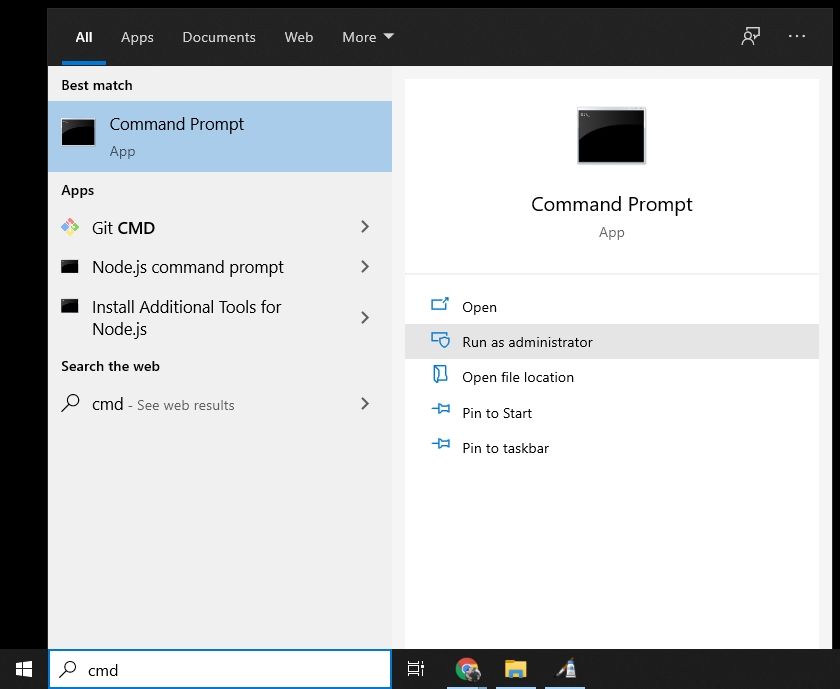
To open Command Prompt, press the Windows key and type “cmd.”
Then select “Run as Administrator“.
After that, you’ll be presented with an administrative Command Prompt window.
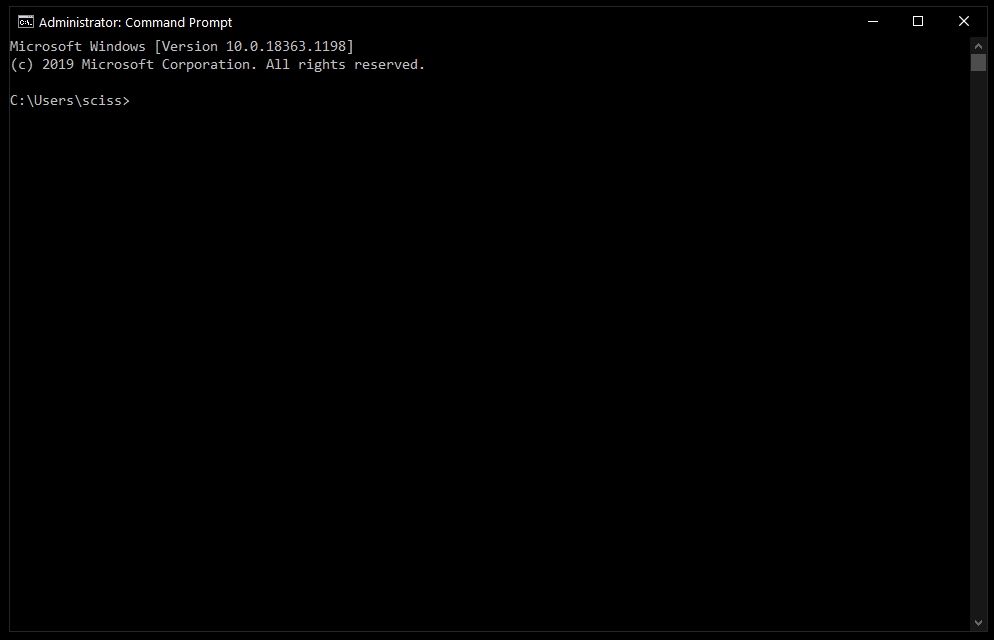
Don’t worry if you can’t open Command Prompt as an administrator. Instead of “Run as Administrator,” you can select “Start” to open a regular Command Prompt window.
The only difference is that some protected files may not be deleted, which should not be a problem in most instances.
Interesting Blog:- Windows 10 Not Responding – East Ways to Fix it
# Delete Files With the Del Command
Use cd to move directories to where your files are now that Command Prompt is open.
On my desktop, I’ve created a directory called Test Folder. You may see a tree of all the nested files and directories with the command tree /f:
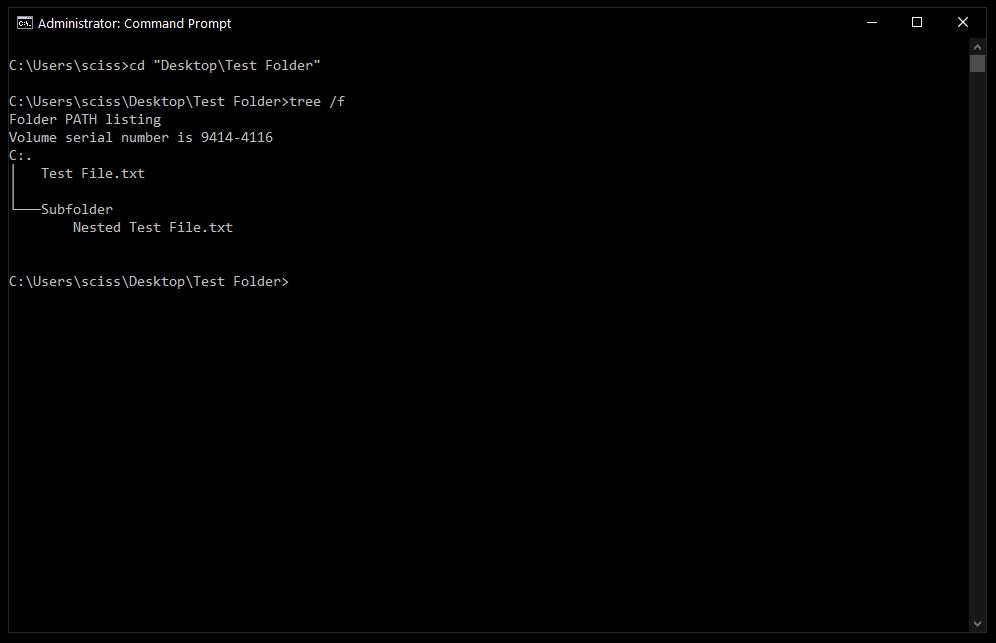
Use the following command to delete a file: “del” is a command that deletes a file.
Use del “Test File.txt” to delete Test file.txt, for example.
There’s a chance you’ll be asked if you want to delete the file. If this is the case, press enter and type “y.”
Note that any files deleted with the del command are lost forever. Execute considerable caution when deciding where and how to use this command.
After that, you can use tree /f to see if your file was successfully deleted:
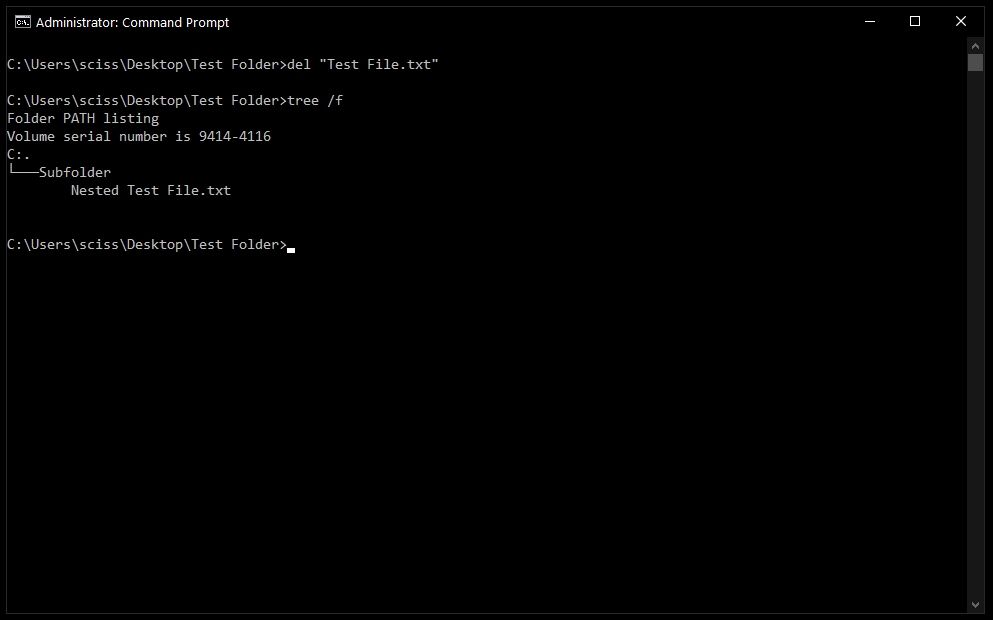
Bonus tip: Command Prompt includes basic auto-completion. So if you input the test, then the Prompt command will change it into the “Test File.txt.” key.
# How to Force the Command Del Remove Files
When you try to use the del command on a file that has been marked as read-only, you’ll get the following error.
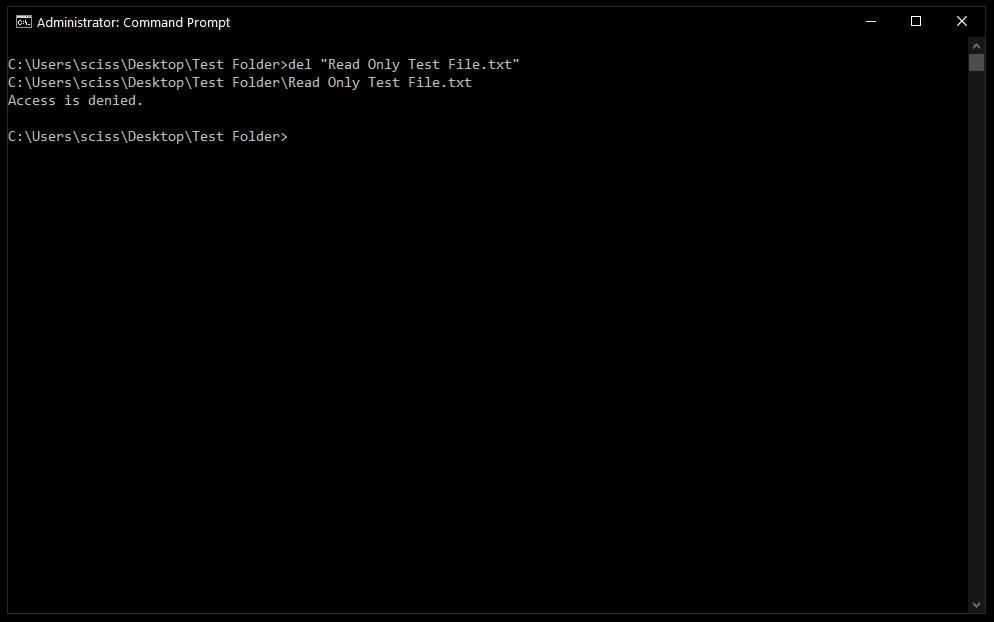
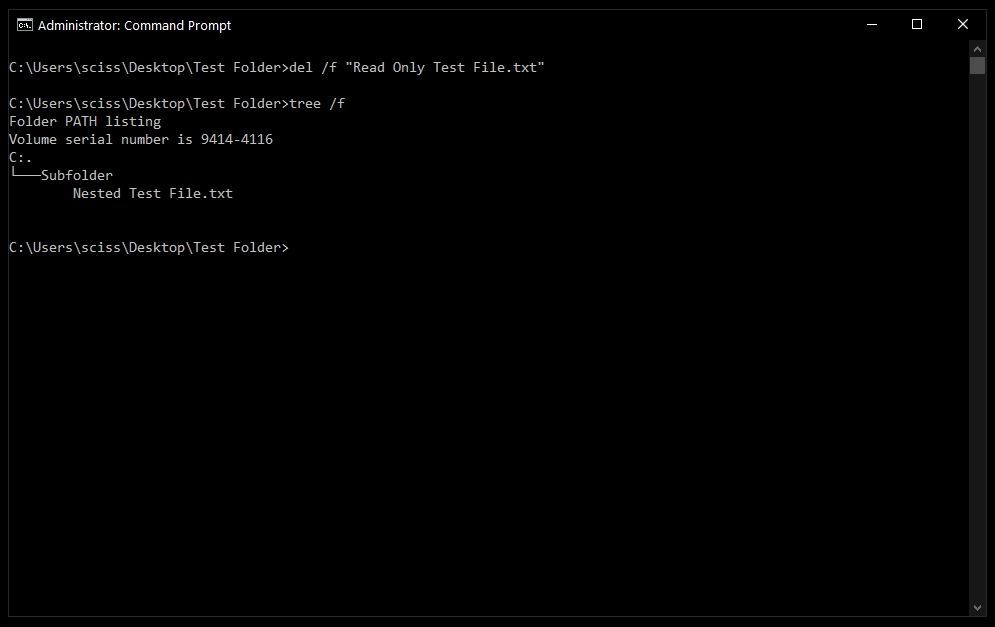
Use the /f flag to force delete the file to get around this. del /f “Read Only Test File.txt,” as an example.
You May Like:- ‘This PC can’t be upgraded’ error while upgrading to Windows 10? Let’s Fix it
# Delete Folders With the rmdir Command
The rmdir or rd commands are used to delete directories and folders. Both commands achieve the same objective, however, we are going to use rmdir because it is more expressive.
For the rest of the lesson, I will use the terms folder and directory interchangeably. Folder and directory are fundamentally the same thing, even though “folder” is a relatively contemporary moniker that gained favor with early desktop GUIs.
Use the command rmdir directory name> to remove a directory.
Note” Any folders erased using the rmdir command are irreversibly lost. Use this command with extreme caution in where and how you use it.
I will use the rmdir subfolder command in this instance to delete a subfolder called:
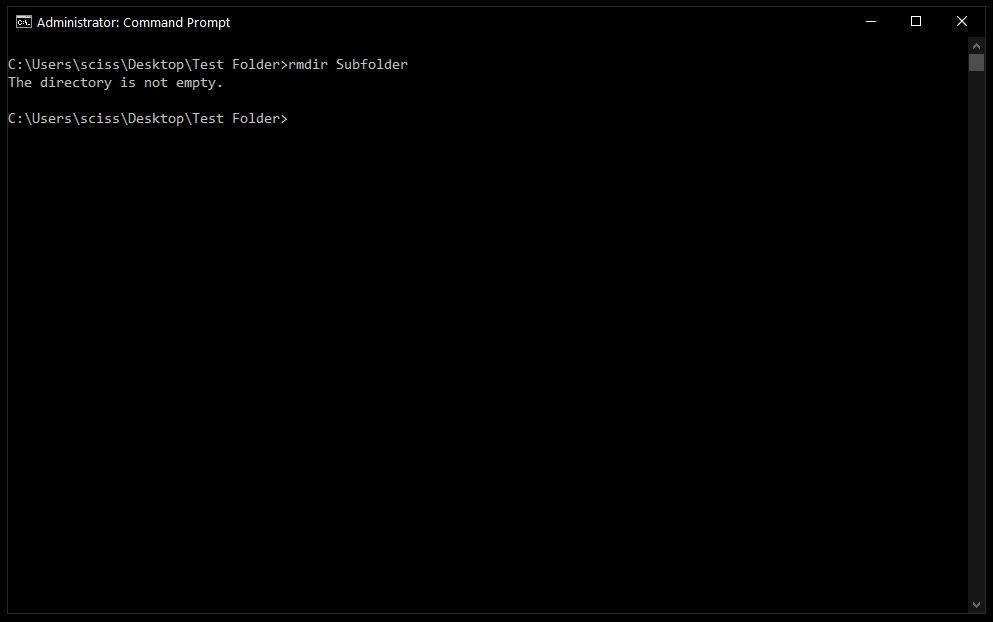
However, as you may recall, the Subfolder contains a file titled Nested Test File.
You could cd into the Subfolder directory and delete the file, then cd.. and repeat the rmdir Subfolder command, but that’s a pain. Consider what would happen if there were a zillion more nested files and directories!
Like the del command, we can add a useful flag to make it much quicker and easier.
# How to use the /s flag with rmdir
Simply use the /s flag to remove a directory, including all nested files and subdirectories:
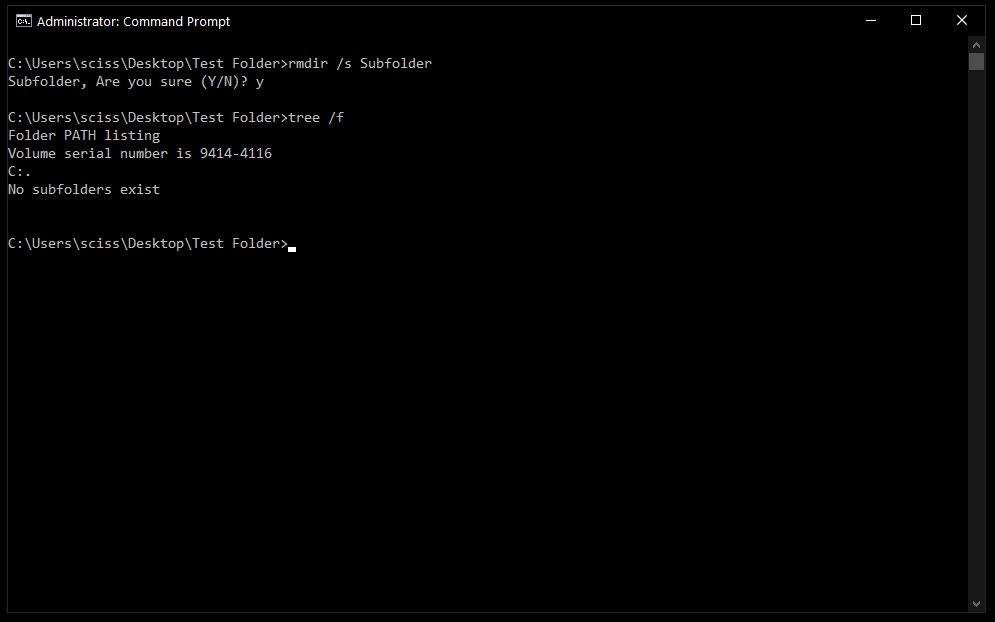
A prompt will most likely ask if you wish to remove that directory. If that’s the case, simply type “y” and press enter. That’s all there is to it! That should cover everything you need to know about deleting files and folders using the Windows Command Prompt.
PowerShell, which is essentially Command Prompt 2.0, should work with all of these commands. Also, if you’re familiar with the Mac/Linux command line, PowerShell includes a variety of fun aliases like ls and clear that should feel right at home.
Have these commands been beneficial for you? Do you have any more commands that are helpful to you? In any case, please let me know on The command box.
Frequently Asked Questions
How do I delete a folder using CMD?
Users can delete folders using:
rmdir foldernameor
rd foldername
How do I delete a folder with files using CMD?
Use:
rmdir /s foldernameto remove folders and all subfolders recursively.
What does /s mean in rmdir?
The /s switch deletes:
- All subfolders
- All files
- Entire directory trees
How do I force delete a folder in CMD?
Use:
rmdir /s /q foldernameto delete folders without confirmation prompts.
Why does CMD say “directory not empty”?
This usually happens because:
- Hidden files exist
- Files are locked
- Programs still use the folder
Can CMD recover deleted folders?
No, CMD deletion usually bypasses the Recycle Bin and permanently removes folders.
What is the difference between RD and RMDIR?
rd and rmdir are identical commands in Windows CMD.
Is PowerShell better than CMD for deleting folders?
PowerShell offers more advanced scripting and automation capabilities, especially for recursive file management.