Simply place a pin on a specific location in Apple Maps on your iPhone to obtain directions there, add it to your favorite list, or share it with someone. We’ll demonstrate How To Drop a Pin On iPhone.
Table of Contents
What Does Dropping a Pin on iPhone Mean?
Dropping a pin on an iPhone allows users to mark a specific location manually inside a map application. This feature is useful when:
- An address is unavailable
- The exact location is difficult to describe
- Users want to save a custom location
- Sharing meeting points
- Planning travel routes
iPhone users can drop pins using:
- Apple Maps
- Google Maps
- Third-party navigation apps
Once a pin is placed, users can:
- Save the location
- Share coordinates
- Get directions
- Create favorites
- Add notes or labels
Apple officially supports dropping pins through the Apple Maps app on iPhone and iPad devices.
Apple Maps vs Google Maps for Dropping Pins
iPhone users can place pins in both Apple Maps and Google Maps, but the features differ slightly.
| Feature | Apple Maps | Google Maps |
|---|---|---|
| Built Into iPhone | Yes | No |
| Save Favorite Locations | Yes | Yes |
| Share Coordinates | Yes | Yes |
| Offline Maps | Limited | Supported |
| Collaboration Features | Basic | Advanced |
| Location History | Limited | Extensive |
Many iPhone users prefer Apple Maps for quick pin sharing inside the Apple ecosystem, while Google Maps is often preferred for business locations and navigation accuracy.
How To Drop a Pin On iPhone – Pin A Location in Maps
Open the Apple Maps app on your iPhone to get started. Navigate to the desired location in the app to place a pin.
- Tap and hold the desired spot on the map once you’ve located it.
- As you can see below, Maps will immediately drop a pin on that area.
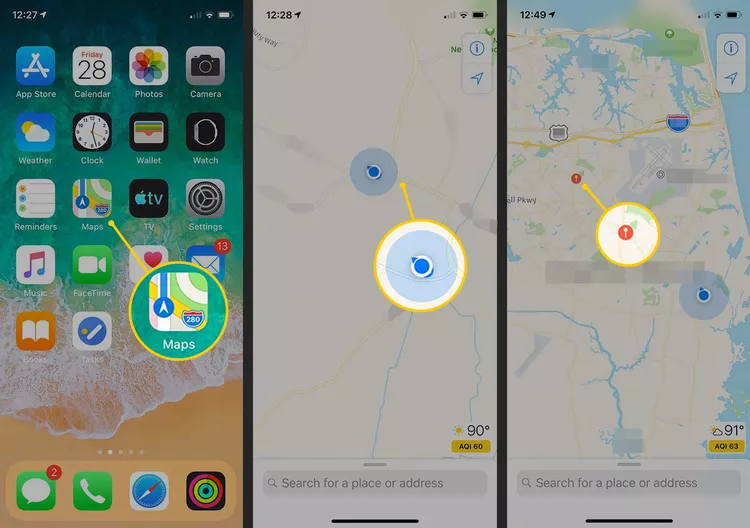
- If the location of your dropped pin is not very accurate, you can alter it by choosing “Edit Location” from the “Marked Location” option.
- The map’s satellite view will be shown. Drag the pin to the desired location in this area. Then click “Done” in the top-right corner.
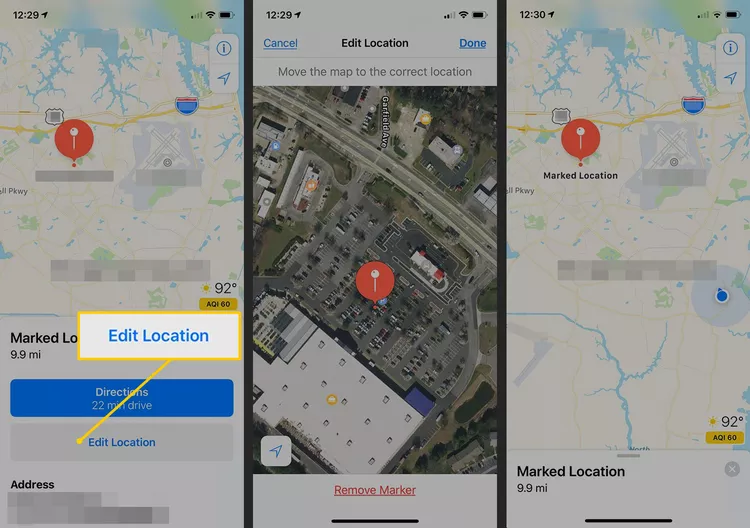
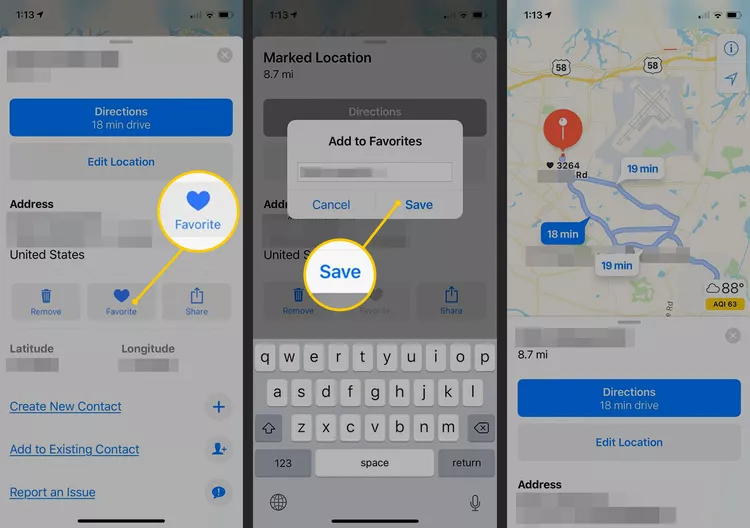
- Your pin now points to the exact spot where you wanted it to be Select “Directions” under “Marked Area” to get driving instructions to this location.
- Open the “Marked Location” menu and select “Favorite” to add your pinned location to your list of favorites.
- Similarly, select “Share” from the menu to let another user know where the pin is.
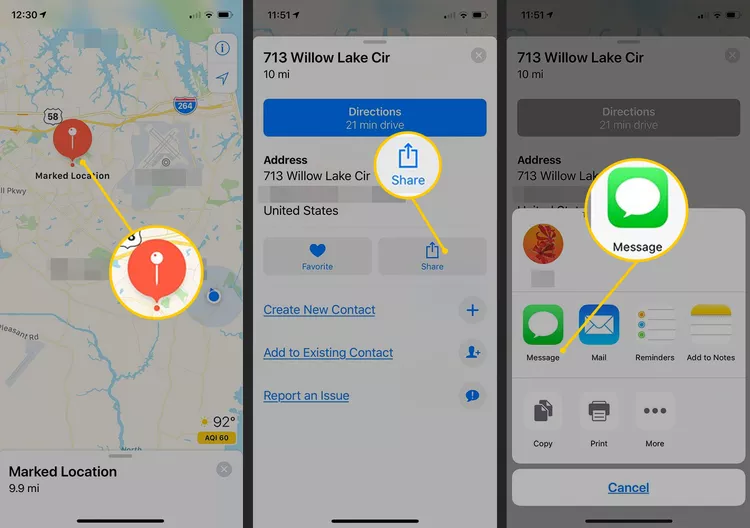
- By selecting “Remove,” the dropped pin can be removed.
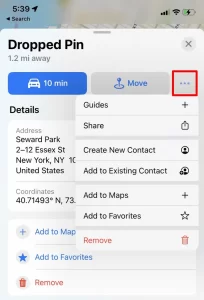
And that’s how you specify places for How To Drop a Pin On iPhone. Enjoy!
Interesting Blog:- Is Your iPhone Not Showing up on PC? Easy Methods
How to Drop a Pin in Google Maps on iPhone
Google Maps also supports manual pin placement on iPhones.
Steps to Drop a Pin in Google Maps
- Open the Google Maps app.
- Navigate to the desired location.
- Touch and hold any spot on the map.
- A red pin will appear.
- Open the location details card for more actions.
Users can then:
- Save locations
- Share pins
- Copy GPS coordinates
- Label custom places
- Start navigation
Google Maps is commonly used for business locations, travel planning, and detailed navigation routes.
How to Share a Dropped Pin on iPhone
After placing a pin, users can quickly share the location with friends, family members, or coworkers.
Share a Pin in Apple Maps
- Drop a pin on the map.
- Open the location card.
- Tap Share.
- Choose:
- Messages
- AirDrop
- Copy link
Share a Pin in Google Maps
- Drop the pin.
- Tap the location card.
- Select Share.
- Send the location through preferred apps.
Pinned locations can help users:
- Meet at exact spots
- Share parking locations
- Mark hiking trails
- Coordinate travel plans
How to Save a Dropped Pin on iPhone
Users can save pinned locations for future access.
Save a Pin in Apple Maps
- Drop a pin.
- Open the location details.
- Tap Add to Favorites or Add to Guides.
Save a Pin in Google Maps
- Drop the pin.
- Open the location card.
- Tap Save.
- Choose:
- Favorites
- Want to Go
- Starred Places
- Custom lists
Saved pins are useful for:
- Travel itineraries
- Restaurants
- Parking spots
- Home or office locations
How to Find GPS Coordinates of a Dropped Pin
Dropped pins also provide geographic coordinates for more precise location sharing.
View Coordinates in Apple Maps
- Drop a pin.
- Open the location details.
- Scroll to view latitude and longitude information.
View Coordinates in Google Maps
- Drop a pin.
- Swipe up on the information panel.
- Copy the displayed coordinates.
GPS coordinates are commonly used for:
- Hiking
- Emergency locations
- Remote destinations
- Travel navigation
- Geotagging
Common Problems When Dropping a Pin on iPhone
Users occasionally experience issues while using Apple Maps or Google Maps.
Cannot Drop a Pin on iPhone
If long-press does not place a pin:
- Restart the Maps app
- Update iOS
- Check touchscreen responsiveness
- Zoom into the map before pressing
Wrong Pin Location Appears
Incorrect pins may happen because of:
- Weak GPS signal
- Poor internet connectivity
- Outdated map data
- Location Services disabled
Apple recommends enabling precise location permissions for better accuracy.
Cannot Share Pinned Location
Possible fixes:
- Enable internet connection
- Update messaging apps
- Restart the iPhone
- Verify location permissions
Apple Maps or Google Maps Freezing
Users may occasionally encounter:
- App crashes
- Slow loading
- Missing maps
- Blank screens
Possible fixes:
- Clear background apps
- Restart the phone
- Update the Maps app
- Re-enable Location Services
GPS Location Not Accurate
If map positioning is inaccurate:
- Enable Precise Location
- Turn on WiFi and Bluetooth
- Calibrate compass settings
- Move outdoors for stronger GPS signals
Is Dropping a Pin on iPhone Safe?
Yes, dropping a pin is generally safe when sharing trusted locations. However, users should remain cautious while sharing live or precise locations publicly.
Privacy Tips
- Avoid sharing home addresses publicly
- Disable location sharing when not needed
- Use “While Using the App” permissions
- Review app location access regularly
- Share pins only with trusted contacts
Apple also provides location privacy controls through:
Settings → Privacy & Security → Location Services.
Useful Ways to Use Dropped Pins on iPhone
Many iPhone users use pinned locations for daily convenience and travel planning.
Common Uses for Dropped Pins
- Saving parking locations
- Sharing meetup points
- Planning road trips
- Marking hiking trails
- Tracking travel destinations
- Remembering business locations
- Organizing favorite restaurants
Dropped pins are especially useful in locations without clear street addresses or in crowded public areas.
Conclusion
Put a pin in a specific place in Apple Maps on your iPhone if you want to add it to your favorites list, receive directions to it, or share it with someone. Just that is demonstrated for you in the above points.
FAQ
- How do I change the voice in Apple Maps?
To change your Apple Maps navigation voice, you’ll need to change Siri’s voice. Go to Settings > Siri & Search > Siri Voice. Choose from various American, Australian, British, Indian, Irish, and South African voices. etc
- How do I add a stop on Apple Maps?
Launch Apple Maps, enter your destination, and tap Go to begin your route. To add a stop, tap the up arrow and select Add a Stop. You can’t add a specific address or location, however. You can only select from various categories like Dinner, Gas Stations, Coffee, Parking, and Convenience.
- How do I avoid tolls on Apple Maps?
To avoid tolls when traveling with Apple Maps, enter your destination, select your route, and swipe up to reveal Avoid options. Tap Tolls to avoid toll roads. Set this preference permanently by going to Settings > Maps > Directions > Driving > Avoid and tapping Tolls.